Need help?
Do you have a question about the Unitech MS840 and is the answer not in the manual?
Instructions for connecting and disconnecting the scanner's interface cable for proper installation.
Guide on plugging the interface cable into a USB port to connect the MS840 scanner to a host computer.
Procedure to verify scanner installation by scanning a barcode and checking for expected output.
Enables automatic scanning at a set interval without pressing the trigger.
Scanner operates only when the trigger button is pressed.
Configures data to tab to the next column instead of advancing to the next line after scanning.
Scan barcode to return scanner to original factory settings, useful for troubleshooting.
The Unitech MS840 is a plug-and-play laser scanner designed for efficient data capture, functioning as a generic Human Interface Device (HID) that mimics a standard keyboard. This allows users to scan data directly into any field where text input is normally possible, eliminating the need for specific drivers. Its straightforward setup and versatile operating modes make it suitable for a variety of applications, from retail to inventory management.
The primary function of the MS840 is to read barcodes and transmit the decoded data to a host computer. It operates as a laser scanner, utilizing a laser beam to scan and interpret various barcode symbologies. The device is designed for ease of use, requiring minimal setup to begin operation. Once connected to a host computer via its USB interface cable, it is immediately ready to scan.
The MS840 supports multiple operating modes, allowing users to tailor its behavior to specific workflow requirements. The default mode is Trigger Mode, where the scanner activates only when the physical scanner button is pressed. This is ideal for applications requiring precise control over when a scan occurs, preventing accidental reads.
For continuous or automated scanning scenarios, the Flash Mode is available. In this mode, the MS840 functions automatically, scanning at a set interval without requiring the user to press the trigger button. This can be particularly useful in environments where items are presented to the scanner in quick succession, such as conveyor belt systems or high-volume checkout counters. Users can easily switch between Trigger Mode and Flash Mode by scanning specific configuration barcodes provided in the manual.
Beyond its scanning capabilities, the MS840 also offers flexibility in how scanned data is transmitted to the host. The default data transmission behavior is Enter Mode, where each scanned barcode is followed by an "Enter" key press, effectively moving the cursor to the next line in a text editor or submitting data in a form. For applications requiring data to be entered into different columns or fields, the Tab Mode can be activated. In Tab Mode, each scan is followed by a "Tab" key press, allowing data to tab over to the next column instead of jumping to the next line. This feature is highly beneficial for spreadsheet applications or data entry forms where information needs to be organized horizontally.
The scanner provides clear feedback to the user regarding the success or failure of a scan. An audible "click" sound confirms that the interface cable has been correctly plugged in and the connector lock is engaged, ensuring a secure connection. Visual indicators, typically in the form of LED lights (though not explicitly detailed in the provided excerpt, this is standard for such devices), along with audible beeps, usually signify a successful "Good Read" or indicate a "Bad Read" if the barcode could not be interpreted. The manual provides visual examples of "Good Read" and "Bad Read" scenarios, illustrating what a properly scanned barcode looks like versus one that might be damaged or poorly presented.
The MS840 is designed with user convenience in mind, offering a straightforward installation and configuration process.
The installation process is simple:
The MS840 offers several configuration options that can be easily set by scanning specific barcodes provided in the manual:
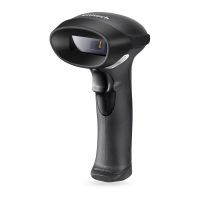
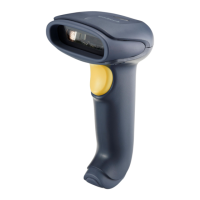
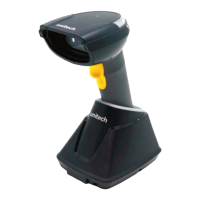
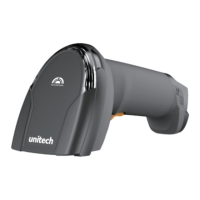
While not explicitly detailed in the excerpt, the image of the scanner suggests a handheld form factor, designed for comfortable use over extended periods. The placement of the trigger button is typically ergonomic, allowing for natural activation during scanning operations.
The MS840 is designed for durability and ease of maintenance, focusing on simple user-level actions and readily available support.
The interface cable is a critical component. To unplug the interface cable from the scanner, users need to release the connector lock. This is achieved by inserting one end of a paperclip into a designated slot in the handle, which disengages the lock and allows for safe removal of the cable. This mechanism helps prevent accidental disconnections and protects the connector from damage during removal.
Unitech provides comprehensive support for the MS840.
The MS840's design emphasizes reliability and user-friendliness, making it a robust solution for various barcode scanning needs. Its plug-and-play nature, flexible operating modes, and accessible support resources contribute to a positive user experience and efficient operation.
 General
| Scan speed | 100 sec/page |
|---|---|
| Wavelength | 650 nm |
| Decoding standards | Code 39, Full ASCII Code39, Interleave 2 of 5, Standard 2 of 5, UPC A/E, Delta Code, Label Code, MSI/ Plessy, Codabar, Code 11, EAN8/13, Code 93, Code 128, EAN128, Code, 32, Toshiba Code, GS1 |
| Pitch reading angle | 35 - 35 ° |
| Dimensions (WxDxH) | 176 x 74 x 89 mm |
| Input voltage | 5 V |
| Power consumption | 91 mA |
| Certification | CE, BSMI, VCCI, C-Tick |
| Product color | Blue |
| Storage temperature (T-T) | -30 - 70 °C |
| Operating temperature (T-T) | 0 - 50 °C |
| Cables included | USB |
 Weight and Dimensions
| Weight | 157 g |
|---|

 To Next Page