www.mynevo.com 13
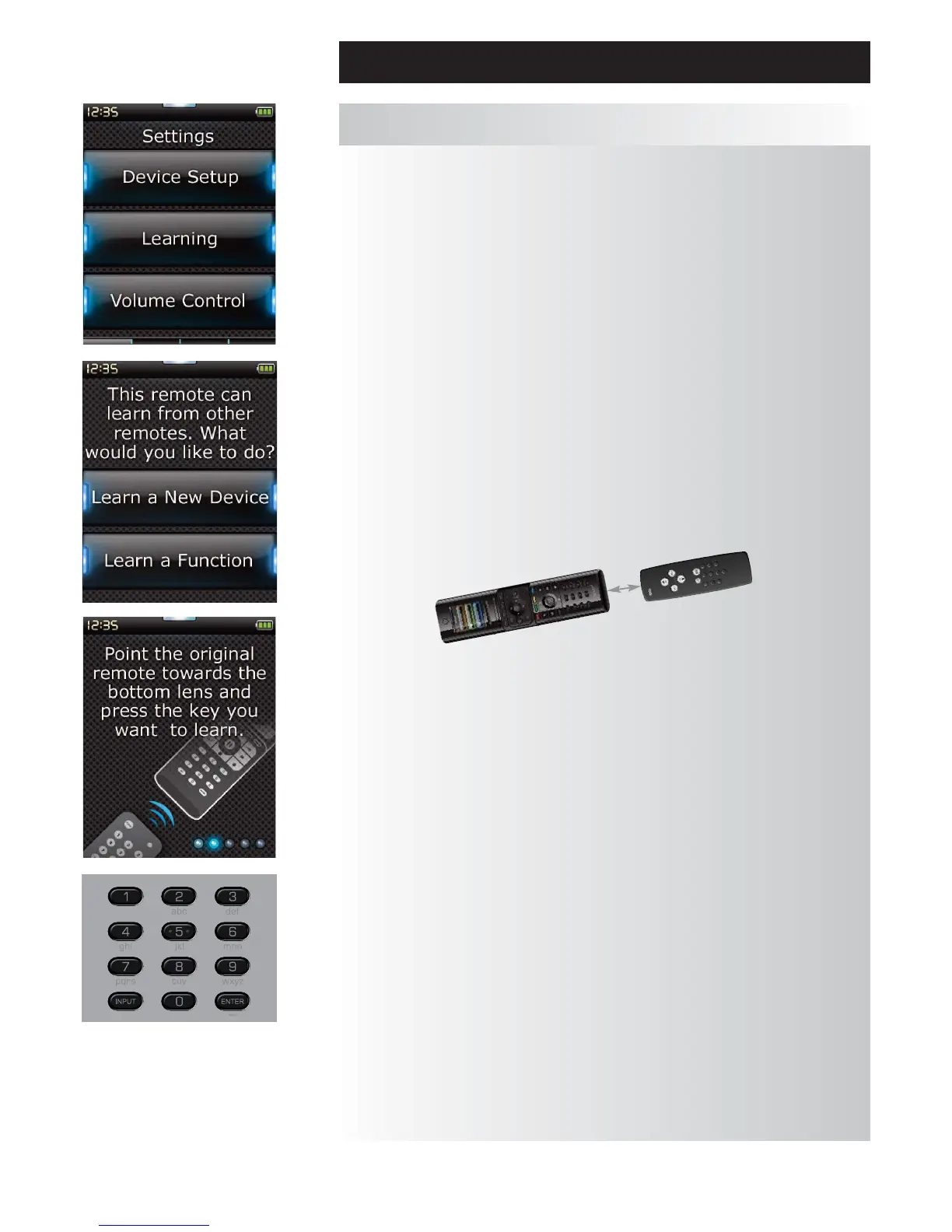
The Learning feature allows you to add functions from the original remote control(s) to Nevo.
Your original remotes should still be in working order to perform this process. This process can be used to
add missing keys or replace existing keys on devices that have already been set up, or even to add a com-
plete new device to your remote. When the Learning option is selected, you will be asked if you want to
learn a function or learn a new device. The next step is to select a key to learn onto, and to point the origi-
nal remote towards Nevo and press the key on the original remote you wish to learn. Finally, if the key is a
screen key, you will have the opportunity to re-label it using the digit keys. The full procedure is:
1) Select “Learning” from the Settings menu.
2) If you are learning a function only, select “Learn a Function”.
OR If you are learning a new device, select “Learn A New Device”.
Note: If you do not see the device type you want, scroll through the pages to view more.
3) If you are learning a function, select a key on the remote or press “On-Screen Keys” to choose a
key on the screen to learn a function onto.
Note: You can Learn onto any key or On Screen key in any Device except for the Home, Favorites,
Activities, and Devices keys.
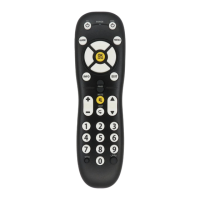
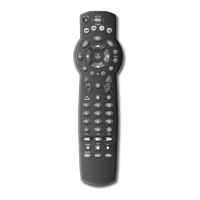
4) Locate the remote for the device you want to learn from. Align the source remote with the
bottom end of Nevo, no further than 5 inches apart, preferably between 2in and 5in (5cm and
12cm):
5) On the remote you are learning from, press the key you want to learn.
a. If the function is not learned correctly, an error message is displayed. Select “Yes” to try
learning again, or “No” to exit to the Settings menu.
b. If the key you are learning the function onto already has a function, you will be asked if you
want to overwrite it.
c. If a key function is learned correctly, it is saved to the memory and you can proceed to learn
another function.
d. If a screen key function is learned correctly, the remote will prompt you to save a label.
6) If the key learn
ed is a Screen key, use the numeric keypad to enter a key label.
a. Enter letters using the numeric keypad. As with a standard phone, the keypad keys can
represent letters and symbols. Press a key once to display the first letter or symbol associated
with that key; repeatedly press the key to display the other letters or symbols associated with
the key.
For example, to display the letter “J ”, press “5” on the numeric keypad; to display the letter “K”,
press “5” again.
To delete a letter, click “Clear”.
7) Click “OK”. The remote will save the new function.
Note: The remote will automatically place new on-screen keys in the first blank screen key space for the
particular device.
Learning
Settings








 To Next Page