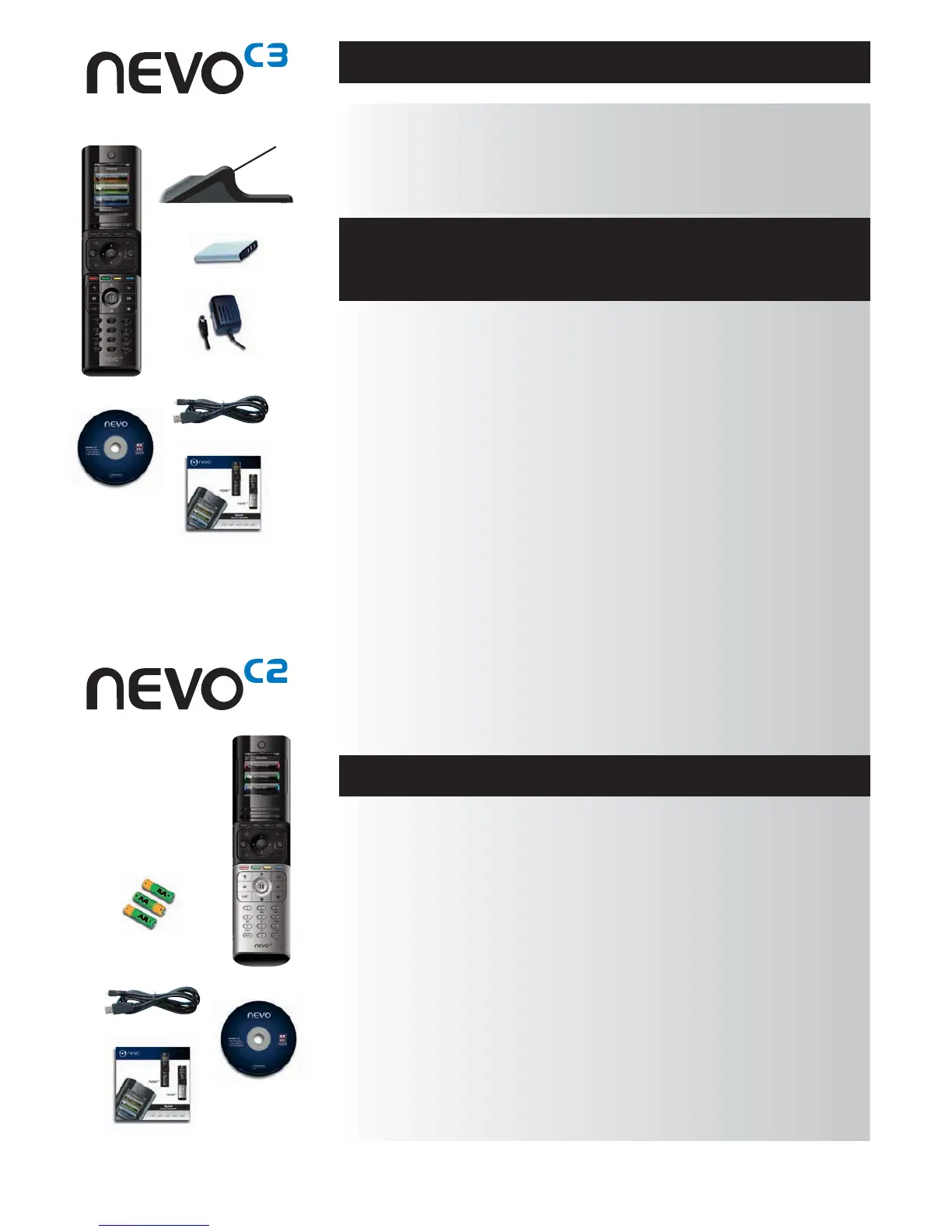
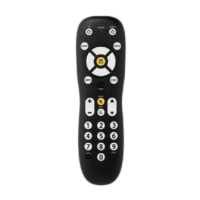
NevoC2 / NevoC3 are fully featured universal remote controls from Universal Electronics Inc. They offer
full control of all your infrared controlled Audio / Video devices, as well as high-end features such as
Learning, Profiles, and Activities Control. You can setup your remote to control your devices by following
the simple on-screen instructions on the remote, or connect to a PC for adding advanced features such as
Activities and Favorites.
Inside the packaging you will f
ind the following:
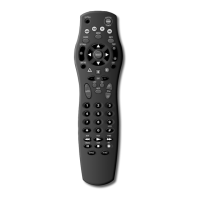
• Your Nevo Universal Remote Control
• Charging Cradle (NevoC3)
• AC/DC Adaptor for Charging Cradle (NevoC3)
• Lithium Ion battery (NevoC3) or3xAABatteries (NevoC2)
• USB Cable
• CD-ROM with remote software and User Manual
• Quick Start Guide
First, install the battery supplied in the packaging by matching the contacts + and – to the illustrations in
the battery compartment.
NevoC3 only: The supplied battery comes partially charged, but we recommend charging
the battery for approximately an hour before use.
To do this, connect the charging cradle to a power outlet using the supplied AC/DC Adaptor and place
the remote on the cradle. The display will show the “battery charging icon”. In order to fully charge
the remote, leave it in the cradle for approximately 4 hours.
To begin setting up your Nevo you have two options:
1) Follow the on-screen instructions on the remote while in front of the devices you wish to control.
This is the quickest method to set up the remote for basic control of your devices. For more
advanced setup, you can connect the remote to your PC once it is operating all your devices
correctly.
2) To use PC setup, including Activities, Favorites etc, insert the CD-ROM into your PC and follow the
install wizard. Connect the remote when prompted by the software using the included USB Cable.
To start using your remote at any time, simply touch it or press a key and it will respond and the backl
ight
will illuminate. You can adjust the amount of time the light is on for in the Settings Menu (see page 16).
NevoC2 and NevoC3 feature the following types of controls:
• hard keys on the remote’s front that let you control common device features.
• fully-interactive screen (NevoC3 features a Touch Screen) that provides functions for your devices
appropriate to your pattern of use.
www.mynevo.com 3
Getting to Know Nevo
Unpacking and Setting Up
NevoC3 or NevoC2
(Also see the Quick Guide)
Using Nevo Keys and Touch Screen
Charging Cradle
AC/DC Adaptor
for Charging Cradle
3x AA
Batteries
USB Cable
USB Cable
Lithium Ion battery
CD Rom
CD Rom
Quick Start Guide
Quick Start Guide





 To Next Page