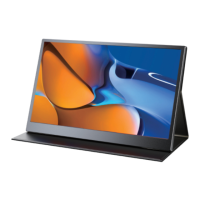
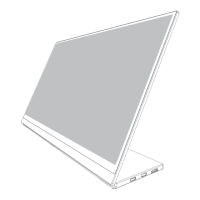
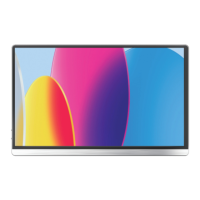
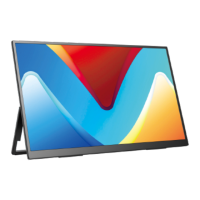
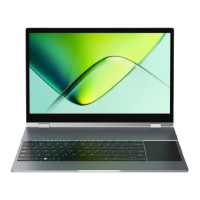
This document describes the 15.6-inch Portable Monitor.
Function Description
The monitor serves as an external display, offering a range of connectivity options and user-friendly features. It can be connected to various devices, including laptops, mobile phones, and gaming consoles, supporting both audio and video signal transmission. The monitor is designed for portability, making it suitable for users who need an external display on the go.
Important Technical Specifications
- Model: MD5-156A07
- Panel Type: IPS Screen
- Screen Size: 15.6 inch
- Aspect Ratio: 16:9
- Resolution: 3840*2160
- Visual Angle: 178°
- Contrast Ratio: 1000:1
- Brightness: 450 cd/m²
- Color Gamut: 100% sRGB
- Built-in Speakers: 8Ω2W
- Input Interface: HD Signal Transmission (Type-C full function / Power or Signal Transmission from Thunderbolt3 / Mini DP) / PD Power
- Output Interface: 3.5mm headphone interface
- Refresh Rate: 60 Hz
The monitor supports horizontal and vertical rotation, and can be set in your computer device for extended mode, vertical rotation 90 degrees, or 270 degrees.
Usage Features
Connectivity
The monitor offers diverse connectivity options:
- Type-C to Type-C Cable: For power and signal transmission.
- Standard HDMI Cable: For signal transmission.
- PD Adapter: For power.
Interface function introduction:
- A. Micro USB port: OTG interface, connected to the mouse and keyboard. Don't power the display by this Micro USB port.
- B. Power Button: Press button for 3 seconds to turn on/off the monitor.
- C. + port: Volume +/Brightness +.
- D. - port: Volume -/Brightness -.
- E. Menu port: Press to enter the OSD (On-Screen Display) menu.
- F. Exit port: Press to return to the previous operation.
- G. PD port: Handling higher power and allows a range of devices to charge quickly over a USB C connection.
- H. HP port: 3.5mm audio output. Connect external speakers, headphones or digital audio equipment.
- I. Type-C Port: Video signal transmission.
- J. Mini DP: Audio and video signal transmission.
- K. Standard HDMI: Audio and video signal transmission.
Connecting to Devices
-
Connecting to Computer with Type-C interface (Thunderbolt3):
- Connect using a Type-C to Type-C cable.
- External power is required; 4K models require PD Power.
- For optimal performance, ensure your computer's Type-C port supports video and audio signal transmission (Thunderbolt 3.1). If not, a Type-C to HDMI adapter may be needed.
- Important: 4K models need at least 9V 3A or above PD power. Use original cable and PD adapter. When "No signal" or "Power saving mode" appears, change the Type-C cable head to another side and connect to monitor again.
-
Connecting to Mobile Phone (USB3.1 Protocol with Type-C output function):
- Connect using a Type-C to Type-C cable.
- External power is required; 4K models require PD Power.
- Ensure your mobile phone's Type-C port supports video and audio signal transmission (USB 3.1). If not, a Type-C to HDMI adapter may be needed.
- Important: 4K models need at least 9V 3A or above PD power. Use original cable and PD adapter. When "No signal" or "Power saving mode" appears, change the Type-C cable head to another side and connect to monitor again.
-
Connecting to Nintendo Switch (connected to Gaming Devices without touch function):
- Connect using a Type-C to Type-C cable.
- External power is required; 4K models require PD Power.
- In the case of external power supply, the display supports Type-C connection by using the standard wiring materials with the Switch mainframe. Turn on the Switch TV mode. When an external PD Agreement power supply is used, the external power supply can supply power to the display and Switch simultaneously. The battery of the Switch is charged. The output is 1080P.
-
Connecting to Computer with HDMI interface (Video/Audio signal):
- Connect using a Standard HDMI cable.
- External power is required; 4K models require PD Power.
- The monitor has a Standard HDMI interface and is compatible with most HDMI devices. When connecting a computer to HDMI interface, you need to connect the HDMI cable firstly, and then connect the USB to Type-C cable. Some computer USB ports may suffer from a power shortage and require an external 5V power supply.
- Note: 4K models need to use at least 9V 3A or above PD power. When connecting to HDMI devices, you need to connect the HDMI cable firstly, and then connect the USB to Type-C cable.
-
Connecting more HDMI devices (e.g., PS4, Xbox):
- Connect using a Standard HDMI cable.
- External power is required; 4K models require PD Power.
- Operation Notes:
- Please operate the display by using the original accessories in the package.
- When an external HDMI cable is connected, please connect the power supply firstly, and then connect HDMI to ensure the signal transmitted smoothly.
- When the single-line connection to the Type-C interface, the screen will flash, and under voltage will result in Black screen, so please make sure to connect the PD power supply.
- When connected with a Windows 10 system computer, if the screen displays abnormally, please turn off HDR in the computer system settings or open HDR in the monitor menu.
The OSD menu allows users to adjust various display settings:
- Brightness: Adjust brightness, contrast, blackness, and sharpness.
- Image: Adjust image settings like position, clock, phase, and aspect ratio.
- OSD Setting: Adjust OSD language, H-position, V-position, OSD timer, and transparency.
- Reset: Reset all settings to default.
- MISC: Adjust settings for low blue light, free sync, and signal source.
Installing the Stand Case
The stand case can be installed in several steps:
- Step1: Place the holster as shown above, part "1" is magnetic. Length is about 6.7 inch. Note: Inside is the diamond texture.
- Step2: Place the monitor as shown above, part "1" can be sticky.
- Step3: Stick the Leather cases "1" part to monitor "1"part.
- Step4: Fold 5 over 4.
- Step5: Stand up the monitor and adjust the angle.
Maintenance Features
General Precautions
- Read the user manual carefully before using the product.
- Avoid placing the monitor in an environment with high humidity or extreme temperatures.
- Do not drop or throw objects onto the screen.
- Do not put any object or splash any liquid into the openings of the device casing.
- Use the power cord provided with the machine. If you use other power cord, which is not provided by the Seller, or the power cord with the device is damaged, please contact our professional After-Service Team immediately.
- Do not attempt to open the rear case of the device. There are no spare parts in the device that the customers can use to repair. If any abnormality occurs, please contact our professional After-Service Team immediately.
Troubleshooting (FAQ and Solution)
-
Display is off and the power indicator is off:
- Press the power button to check if the display is on.
- Check whether the connection method is correct.
- Check whether the original wire power connector is used.
- If possible, try to connect the monitor with another your another device. If no singal yet, please do as follows;
- The above methods still can't solve the problem. Please contact us. We will give you the most professional and satisfactory reply within 12 hours.
-
Monitor and computer are connected directly using an HDMI cable, it displayed "NO SINGAL" OR "POWER SAVING":
- Check whether the signal cable is properly connected to the device interface, and try to plug it in again;
- While cable connecting, you should connect the power supply firstly, and then connect the signal cable;
- Check if you use the original cable and adapter;
- If possible, you can try to connect the monitor with your another device, if no singal yet, please do as follows;
- The above methods still can't solve the problem. Please contact us. We will give you the most professional and satisfactory reply within 12 hours.
-
An Transfer adapter was used during the connection between the monitor and the computer and the monitor displayed "NO SINGAL" OR "POWER SAVING":
- Check whether the signal cable is properly connected to the device interface, and try to plug it in again.
- While cable connecting, you should connect the power supply firstly, and then connect the signal cable;
- Check if you use the original cable and adapter;
- If possible, you can try to connect the monitor with your another device, if no singal yet, please do as follows;
- The above methods still can't solve the problem. Please contact us. We will give you the most professional and satisfactory reply within 12 hours.
-
Monitor and the computer are directly connected with one" Type C to Type C " cable and it displayed "NO SINGAL" OR "POWER SAVING":
- Not all computers can support one "Type C to Type C" cable for power and singal transmission. Please check if your device supports thunderbolt 3;
- If your computer does not support the thunderbolt 3, you need to use "Type C to HDMI" adapter to transfer singal transmission. Please contact us and we will give you the most professional and satisfactory response within 12 hours;
-
Monitor and the mobile phone are directly connected with one" Type C to Type C " cable and it displayed "NO SINGAL" OR "POWER SAVING":
- Not all mobile phones can support one "Type C to Type C" cable for power and singal transmission. Please check if your device supports USB 3.1;
- If your mobile phone does not support the USB 3.1, you need to use an "C-S/Android to HDTV" cable for singal transmission. You can also contact us to get it and we will give you the most professional and satisfactory response within 12 hours;
-
Power indicator is on, the screen is black or the screen is fixed:
- Check if the device is in the default extension mode. If it is the default extension mode, Change to Copy Mode / Mirror Mode and the screen will appear;
- If possible, you can try to connect the monitor with your another device, if no singal yet, please do as follows;
- The above methods still can't solve the problem. Please contact us. We will give you the most professional and satisfactory reply within 12 hours;
-
Screen image flickers or a ripple pattern appears in the image:
- Make sure the cable is properly connected between the monitor and the connected device. Move away the electronic equipment that may cause electronic interference;
- If possible, you can try to connect the monitor with your another device, if no singal yet, please do as follows;
- The above methods still can't solve the problem. Please contact us. We will give you the most professional and satisfactory reply within 12 hours;
-
Screen image colors do not look right (color blocks, color cast, etc.):
- Check the connection cable to make sure that no pins are bent;
- If possible, you can try to connect the monitor with your another device, if no singal yet, please do as follows;
- The above methods still can't solve the problem. Please contact us. We will give you the most professional and satisfactory reply within 12 hours;
-
Flicker appears on the screen:
- The flickering of the screen needs to consider whether the power supply is sufficient. It is recommended to use a PD adapter;
- If possible, you can try to connect the monitor with your another device, if no singal yet, please do as follows;
- The above methods still can't solve the problem. Please contact us. We will give you the most professional and satisfactory reply within 12 hours;
-
Display resolution output less than 4k 60hz. This is not a Problem with the display:
- Connect a computer to the display to 4k as the device;
- Connect another device to see if the output resolution is 4k;
- If the resolution cannot be adjusted, please confirm whether your device 's graphics card supports 4k. If the graphics card is old and cannot support 4k, the resolution of the display output will also be lower than 4k. If you are convenient, you can contact us and send us the graphics card information and we will help you determine the specific cause;
-
I set a fixed parameter on the display, but I use it again, the set parameters are aging, and the display has no memory function?
- The display has a memory function;
- The cause of this phenomenon is that the monitor does not have an external power. The monitor does not have a memory function in the energy-saving mode. You need an external power source to have a memory function;
-
I can't adjust the brightness and contrast?
- The monitor can adjust the brightness and contrast;
- Please check if your monitor is running "RTS", "GAME", "TXT", "MOVIE" mode in ECO, and check if HDR mode is turned on. When these modes are turned on, the brightness contrast of the monitor is Fixed. You can adjust them by turning off these modes;
-
I cannot use the freesync function?
- No, you can use it;
- This function needs to be turned on in "GAME" mode;
- You need to set your monitor to "GAME" mode, and please refer to the "OSD Introduction" section of the manual;
Warranty Card
The product comes with a warranty:
- 100% money back guarantee in 30 days.
- Replacement in 90 days.
- 12 months warranty for any issue.
- Professional tech support to ensure no-worry service.
For any query or problem, contact help@uperfectmonitor.com.

 Need help?

 To Next Page
 General