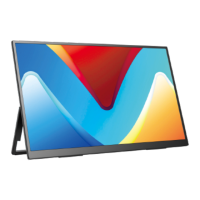
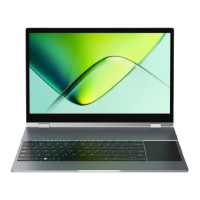
This document serves as a comprehensive user manual for a 16-inch portable monitor, guiding users through its setup, operation, and troubleshooting. The monitor is designed to enhance productivity and entertainment by providing an additional display for various devices.
Function Description
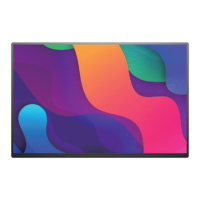
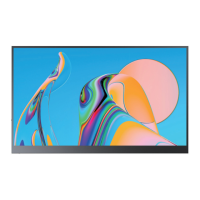
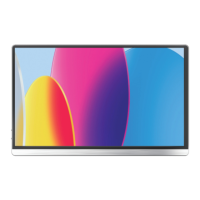
The 16-inch portable monitor functions as an external display, capable of extending or duplicating the screen of a laptop, desktop computer, or compatible mobile phone. It supports both Type-C and HDMI signal inputs, offering versatility in connectivity. The monitor is powered via a Type-C port, with a dedicated PD (Power Delivery) port for stable power supply, especially when using higher resolutions or for extended periods. It also includes a 3.5mm audio jack for connecting earphones, allowing for private audio output. Integrated speakers provide basic audio functionality. The monitor is designed to be highly portable, making it suitable for on-the-go professionals, students, and anyone needing an additional screen outside of a traditional office setup.
Usage Features
Initial Setup and Connectivity:
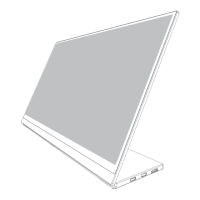
To begin using the monitor, users must first install the stand case, which involves a magnetic and folding mechanism to securely position the monitor. The manual provides clear, step-by-step instructions with illustrations for this process.
Connecting to Devices:
- Type-C Signal Transfer: For devices supporting USB 3.1 or Thunderbolt 3 (audio and video signal transmission), a single Type-C to Type-C cable can be used for both power and signal. The manual emphasizes using the original power adapter for a more stable power supply, especially with 2K monitors which have higher power consumption. A list of supported laptop and mobile phone models (Apple, Google, Lenovo, Dell, HP, ASUS, Huawei, Razer, Samsung) is provided, along with a crucial note to verify if the device's Type-C port supports audio and video signal transmission, not just charging. If a device only has a Type-C port for charging, an HDMI connection is necessary.
- HDMI Signal Transfer: For devices that do not support Type-C video output or for more traditional connections, an HDMI cable can be used. Similar to Type-C, it is recommended to use the original power adapter for stable power. The manual also addresses scenarios where a device's Type-C port is not full-featured (e.g., micro USB, Lightning port, or specific Google Pixel models), suggesting the need for an adapter and offering assistance to customers in acquiring the correct one.
Display Modes (Windows 10):
The monitor supports various display modes, including Extend Mode, Duplicate Mode, and Display Mode, which can be configured through two methods:
- Device's Display Settings: Users can right-click on the desktop, select "Display settings," and then navigate to "Multiple displays" to choose their preferred display option (e.g., "Extend desktop" for a larger work area).
- Windows Key + P Keyboard Shortcut: A quicker method involves pressing the "Windows" key and "P" simultaneously to bring up a project menu, allowing users to select options like "PC screen only," "Duplicate," "Extend," or "Second screen only."
The manual advises users to click "Detect" if the monitor is not recognized and to restart the computer if issues persist.
Screen Rotation:
The monitor's orientation can be adjusted to Landscape or Portrait mode. This is done through the "Display settings" in Windows 10, under the "Scale and layout" section, by selecting the desired orientation from the drop-down menu.
On-Screen Display (OSD) Menu and Screen Adjustment:
The monitor features a "Pulley Button" for navigating and adjusting settings within the OSD menu.
- Navigation: Scrolling the Pulley button up or down in the main interface adjusts volume or brightness, respectively. Pressing the button enters the OSD menu. Within the menu, scrolling moves the cursor, and pressing confirms selections.
- Settings: The OSD menu allows users to adjust various parameters, including:
- Brightness: Controls the screen's luminosity.
- Color Temp: Adjusts the color temperature of the display.
- Reset: Resets all settings to factory defaults.
- Image Adjustment: Includes options for backlight, contrast, and sharpness.
- Display Settings: Allows for auto-adjustment, horizontal and vertical position, and clock settings.
- Advanced Settings: Provides options for Panel Uniformity, Gamma, Temperature, Color Effects, DDCCI, Ultra Vivid, DP Option, and DPMST.
- Input Selection: Allows users to manually select the input source (e.g., D1:DP, D3:HDMI).
- Audio Settings: Includes volume control, mute, and audio source selection.
- Information: Displays current resolution, refresh rate, and HDCP status.
The manual provides a detailed example of how to adjust backlight (brightness) using the Pulley button, illustrating the general process for all OSD settings. A note clarifies that certain factory-debugged settings, indicated by a black image, cannot be adjusted by the user.
Saving Settings:
Settings are saved automatically for HDMI signal sources. For Type-C signal sources, the monitor needs to be connected to an external power supply for settings to be saved.
Maintenance Features
Troubleshooting (Q&A Section):
The manual includes a comprehensive Q&A section to address common issues:
- Abnormal Conditions (Splash Screen/Spots): Often caused by insufficient voltage. Users are advised to check if factory-packed cables and an external PD power supply are used, especially for 2K monitors. If issues persist, trying another computer or replacing the cable is suggested.
- "NO SIGNAL" or "POWER SAVING": This can be due to incompatible Type-C ports (not supporting USB3.1/Thunderbolt 3), incorrect connections, low monitor battery, or faulty cables. Solutions include verifying Type-C compatibility, using an HDMI adapter if necessary, ensuring correct cable connections (using genuine cables), supplying external power, and trying another computer or replacing the touch cable.
- Google Phone Connectivity: Some Google phones may not connect directly if their Type-C port does not support USB3.1. Users are advised to confirm their phone's compatibility and may need an "IOS / Android to HDTV" cable, which the support team can provide.
- Camera and Monitor Usage: Not all cameras can be directly connected. Users are asked to provide their camera model and interface for assistance.
- Monitor Constantly Restarting: This typically indicates insufficient power. Users should ensure they are using the provided genuine cable and, if using a mobile power bank, confirm it is a PD power bank of 30W or more. Trying another computer or replacing the cable are also suggested if power issues are ruled out.
Service Support:
The manual emphasizes customer support, offering a 100% money-back guarantee within 30 days, 90-day replacement, and a 12-month warranty. Users are encouraged to contact help@uperfectmonitor.com for any queries or problems. A flowchart illustrates the support process based on customer satisfaction and specific issues (Quality Problem, Do Not Like It, User Manual Problem, Missing Accessories, Package Damaged), guiding users to contact support for free replacement/refund, instructions, or compensation.

 Need help?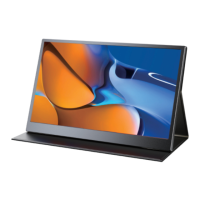

 To Next Page
 General