Need help?
Do you have a question about the UPERFECT M156C10 and is the answer not in the manual?
Lists items included in the product package.
Details the physical appearance and interface ports of the monitor.
Step-by-step guide to attaching the monitor stand.
Lists technical specifications like model, resolution, brightness, and interfaces.
Instructions for connecting the monitor via Type-C port.
Instructions for connecting the monitor via HDMI port.
Setting up Extend/Duplicate display modes in Windows 10.
How to change screen orientation to Landscape or Portrait.
Using physical buttons to adjust screen brightness and volume.
Guide to navigating and using the OSD menu for settings.
Adjusting OSD parameters like color, brightness, and saving settings.
Addresses common problems like screen issues, flickering, and no signal.
Resolving connection problems and display anomalies.
Addressing power supply problems and settings saving issues.
Details warranty, return, and contact information.
Explains meanings of FPS, OD, HDR, DCR in menu options.
This document serves as the user manual for a 15.6-inch 4K portable monitor, providing comprehensive instructions for its setup, operation, and troubleshooting. It is designed to help users maximize their experience with the device, covering everything from initial preparations to advanced screen adjustments and service support.
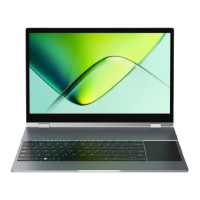
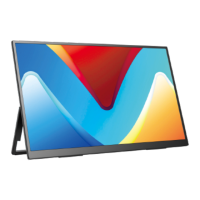
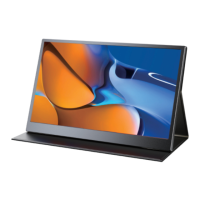
The 15.6-inch 4K portable monitor is a versatile display solution designed for enhanced productivity and entertainment on the go. It offers a high-resolution visual experience, making it suitable for a wide range of applications, including extending laptop displays, duplicating smartphone screens, and connecting to gaming consoles. The monitor supports both Type-C and Mini HDMI signal inputs, allowing for broad compatibility with various devices. Its portable nature, complemented by a smart cover that doubles as a stand, makes it an ideal companion for mobile professionals, students, and anyone needing an additional screen.
The monitor's core function is to provide an external display for compatible devices. When connected via Type-C, it can receive both power and video signals from a single cable, simplifying setup and reducing cable clutter. For devices without full-feature Type-C ports, the Mini HDMI input allows for video signal transmission, typically requiring a separate power source. The 4K resolution ensures crisp, detailed images, enhancing the viewing experience for tasks such as graphic design, video editing, and media consumption.
Preparations and Package Contents: Before using the monitor, users are advised to check the package contents to ensure all necessary items are present. The standard package includes the portable monitor, a power adapter, a smart cover, a mini HDMI to HDMI cable, and a Type-C to Type-C cable. A user guide is also included to assist with setup. In case of any missing or damaged items, users are encouraged to contact customer support immediately.
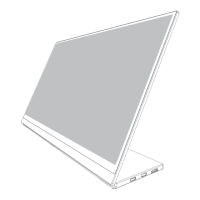
Monitor Introduction and Interface: The monitor features several ports and buttons for connectivity and control. Key interfaces include:
Installing the Stand Case: The smart cover doubles as a stand, offering multiple viewing angles. The installation process involves:
Connecting Devices (Type-C Signal Transfer): For Type-C connections, the monitor can receive both power and video signals from a single cable, provided the connected device's Type-C port supports audio and video signal transmission (Thunderbolt 3). For 4K resolution, higher voltage power is recommended, and users are advised to use the original PD adapter for stable power supply. The manual lists compatible laptop and mobile phone models, emphasizing the need for USB 3.1 support for mobile phones. If a device's Type-C port is only for charging, an HDMI connection is required for signal transmission.
Connecting Devices (HDMI Signal Transfer): For HDMI connections, the mini HDMI to HDMI cable is used for signal transmission. Similar to Type-C, a stable power supply is crucial for 4K resolution, and the original PD adapter is recommended. For devices with Lightning ports (e.g., iPhone 14), a Lightning to HDMI cable is necessary, which can be obtained by contacting customer support.
Setting Up (Windows 10): The manual provides detailed instructions for configuring display modes on Windows 10:
Windows key + P opens a project menu, allowing users to select "PC screen only," "Duplicate," "Extend," or "Second screen only."Screen Adjustment: The monitor offers quick shortcuts for common adjustments:
On-Screen Display (OSD) Menu Introduction: The OSD menu provides comprehensive control over monitor settings:
Saving Settings: For HDMI signal sources, monitor settings are saved directly. For Type-C signal sources, the monitor needs to be connected to an external power supply for settings to be saved.
Troubleshooting (Q&A): The manual addresses common issues and provides solutions:
Definitions of Menu Options: The manual clarifies terms found in the OSD menu:
Service Support: The manufacturer offers comprehensive service support, including:
help@uperfectmonitor.com for any queries or problems. The manual includes a flowchart for various scenarios:The manual emphasizes the importance of reading the instructions carefully to ensure safe use and proper maintenance of the product.
 General
| Screen Size | 15.6 inches |
|---|---|
| Panel Type | IPS |
| Refresh Rate | 60 Hz |
| Response Time | 5ms |
| Brightness | 300 cd/m² |
| Contrast Ratio | 1000:1 |
| Aspect Ratio | 16:9 |
| Viewing Angle | 178° |
| Color Gamut | 100% sRGB |
| VESA Mount | No |
| Resolution | 1920 x 1080 (FHD) |
| Connectivity | USB-C, Mini HDMI |
| Power Supply | 5V/2A |
| Built-in Speakers | Yes |
| Ports | 2 x USB-C, 1 x Mini HDMI, 1 x 3.5mm Audio Jack |

 To Next Page