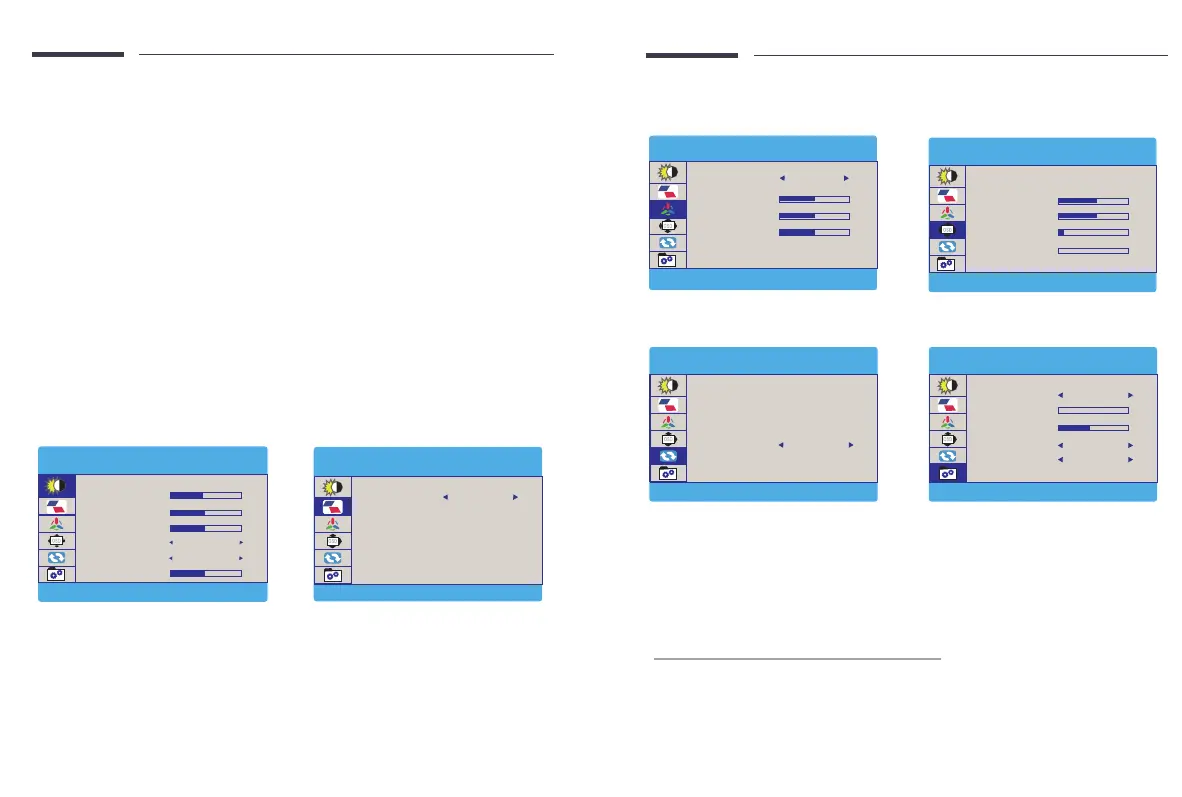
Pulley Button - Setting Parameters
After turning on the power, press the pulley button to enter the menu setting, image
adjustment, brightness, color setting, OSD setting, reset, etc. at your own convenience
For example:
Backlight (brightness) setting
① Press the menu button to start installing the monitor.
② Scroll the menu button up and down to move to the image installation.
③ Press the menu button again to enter the image settings.
④ Scroll the menu button up and down to move to the backlight.
⑤ Press the menu button again to enter the backlight setting.
⑥ You can adjust the brightness by scrolling the menu button up and down.
You can set up other installations in the same way.
ECO: You can select the appropriate mode according to your usage
environment. Select RTS, FPS, Text, Movie, Game Mode
brightness/BLACK LEVEL/contrast can be set.
DCR: You can select OFF or ON.
HDR MODE: Includes AUTO/2084/OFF.
Note: when set to AUTO and 2084
Contrast/Brightness cannot be set.
LOW BLUE LIGHT: Reduces the eects of blue light.
(adjustment range: 0/25/50/75/100)
FREESYNC: You can select OFF or ON.
On-Screen Display Menu Introduction
BRIGHTNESS
CONTRAST
ECO
DCR
47
50
52
SHARPNESS
2
OFF
BRIGHTNESS
BRIGHTNESS
BLACKLEVEL
STANDARD
IMAGE
Q&A
A SPECT
IMAGE
WIDE
SAVE SETTINGS
How to save all the settings of the monitor?
1.If it is an HDMI signal source, the monitor settings can be directly
2.If it is a TYPE C signal source, the monitor need to connected to an external power supply rst, then
you can save the settings.
MISC
Q&A
VOLUME
FREESYNC
SIGNAL SOURCE
MISC
LOW BLUE LIGHT
AUTO
OFF
OD
OFF
0
46
3840 2160 60HZ
X
COLOR TEMP OSD SETTING
RESET
Q&A
IMAGE AUTO ADJUST
RESET
COLOR AUTO ADJUST
RESET
HDR MODE
OFF
OSD V. POS
OSD T IMER
TRANSPARENCY
LANGUAGE
OSD SETTING
OSD H. POS
50
50
10
0
GREEN
BLUE
COLOR TEMP
COLOR TEMP
RED
50
50
50
USER
Email: help@uperfectmonitor.com Email: help@uperfectmonitor.com


 To Next Page