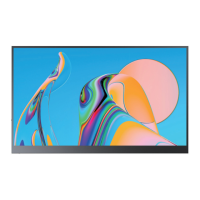
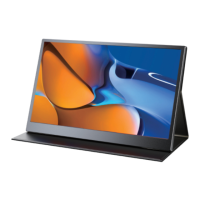
Rotate the Screen
Note: If you cannot see the additional monitor(s) listed, click Detect. If does
not work, try restarting your computer and do steps again.
1: Verify that your cables are connected properly to the new monitors.
2: Right-click anywhere on your desktop and select Display settings to open the Display page.
3: Under the "Select and rearrange displays" section, select the monitor that you want to adjust.
4: Under the "Scale and layout" section, use the Orientation drop-down menu to select
Landscape or Portrait screen.
Settings
Home
Find a setting
System
Display
Sound
Notications & actions
Focus assist
Power & sleep
Storage
Tablet mode
Multitasking
Projecting to this PC
Shared experiences
Clipboard
Remote Desktop
Display
HDR and WCG
O
HDR and WCG settings
Scale and layout
Change the size of text,apps,and other items
125%
Andvanced scaling settings
Resolution
3840 × 2160(Recommended)
Orientation
Landscape
Portrait
Landscape(ipped)
Portrait(ipped)
Extend desktop to this display
Make this my main display
Andvanced display settings
Graphics settings
Chapter 05
Screen Adjustment
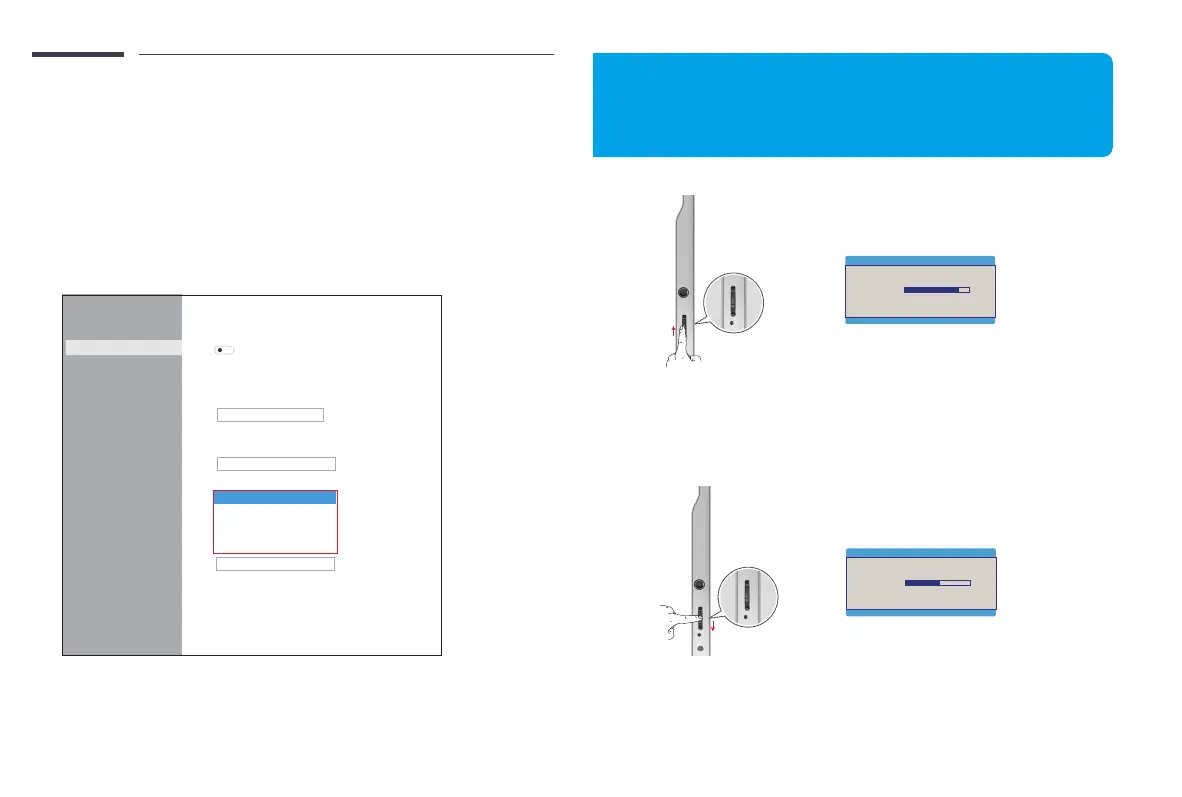
1. Use shortcuts to adjust brightness
2. Use shortcuts to adjust the volume
BRIGHTNESS
100
VOLLUME
66
Steps :Slide up to show the brightness interface > Adjust the
brightness with the "+" and "-" signs > Press the exit button to
exit the interface.
Steps :Slide down to show the volume interface > Adjust the
volume with the "+" and "-" signs > Press the exit button to exit
the interface.
Email: help@uperfectmonitor.com Email: help@uperfectmonitor.com


 To Next Page