Urive HIT ... 22 ... User's Guide
09
GUI - Menu screen
#
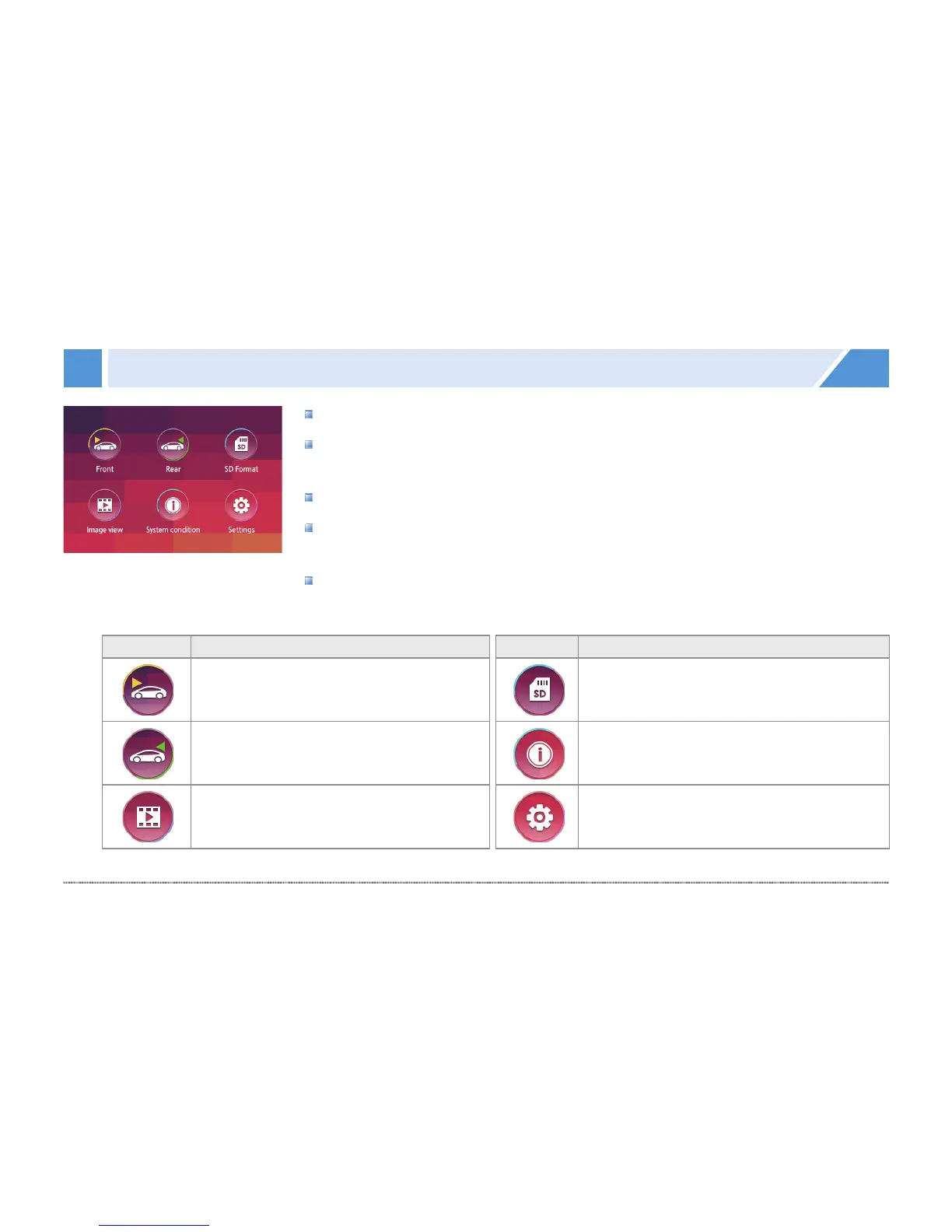
In the drive mode, touch the LCD to show the menu screen.
#
The menu screen has 6 icons: Front view, Rear view, SD Format, Image view,
System condition, and Settings.
#
In the menu screen, video and voice recording doesn't stop.
#
Screen saver on: With no action for 1 minute, it shifts to the screen saver, which
turns off the LCD in 2 minutes if there is no action again.
#
Screen saver off: With no action for 2 minutes, the LCD is turned off.
Icon Meaning
Front view Shows real-time video of
the front camera.
Rear view Shows real-time video of
the rear camera.
Image view
Lists recorded videos.
Icon Meaning
SD Format
Formats the SD card.
System condition Firmware version,
SD card space, etc. You can check the
information of the black box.
Settings You can change the
information of the black box.


 To Next Page