EasyManua.ls Logo

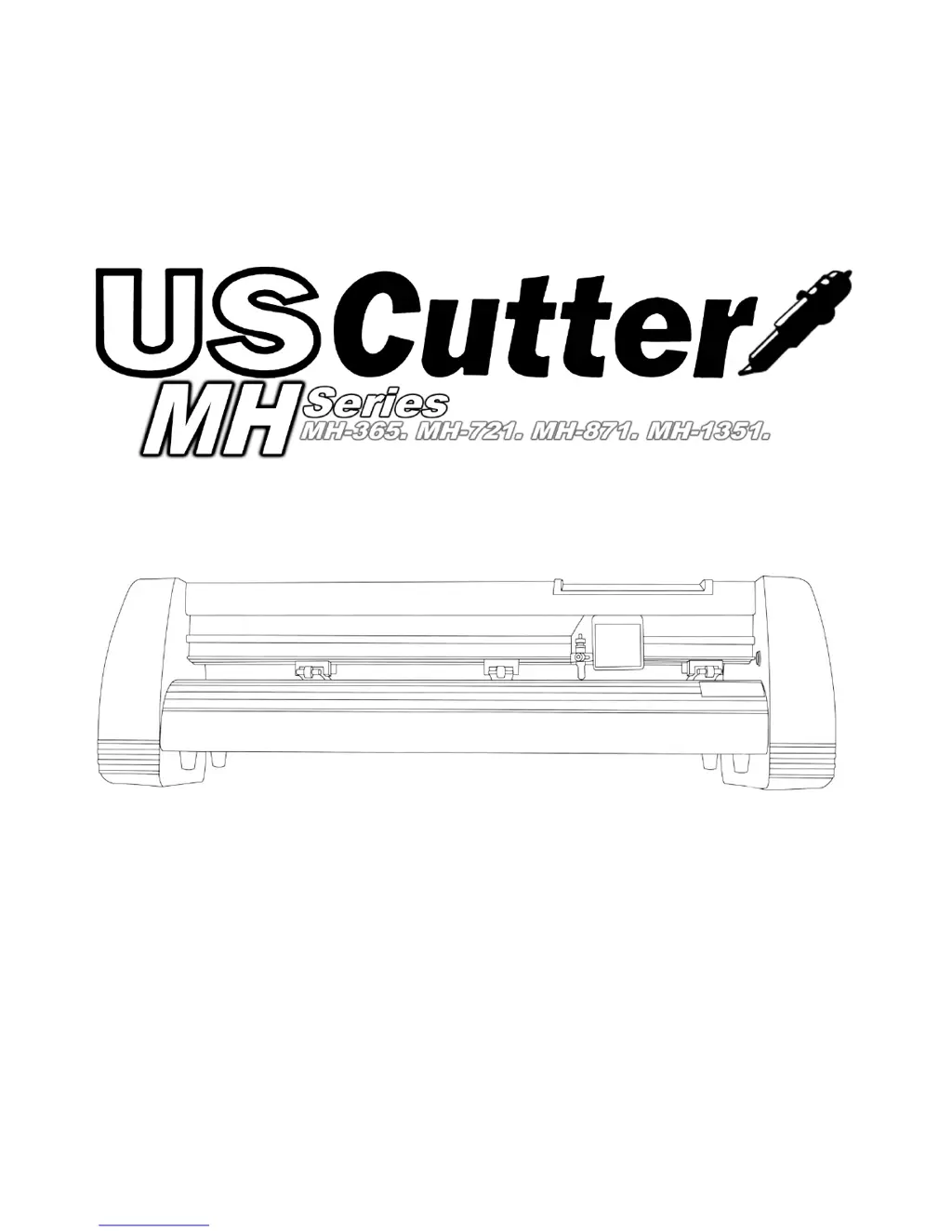
US Cutter MH-871 - User Manual

Default Icon
42 pages
Print Icon
To Next Page IconTo Next Page
Loading...

Questions and Answers

  • R
    Richard RobinsonAug 5, 2025
    What to do if US Cutter cutter is unresponsive to SignBlazer?
    • H
      Howard GrahamAug 5, 2025
      If your US Cutter cutter is unresponsive, exiting the cutter screen in SignBlazer and returning to the main screen might help. If the issue persists, save your work, then exit and restart SignBlazer with the cutter powered on. To prevent future communication problems, always start SignBlazer with the cutter already powered on. Also, verify that the output device in SignBlazer is set to the correct COM port. You can adjust the COM port by right-clicking it in the device manager, navigating to the advanced section of the Port Settings tab, and changing your Flow Control settings to Hardware.

Summary

Control Panel

Main Screen

Overview of the cutter's main screen interface and button functions.

Setting up

Connecting the Cutter to a Computer

Instructions for establishing a connection between the cutter and a computer.

Finding Your COM Port

Steps to identify the correct COM port for software configuration.

Installing SignBlazer Software

Procedure for installing the necessary cutting software.

Installing a New Blade

Detailed instructions for installing a new cutting blade.

Step By Step Instructions

Starting SignBlazer

Guide to launching and initializing the SignBlazer software.

Troubleshooting

US Cutter MH-871 Specifications

General IconGeneral
Max Cutting Speed48 in/sec
Weight44 lbs (20 kg)
ConnectivityUSB
Drive MotorStepper
InterfaceUSB
Maximum Cutting Force350 grams
Power Supply110V
Blade TypeRoland Compatible

Related product manuals