EasyManua.ls Logo

Utax P-3520D - User Manual

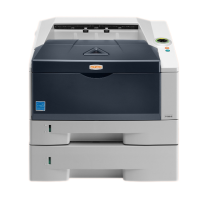
Utax P-3520D
106 pages
Print Icon
To Next Page IconTo Next Page
Loading...
USER MANUAL
P-3520D
P-3521D
Print
A4
LASER PRINTER B/W

Table of Contents

Questions and Answers

  • S
    schambersAug 15, 2025
    How to troubleshoot Utax P-3520D Printer that will not print from computer?
    • B
      brandynguyenAug 15, 2025
      If your Utax printer isn't printing from the computer, first check for any errors and clear them. If the status page prints correctly, the issue might be the connection to the computer; verify the connection. Also, ensure the printer is on and the Ready indicator is lit before attempting to print again.
  • G
    garciamarilynAug 18, 2025
    What to do if a paper jam occurred during printing in Utax printer?
    • B
      brian41Aug 19, 2025
      If a paper jam occurs during printing with your Utax printer, open the printer cover and carefully remove the jammed paper.
  • N
    Nicole HarrisAug 21, 2025
    What to do when the toner has run out in Utax printer?
    • K
      kyleberryAug 21, 2025
      If the toner has run out in your Utax printer, replace it with a new toner container and then clean the inside of the printer.
  • C
    Chad GordonAug 25, 2025
    Why is the printing from my Utax printer faint or blurred?
    • A
      Alejandro MendozaAug 25, 2025
      If your Utax printer is producing faint or blurred prints, check the toner container and replace it if necessary. Also, try cleaning the charger wire.
  • A
    amygreenAug 27, 2025
    How to fix vertical streaks on prints from Utax P-3520D?
    • C
      Courtney ManningAug 27, 2025
      If your Utax printer is producing prints with vertical streaks, check the toner container and replace it if needed. Additionally, clean the charger wire and ensure the charger cleaner of the drum unit is in its original position.
  • R
    Robert LawsonAug 30, 2025
    Why is my Utax P-3520D Printer producing completely blank printouts?
    • T
      Travis ShermanAug 30, 2025
      If your Utax printer is producing completely blank printouts, check the toner container. Open the front cover and ensure the toner container is correctly installed in the printer.
  • A
    Angela LeeSep 2, 2025
    What to do if Utax P-3520D prints status page but not computer data?
    • P
      phillipobrienSep 2, 2025
      If your Utax printer prints a status page but not data from the computer, try printing another file or using a different print command. If the issue is specific to a file or application, verify the printer settings for that application. Also, ensure both ends of the interface cable are securely connected and try replacing the printer cable.
  • J
    James LongSep 5, 2025
    How to resolve gray background issue on Utax P-3520D prints?
    • D
      Dr. Jermaine RiceSep 5, 2025
      If your Utax printer's prints have a gray background, check the toner container and replace it if necessary. Also, make sure the developer unit and drum unit are installed correctly.
  • M
    Maureen AbbottSep 8, 2025
    Why is printing from my Utax P-3520D incomplete or out of position?
    • J
      Jordan RobinsonSep 8, 2025
      If your Utax printer's prints are incomplete or out of position, verify that the printing settings are correct in both the application software and the printer driver.
  • B
    Brent McneilSep 12, 2025
    Why is vapor emitted near the top tray of my Utax P-3520D?
    • S
      Susan BrownSep 12, 2025
      If vapor is being emitted near the top tray of your Utax printer, it might be due to low room temperature or the paper being exposed to humidity. Increase the room temperature and use paper stored in a dry place to correct this.

Summary

Machine Parts

Loading Paper

Selecting the Right Paper

Guides users on choosing appropriate paper types, sizes, and conditions for optimal printing.

Loading Paper into Cassette

Provides step-by-step instructions for loading paper into the main printer cassette.

Loading Paper into MP (Multi-Purpose)Tray

Guides users on how to load paper into the printer's multi-purpose tray.

Connecting and Printing

Connections

Details how to connect the printer to a computer via USB and power.

Installing the Printer Driver

Explains the process of installing the necessary printer driver software on Windows and Macintosh.

Printing

Describes how to perform printing tasks using the printer driver settings.

Maintenance

Toner Container Replacement

Provides instructions and information on replacing the toner container when it's low or empty.

Cleaning the Printer

Details procedures for cleaning internal printer components to maintain print quality.

Troubleshooting

Print Quality Problems

Helps diagnose and fix issues related to print output quality.

Understanding Indicators

Explains the meaning of various indicator lights and their combinations for troubleshooting.

Cleaning Paper Jams

Provides detailed steps for clearing paper jams from different locations within the printer.

Utax P-3520D Specifications

General IconGeneral
Print TechnologyLaser
Print Speed (A4)35 ppm
Print Resolution1200 x 1200 dpi
Monthly Duty Cycle100, 000 pages
ConnectivityUSB 2.0, Ethernet
Duplex PrintingYes
Multi-purpose Tray Capacity100 sheets
Maximum Input Capacity850 sheets
Standard Output Capacity150 sheets
Maximum Output Capacity150 sheets
Supported Operating SystemsWindows, macOS, Linux
Standard Input Capacity250 sheets
Weight12 kg
Paper Size (Tray 1)A4, A5, B5, Letter, Legal
Paper Weight (Tray 1)60 – 120 g/m²
Duplex Media Weight60 - 120 g/m²

Related product manuals