EasyManua.ls Logo

Utax P-4530DN - User Manual

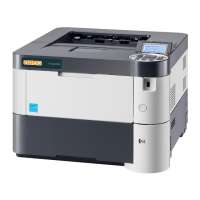
Utax P-4530DN
312 pages
Print Icon
To Next Page IconTo Next Page
Loading...
USER MANUAL
P-4030D/4030DN/4530DN
P-5030DN/6030DN
Print
A4
LASER PRINTER B/W

Table of Contents

Other manuals for Utax P-4530DN

Questions and Answers

  • M
    Mary HayesAug 20, 2025
    What to do if Utax P-4530DN says 'Add paper in casset'?
    • C
      Cody AriasAug 20, 2025
      If your Utax printer displays 'Add paper in casset', it means the paper has run out in the indicated paper source. Simply supply paper to the displayed paper cassette, MP tray, or optional paper feeders to resolve the issue.
  • A
    angela90Aug 22, 2025
    Why is my Utax P-4530DN printing faint or blurred?
    • A
      Angela GonzalezAug 22, 2025
      Faint or blurred printing on your Utax printer can occur due to several reasons: * The EcoPrint setting may be enabled. Turn it off via the operation panel. * The paper type setting might be incorrect. Ensure it matches the paper you are using. * Try replacing the paper with a newer, dryer paper.
  • J
    jerrycaseAug 25, 2025
    What to do if Utax P-4530DN Printer won't turn on?
    • M
      Micheal RussellAug 25, 2025
      If nothing lights up on the operation panel of your Utax printer, and the fan isn't running, check the following: * Ensure the power cord is securely plugged into the power outlet. If it is, try unplugging it, waiting a minute, and then plugging it back in. * Make sure that the power switch is pressed.
  • A
    amanda36Aug 26, 2025
    Why won't my Utax P-4530DN Printer print from my computer?
    • M
      michelletranAug 26, 2025
      If your Utax printer prints a status page but not from your computer, the issue might be: * The printer cable or interface cable isn't properly connected. Ensure both ends are secure, and try replacing the cable. * Program files or application software are causing the problem. Try printing a different file or using another print command. If the problem is specific to one file or application, review the printer driver settings for that application.
  • U
    uloweAug 28, 2025
    What does 'Check cassette #' mean on Utax P-4530DN Printer?
    • F
      fmorganAug 28, 2025
      The 'Check cassette #' message on your Utax printer indicates a paper lift error within the specified paper source's cassette. To resolve this: * Pull out the indicated cassette (either a paper cassette or optional paper feeder) and ensure the paper is loaded correctly. Note: If this error occurs repeatedly, the message 'Call service' will be displayed.
  • H
    heather15Aug 30, 2025
    Why is my Utax Printer emitting steam?
    • P
      penny18Aug 30, 2025
      The steam coming from your Utax printer is likely due to low room temperature or damp paper. The heat generated during printing evaporates moisture in the paper, creating what looks like smoke. This is normal and not a problem. If it concerns you, raise the room temperature or use newer, dryer paper.
  • D
    Derrick MoralesSep 1, 2025
    What does 'Check waste toner box' mean on Utax P-4530DN Printer?
    • L
      Lee PierceSep 1, 2025
      The 'Check waste toner box' message on your Utax printer indicates that the waste toner box is either not installed or is full. Install a new waste toner box to resolve this.
  • D
    Derek BallardSep 3, 2025
    What to do if Utax P-4530DN Printer says 'Top tray is full'?
    • E
      edwardsdanielleSep 3, 2025
      If your Utax printer displays 'Top tray is full of paper. Remove the paper,' it means the top tray has reached its capacity (approximately 250 or 500 pages depending on the model). Remove all printed pages from the top tray to allow the printer to continue printing.
  • M
    Morgan MyersSep 5, 2025
    Why is my Utax Printer printing black or white vertical streaks?
    • R
      Ricky FloydSep 5, 2025
      If your Utax printer is producing black or white vertical streaks, the drum unit or developer unit may be damaged. If the problem persists after printing several pages, contact service.
  • M
    Mark SimmonsSep 6, 2025
    Why is my Utax P-4530DN printing incomplete or out of position?
    • M
      Megan RileySep 7, 2025
      If your Utax printer is printing with incomplete or misaligned output, the application software may not be operating correctly. Verify that the application software is set up and being used properly.

Summary

Machine Parts Overview

Machine Parts: Front and Right Components

Identifies and describes the components located at the front and right side of the printer.

Machine Parts: Internal Components

Details the internal components of the printer, including their locations and functions.

Machine Parts: Operation Panel Overview

Provides a detailed view and labels of the printer's operation panel and its controls.

Preparation Before Use

Preparation: Network Interface Configuration

Explains how to configure the printer's network parameters, including TCP/IP settings for IPv4 and IPv6.

Preparation: Software Installation Guide

Provides instructions for installing the printer driver and utilities from the Product Library disc.

Preparation: Loading Paper into Printer

Details the procedures for loading paper into the printer's cassette and multi-purpose (MP) tray.

Printing Operations

Printing: Basic Printing from Applications

Offers basic instructions for printing documents from various applications using the printer driver.

Printing: Printer Driver Settings Explained

Details the various print settings available in the printer driver's configuration screen.

Printing: Advanced Printing Functions

Explains advanced printing functions like Half Speed Mode, Line Thinning, Custom Box, and Job Box.

Operation Panel Guide

Operation Panel: Key Functions Overview

Describes the function of each key on the printer's operation panel, including secondary functions.

Operation Panel: Navigating Menus

Explains how to use the menu selection system to configure printer settings via the operation panel.

Operation Panel: Paper Settings Configuration

Details how to set paper size and type for the MP tray and cassettes via the operation panel.

Operation Panel: Network Configuration

Covers network settings, including TCP/IP, IPv4, IPv6, and protocol details for network connectivity.

Operation Panel: Security Settings Management

Explains how to set up security functions to protect printer operation and print data.

Operation Panel: User and Job Account Management

Details how to set up user login administration and job accounting for managing users and print jobs.

Operation Panel: Printer Maintenance Procedures

Covers printer maintenance tasks like restarting the printer and service settings for adjustments.

Document Box Features

Document Box: Overview and Functions

Introduces the Document Box function for saving and printing data from SSD, SD/SDHC Card, or RAM disk.

Document Box: Custom Box Operations

Explains how to create, edit, delete, and manage files within Custom Boxes for storing print data.

Document Box: Job Box Features and Retention

Details the Job Box function, including Job Retention modes like Quick Copy, Proof-and-Hold, and Private Print.

Printer Maintenance

Maintenance: Toner Container Replacement

Provides step-by-step instructions for replacing the toner container, including frequency and toner kit contents.

Maintenance: Waste Toner Box Replacement

Explains the procedure for replacing the waste toner box, which should be done concurrently with toner replacement.

Maintenance: Printer Cleaning Procedures

Details the steps for cleaning the printer's interior, including the registration roller and vents.

Troubleshooting Printer Issues

Troubleshooting: General Problem Solving

Offers basic solutions for common printer problems and general troubleshooting tips.

Troubleshooting: Resolving Print Quality Issues

Identifies common print quality problems like streaks, faint printing, and gray backgrounds with corrective actions.

Troubleshooting: Understanding Error Messages

Lists common error messages displayed by the printer and provides corresponding corrective actions.

Troubleshooting: Clearing Paper Jams Guide

Provides detailed instructions and location guides for clearing various types of paper jams within the printer.

Appendix: Supplementary Information

Appendix: Character Entry Guide

Explains how to use the operation panel keys and screens to enter characters for various settings.

Appendix: Printer Optional Hardware

Describes the various optional hardware components available for the printer, such as memory and feeders.

Appendix: Paper Specifications and Guidelines

Provides detailed information on paper types, sizes, weights, and recommendations for optimal printing.

Appendix: Printer Technical Specifications

Lists the detailed technical specifications of the printer models, including dimensions, power, and operating systems.

Utax P-4530DN Specifications

General IconGeneral
BrandUtax
ModelP-4530DN
CategoryPrinter
LanguageEnglish

Related product manuals