PLAY MODES
Karaoke ModeKaraoke Mode
4
Stereo ModeStereo Mode
5
5.1 Channel Mode5.1 Channel Mode
6
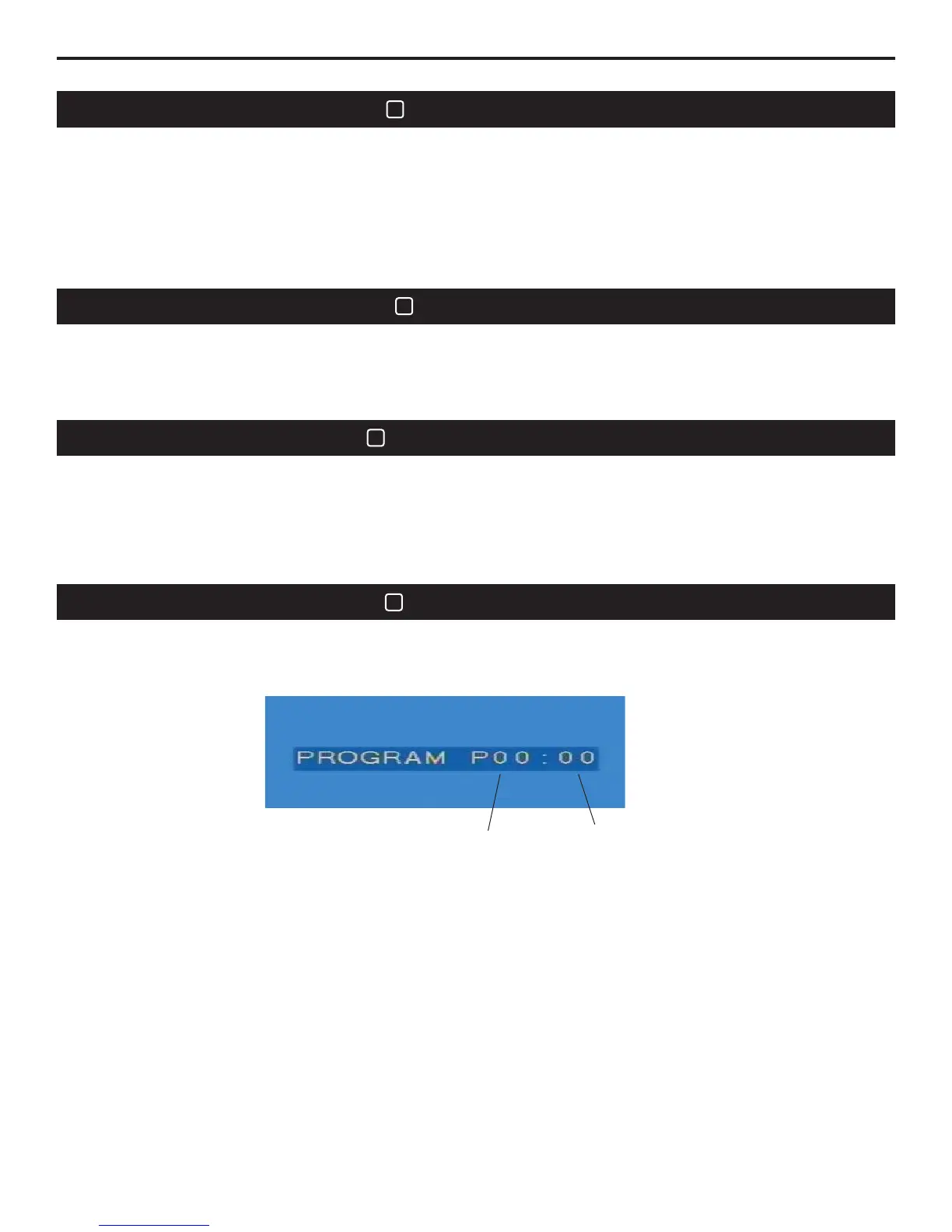
Program ModeProgram Mode
15
Play orderPlay order
Programmed track numberProgrammed track number
Press STOP button when the machine finish reading disc. Then press PROGRAM button to enter this mode.
You can select playing order of tracks or choose tracks you want to play. The PROG word will light up on VFD
when the mode is on. This program function is inapplicable for DVD, MP3 or VCD 2.0 discs.
Press STOP button when the machine finish reading disc. Then press PROGRAM button to enter this mode.
You
can select playing order of tracks or choose tracks you want to play. The PROG word will light up on VFD
when
the mode is on. This program function is inapplicable for DVD, MP3 or VCD 2.0 discs.
This mode is used for karaoke entertainment. Using your remote control, press the STOP button
(30). Press the KARAOKE button (4) to enter the karaoke mode. In the karaoke mode, the CD or
CD+G disc stops automatically at the end of each song. The PLAY button (29) must be pressed
for the next song. The KEY control (43) is activated only in the karaoke mode. If the key of a song
is changed, the GO-210 will reset the key to neutral at the end of the song.
NOTE: If your GO-210 is connected to an external amplification system, the karaoke music with microphone will only be available
at the aux OUTPUT connectors on the back of the unit.
With the player stopped, press STEREO button (5) on the remote control to enter this mode. The television
screen will display Stereo. Stereo is the recommended mode for enjoying high fidelity music.
NOTE: In the stereo mode, music is available at the ML, MR, FL, FR and KARAOKE OUTPUT jacks.
With the player stopped, press 5.1 CH button (6) on the remote control. The television screen will
display 5.1 CH. This mode allows for full surround sound viewing when connected to an external
surround sound amplifier and speaker system.
NOTE: In the 5.1 channel mode, there will be audio available at the ML, MR, FL, FR, CEN, SL, SR and SW
jacks when playing a DOLBY 5.1 channel disc.
The Program Mode allows the user to program the playback sequence of tracks played. The program
mode will not function with DVD, MP3 or VCD 2.0 discs.
1. Insert a CD, MP3 or CD-G disc into the player. Wait a few seconds for the player to read the contents
of the disc.
2. Press the STOP button (30).
3. Press PROGRAM button (15) to begin programming.
4. Select the desired track number using the remote control's numeric keypad (12). Each time a track
has been selected, the track number will display on the connected video monitor.
5. Press the ENTER button (25) each time a track has been chosen to confirm the choice. Each time the
ENTER button is pressed the track number will be added to the playback sequence.
6. In the event a track needs to be removed, press the CLEAR button (17) immediately after the
incorrect track is entered.
7. Repeat step 4 and 5 to add additional tracks to the playback sequence.
8. Press the STOP button twice to exit the Program Mode.
9. Press the PLAY button (29) to begin the sequential play back of the programmed tracks.
19


 To Next Page
 Loading...