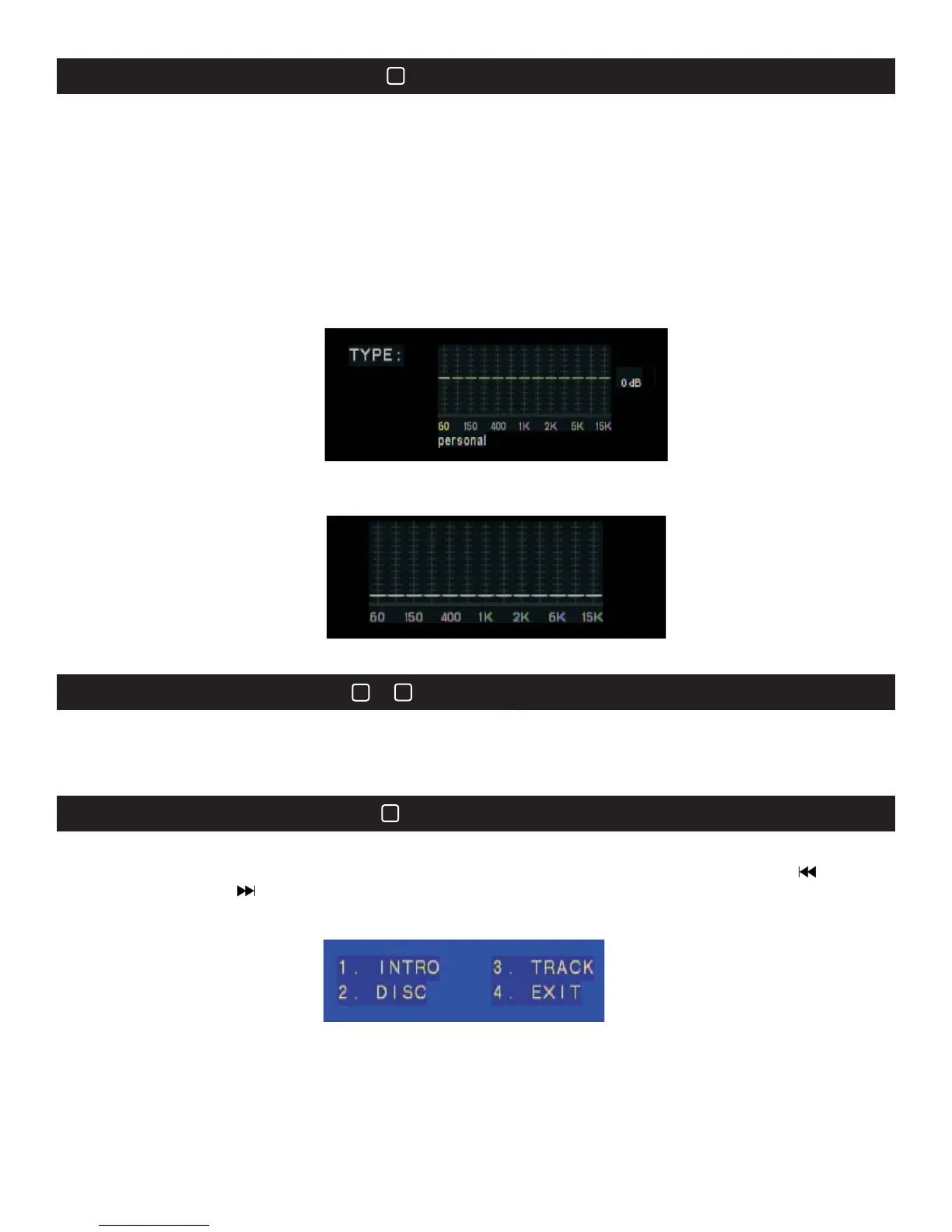
Personal settingPersonal setting
Dynamic frequency spectrum displayDynamic frequency spectrum display
EQ(Equalizer)
39
9 Pictures View9 Pictures View
41
Dynamic fr quency spectrum display:eDynamic fr quency spectrum display:e
The frequency trends of the music audio show as below.The frequency trends of the music audio show as below.
Press the VIEW button when stop playing the VCD disc. The screen displays as below. You can choose
the items with the numeric keys and press OK button to confirm. When viewing the scenes, press button
to previous page and button to the next.
Press the VIEW button when stop playing the VCD disc. The screen displays as below. You can choose
the
items with the numeric keys and press OK button to confirm. When viewing the scenes, press button
to
previous page and button to the next.
2. Disc view
The screen will be divided into 9 scenes to show the image of the beginning 9 seconds of every song.
Choose your desired track with the numeric keys.
3. Track view: The screen will be divided into 9 scenes to show the images of the beginning, 9 seconds of each
songs . Choose to play from your selected segment with the numeric keys.
4. Exit: Press to exit this 9 scenes view function.
2. Disc view
The
screen will be divided into 9 scenes to show the image of the beginning 9 seconds of every song.
Choose
your desired track with the numeric keys.
3. Track
view: The screen will be divided into 9 scenes to show the images of the beginning, 9 seconds of each
songs
. Choose to play from your selected segment with the numeric keys.
4.
Exit: Press to exit this 9 scenes view function.
1.Intro: Preview the beginnings, only 9 seconds for each song. This function is applicable for VCD2.0 disc
under PCB OFF status.
1.Intro: Preview the beginnings, only 9 seconds for each song. This function is applicable for VCD2.0 disc
under
PCB OFF status.
17
Time & OSD DisplayTime & OSD Display
14
Press the TIME button to display the current selected track and time information. Four display types
available: Single track time C, Title time T, Timing from start and count down. Press the OSD button to
display the OSD time.
Press the TIME button to display the current selected track and time information. Four display types
available:
Single track time C, Title time T, Timing from start and count down. Press the OSD button to
display
the OSD time.
13 &13 &
The EQ button (39) allows the user to customize the sound of music or other playback material to suite
their tastes. Pressing the EQ button turns the equalizer on. Pressing the EQ button a second time
displays the Dynamic Frequency Spectrum. Pressing the EQ button a third time turns the equalizer off.
Preset and custom equalization modes are available. Press the EQ button once to turn the EQ on. Press
either the Enter (25) or the Play (29) button to enter the custom EQ settings. A total of 8 EQ settings are
available – Standard, Classic, Jazz, Rock, Pop, Ballad, Dance and Personal. In the Personal setting the
user may adjust each band of the EQ as desired. The EQ level of each band is adjusted with the Up and
Down directional buttons (24). Shifting from one band to another is accomplished using the Right and Left
directional buttons (24). Once adjustments are complete, press the EQ button to save and select the
Personal setting.
24


 To Next Page
 Loading...