10
For Android system
To activate this function, please make sure your android device supports Multi-
screen/Wireless display. Names may differ from different Android devices.
1. Turn the WIFI to ON status in the settings of your android device. To make a smoother
streaming, please do not connect to any WIFI on your projector.
2. Go to Homepage > Miracast to enter the following interface.
To connect Android Mobile/Pad Device with Projector Based on Wi-Fi Display
Technology.
a) On your Android Mobile/Pad open the settings menu.
b) Access your display settings or screen-mirroring.,
c) Select your Miracast receiver: ZYCast-xxxx(mcast).
3. Activate Multi-Screen function in your Android device and search for the projector.
4. Select ZYCast-xxx(mcast) from the searching list.
5. Your Android device display will be projected on the wall/screen.
Screen Casting (For iOS System Only)
1. Connect your iOS device and the projector to the same WIFI network.
2. Select Setup on the homepage, enter Advanced > iOS Play Mode, then press the right
button on the remote to select screen casting HD/SD.
3. Go to Homepage > iOS Cast on the projector.
4. Launch a video player on your iOS device and select a video to play.
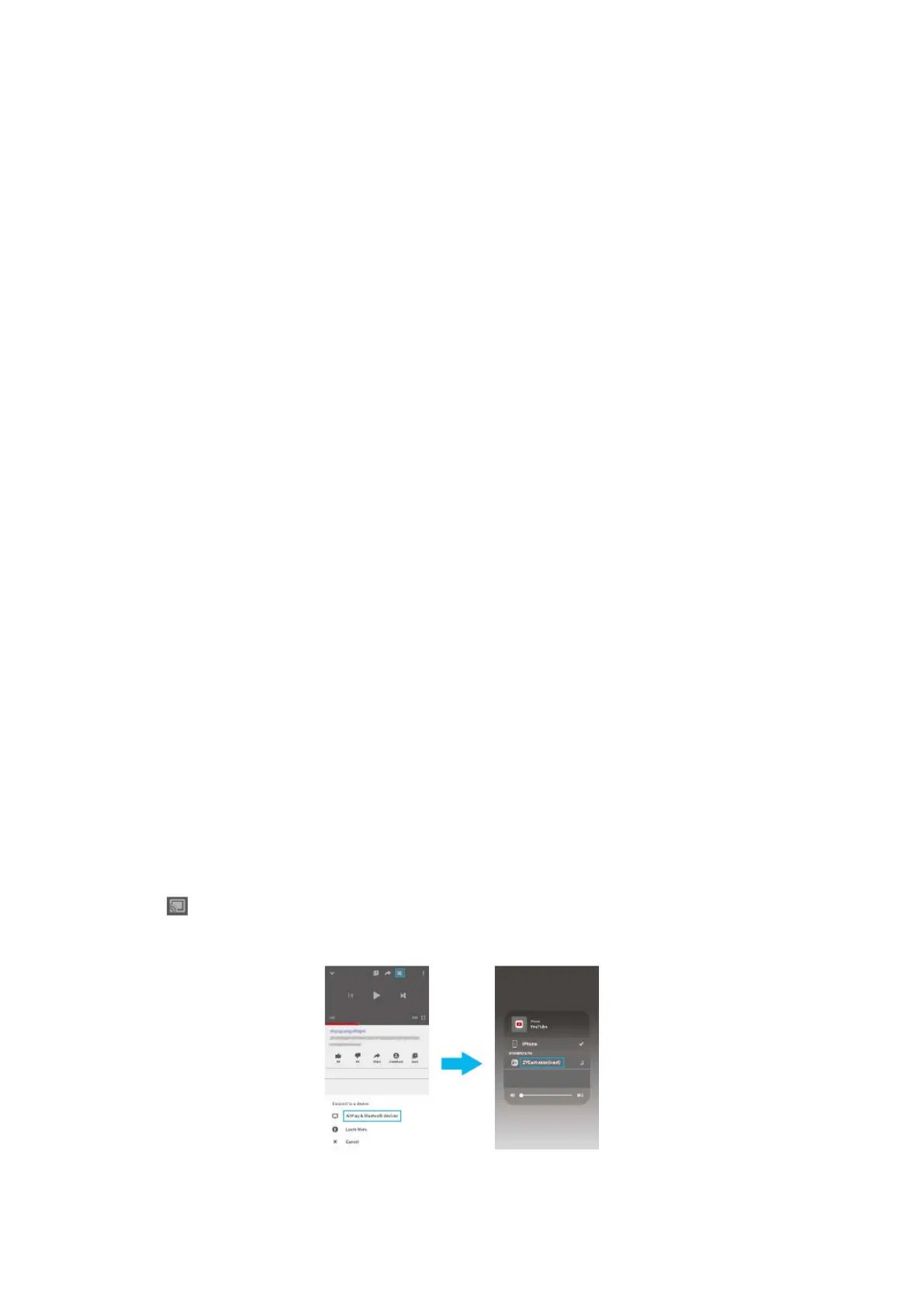
5. Tap > Airplay&Bluetooth devices > ZYCast-XXX(icast) to cast the video on your iOS
device to the wall/screen via the projector.


 To Next Page