VBOX Setup Software
1. Ensure IMU04 is connected via RLCAB119, and the VBOX 3i is powered on.
2. Connect VBOX 3i to a computer either via Bluetooth, an RLCAB001 cable to the 'SER' input and the computer's
serial port (usb-serial adapter may be required), or via an RLCAB066-2 cable to one of the computer's USB ports.
3. Open VBOX Setup and connect to VBOX 3i by selecting COM Port.
4. Select the 'GPS' menu and the 'Settings' tab, ensure that 'GPS Optimisation' is set to 'High dynamics'.
5. Select the 'Logging' menu and ensure that 'Log rate' is set to '100 Hz'.
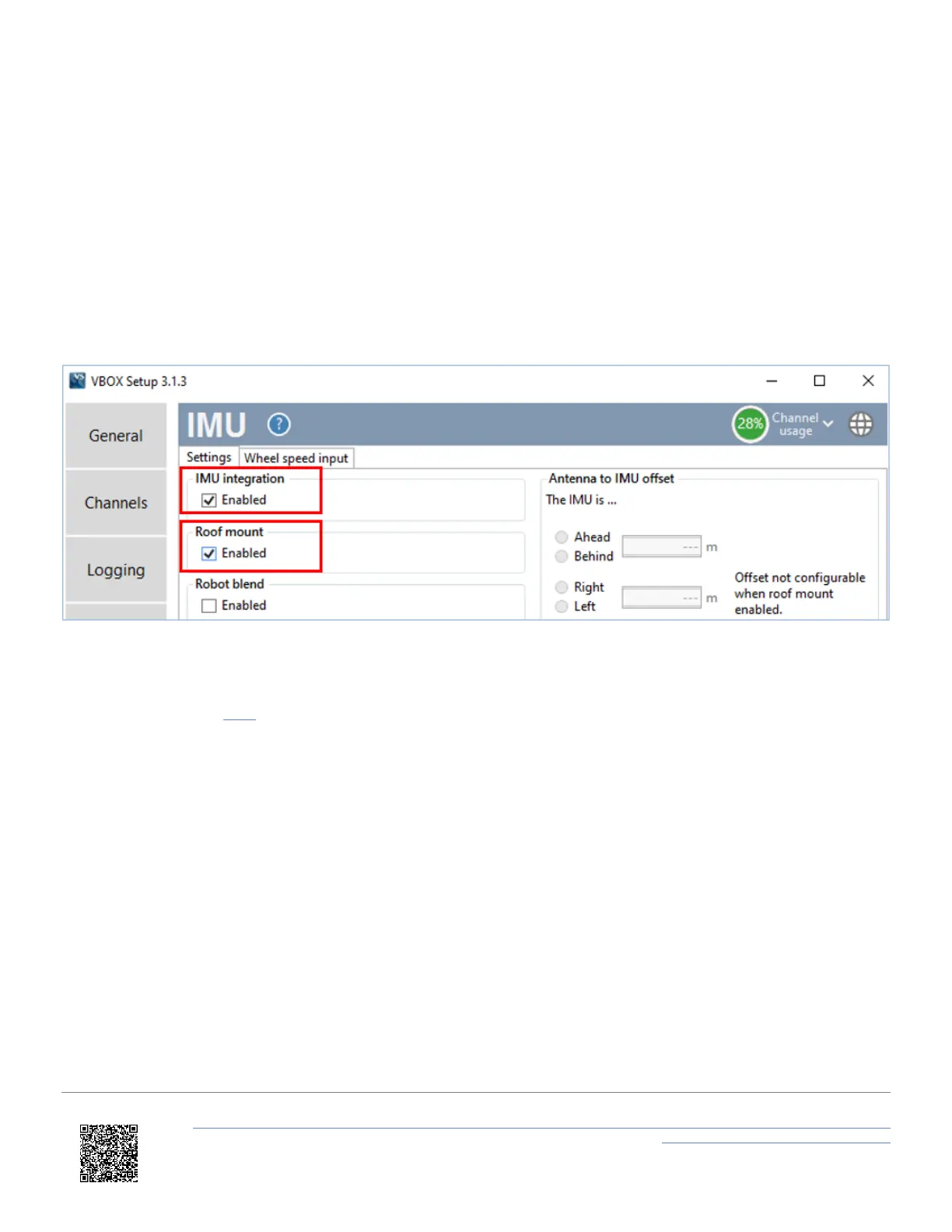
6. Select the 'IMU' menu and tick 'Enable IMU integration'. Once VBOX Setup has completed the initial enabling,
tick the 'Roof mount' box.
7. If required, enter distances to translate the IMU location to another point within the vehicle, more information on
this can be found here. An automatic 1 m z offset is added, translating the filtered speed down in to the
vehicle towards the centre of gravity.
https://en.racelogic.support//Product_Info/VBOX_Data_Loggers/VBOX_3i_Range/VBOX_3i_User_Guide_(All_Variants)/12-2_-
_VB3i_IMU_Integration_-_Roof_Mounted
80


 To Next Page