12 © 2015 VBrick Systems, Inc.
Control a Presentation
The Presenter has three methods to controlling a presentation. They are:
• Event start/stop
• Broadcast an event
• Record an event
After selecting and configuring your layout, click
Start Program to begin streaming. The
stream will then be available on your network with a graphic displaying the pause message
“The host is not currently broadcasting.”
The image displayed during pauses may be changed by your admin in the
Pause Image
dropdown field by navigating to
Encoder Configuration > Manage Layout Images.
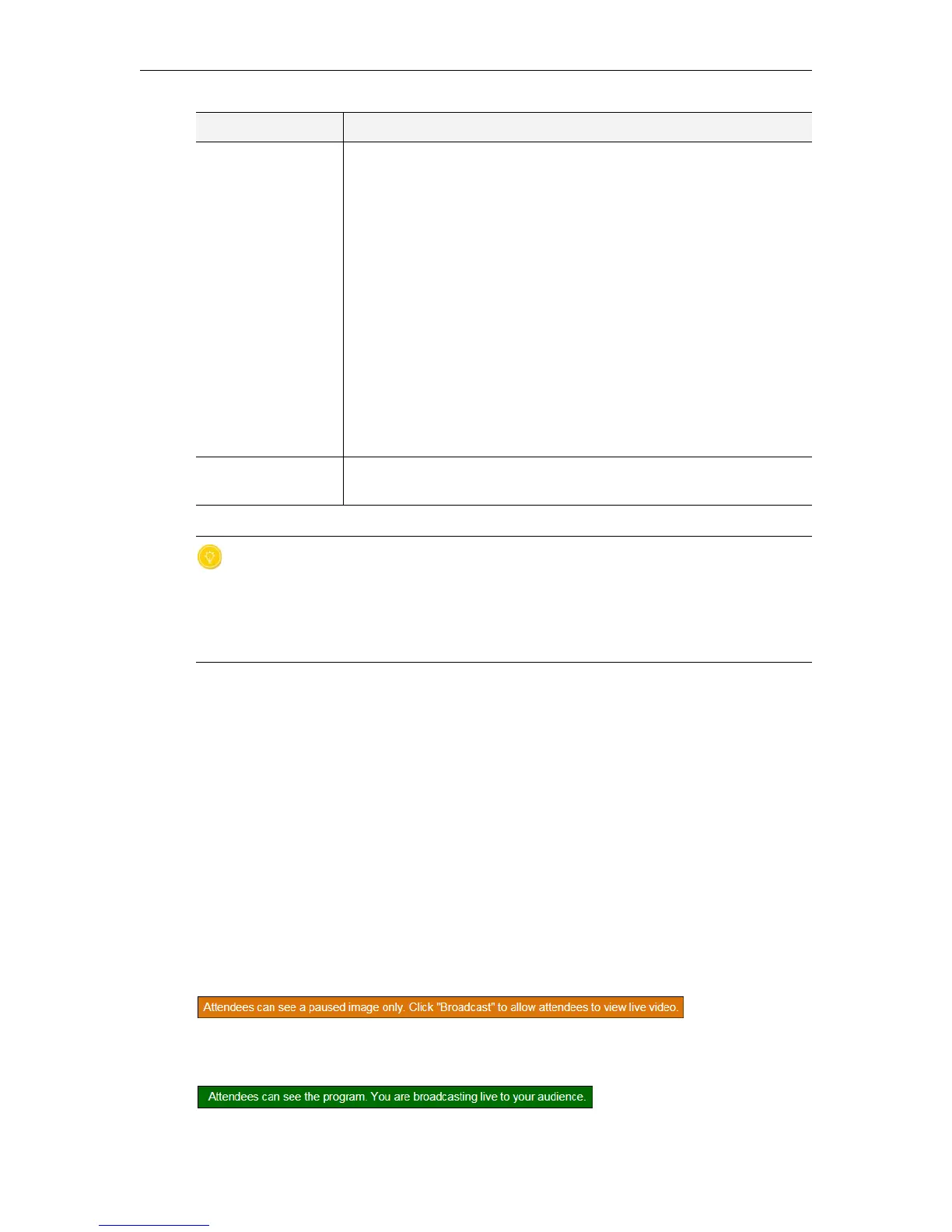
The status bar will change color from red to orange to indicate that you are now streaming
but viewers cannot see your content or hear any audio.
When are ready to go live with your video, click
Broadcast. The status bar will turn green and
your video will begin streaming using the layout you have selected.
Audio Mapping Similar to video area mapping with the exception that only one audio
channel source is selectable for each layout.
Further, in order to switch audio channels within a presentation and
not reset the stream, all audio channels must have the same sampling
rate and audio rate settings. The easiest way to assure this, and a best
practice, is to create the desired audio configuration for one channel
and then use the
Clone button to copy the Audio Rate settings to
other audio channels. After cloning, you can then manually configure
the setting for
How Audio is Connected for each channel if you have a
mixture of analog and digital audio sources.
You may still change audio channels with different settings, but this
will cause a reset of the stream and attendees/viewers may need to
reset their players as a result.
Note: Changing audio channels during a presentation is not
supported for streams with encryption.
Revert/Apply
Buttons
Click Apply to apply any changes you have made to the layout. Click
Revert to discard any changes you have made.
Tip: Keep in mind that you may switch seamlessly between layouts, configurations,
and video inputs when presenting. (Some caveats apply, see the table above with
regard to Video Area Mapping) As a result, consider a best practice of making border
values, margin values, pause images, and so forth consistent between layouts so you do
not have any odd jumps or glitches when switching between layouts during a
presentation.
Field Description



 To Next Page