10 © 2015 VBrick Systems, Inc.
Configure a Layout
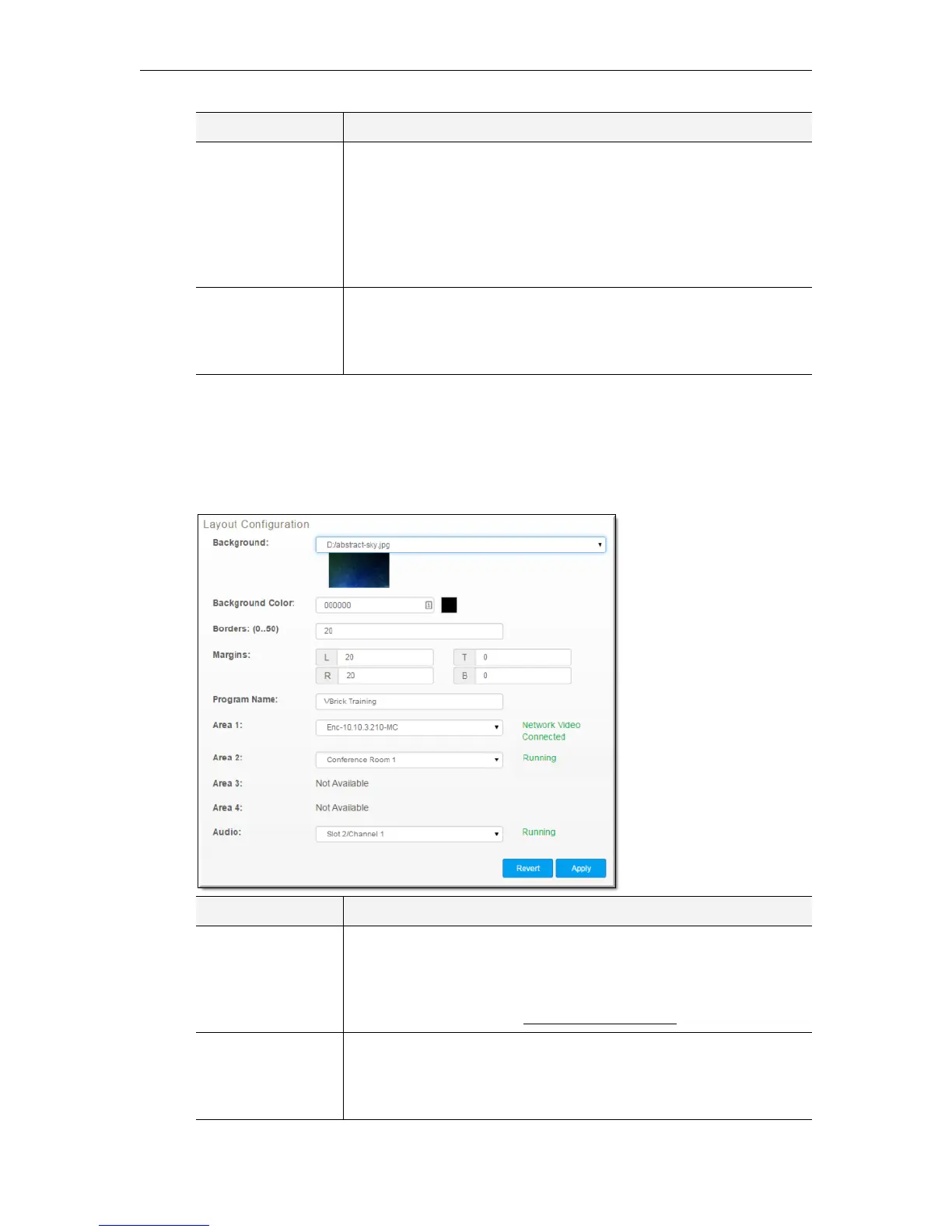
Once you have selected a layout in the Layout Selection area, you may choose to use the
default values selected for it by your admin, or define your own values in the
Layout
Configuration section. You must click the Apply button to save any changes you make.
Layout Preview Displays the currently selected layout in visual format. Each layout
has predefined, unchangeable video areas. Other items in the layout
are configurable such as background colors and borders and what
video sources are mapped to what areas. You admin has likely given
the video areas a descriptive name such as “Camera 1", “Laptop”, or
“Document Camera” so that you will understand what video will be
visible in each area of the layout.
Layout Scroll Functions the same as the Choose Layout dropdown and selects a
layout to use and set default values for when in Presenter Mode. If a
layout is selected here, it is also selected in the Choose Layout
dropdown.
Field Description
Background If a background image has been uploaded, it may be selected through
the
Background drop-down to be added to the layout. The current
background color may be selected as well by selecting
Use
Background Color. Upload background images by navigating to
Encoder Configuration >
Manage Layout Images.
Background Color Only solid background colors (or Hexadecimal values) may be
selected. To select a background color, click on the colored square to
activate a color chooser and either select the desired color or enter
the Hex value for that color.
Field Description



 To Next Page