Presenter Mode Features
VBrick 9000 Encoder Presenter Guide 9
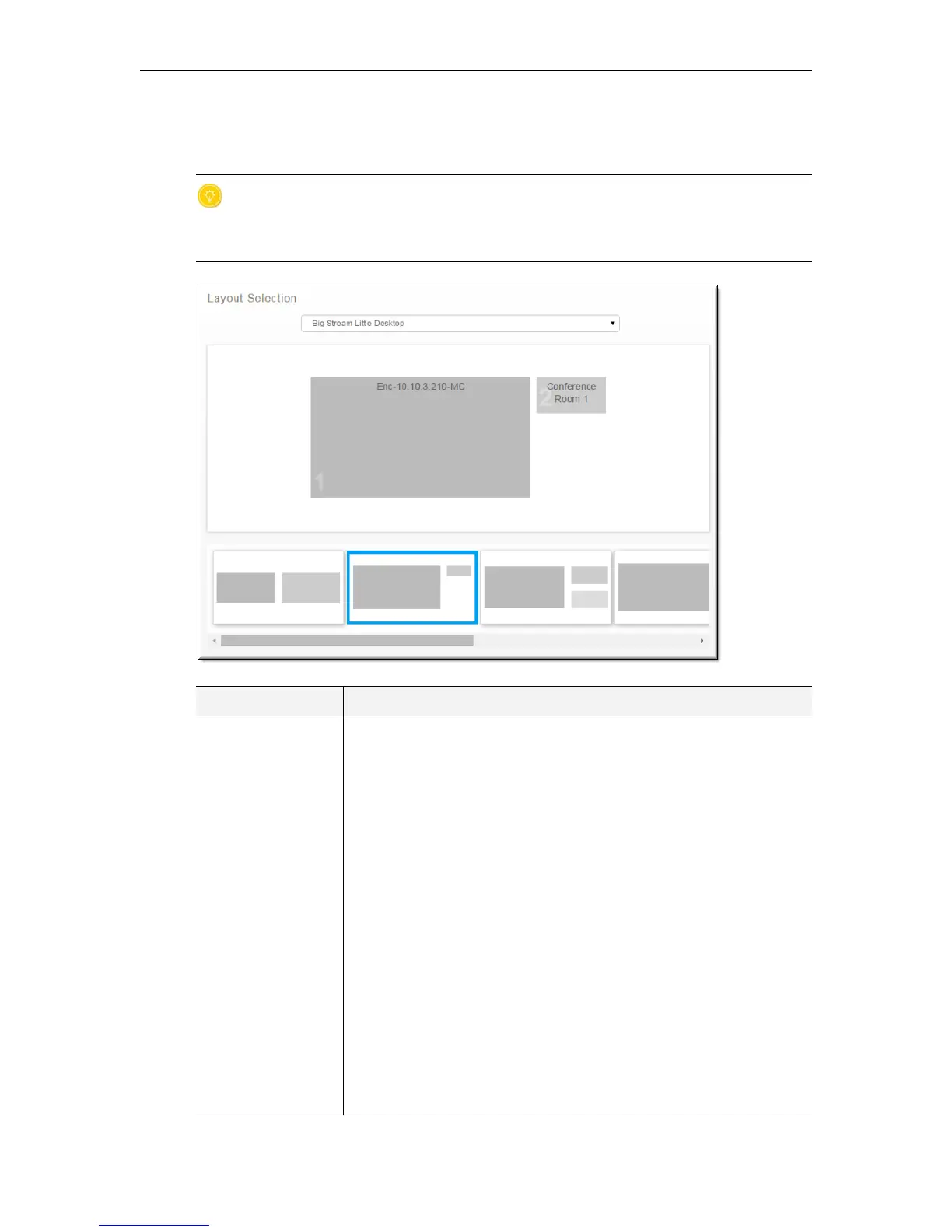
Select a layout from the Layout Selection area and click the Apply button. You may then set
your own values for the selected layout in the
Layout Configuration area if you want to change
the default values your admin has selected.
Tip: Keep in mind that layouts and their configuration values may be switched when
streaming without interruption to the video or layout and without the need for the
audience to restart their players. This provides the ability to create very compelling
video Webcasts.
Field Description
Choose Layout Select from the layouts your admin has enabled for use in your
presentation. If a layout is selected here, it is also selected in the
Layout Scroll bar below the Layout Preview box. If you do not see a
layout that you need, contact your admin to have it enabled.
• Single area layout with the selected video input filling the entire
video image.
• Two area layout with each area approximately the same size,
displayed side by side.
• Two area layout with one large area and a smaller area in the
upper right. This is ideal for a single computer screen capture
with live video of the presenter.
• Three area layout with one large area on the left and two smaller
areas on the right. This is ideal for a single computer screen
capture with two live videos.
• Four area layout with one large area on the left and three smaller
areas on the right.
• Four area layout with one large area on the left and three smaller
areas below.
• Four area layout with areas arranged in a 2x2 grid.



 To Next Page