14 © 2015 VBrick Systems, Inc.
Record an Event
To record an event:
1. Click the
Record button. It will turn red and display Recording. You must be
broadcasting to record the event.
2. To stop recording the event, click the
Recording button.
Advanced Status Messages
If you receive a message that prompts you to check Advanced Status, you will likely need to
contact your encoder admin for support on troubleshooting your presentation or video
broadcast.
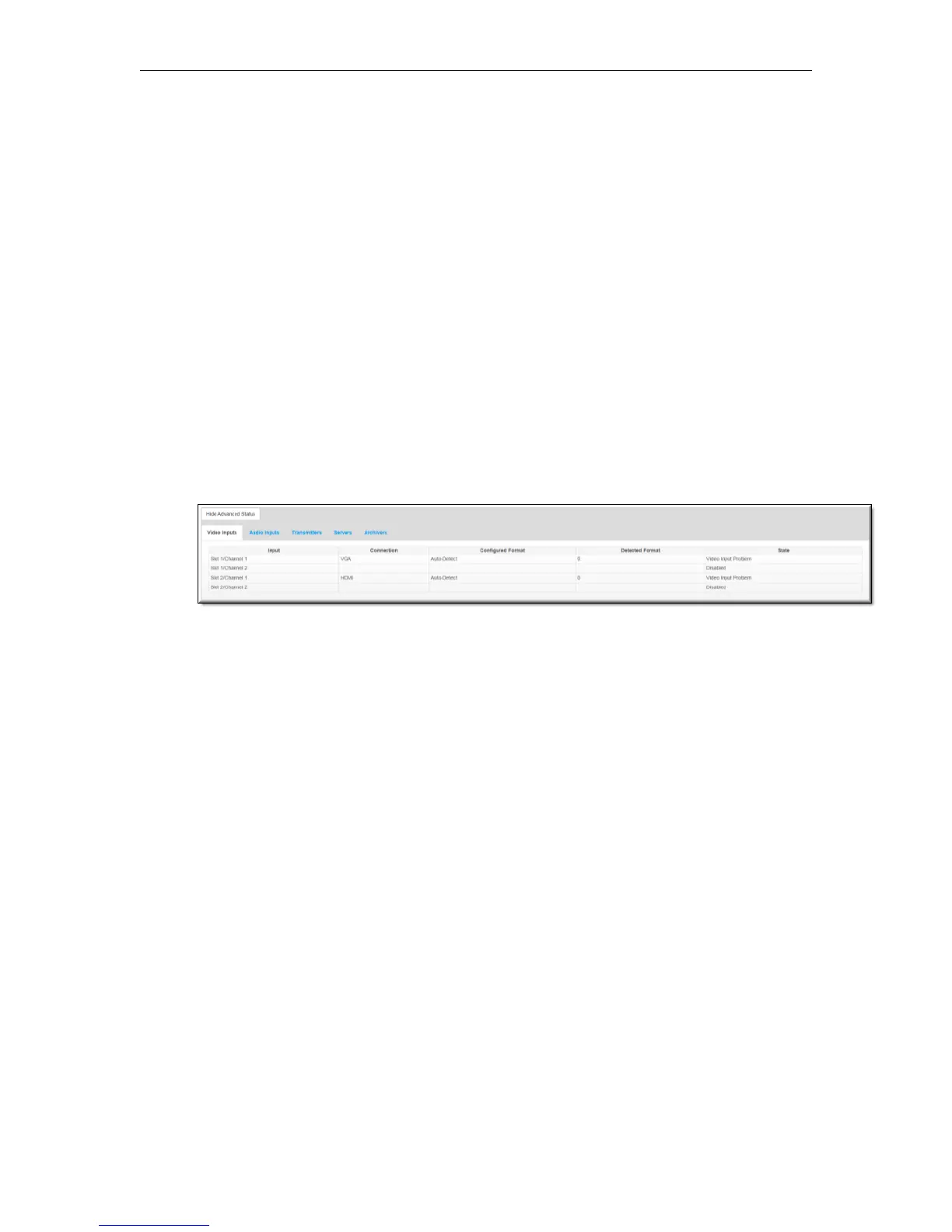
Advanced Status may be checked by clicking the
Show Advanced Status button (Hide
Advanced Status when it is open) at the bottom of your Presenter Mode window and may be
used by your admin to diagnose presentation issues.
Some messages that may be received (and their corresponding color bar) that you may need
to report to your admin are as follows:
GREEN:
Attendees can see the program. You are broadcasting live to your audience, but not
recording. Check advanced status "Archivers".
RED:
Program is started, but not broadcasting or recording. Check advanced status.
RED:
Program is started, but not broadcasting. Check advanced status.
RED:
The program is paused, but cannot be seen by attendees. Check advanced status.
ORANGE:
The program is paused and recording is stopped. Click "Broadcast" to allow attendees to
view live video.



 To Next Page