manufacturer's customer service department for assistance.
6) After the system status is displayed (MIL status, DTC counts,Monitor status), wait a
few seconds or press any key for Diagnostic Menu to come up.
- 10 -
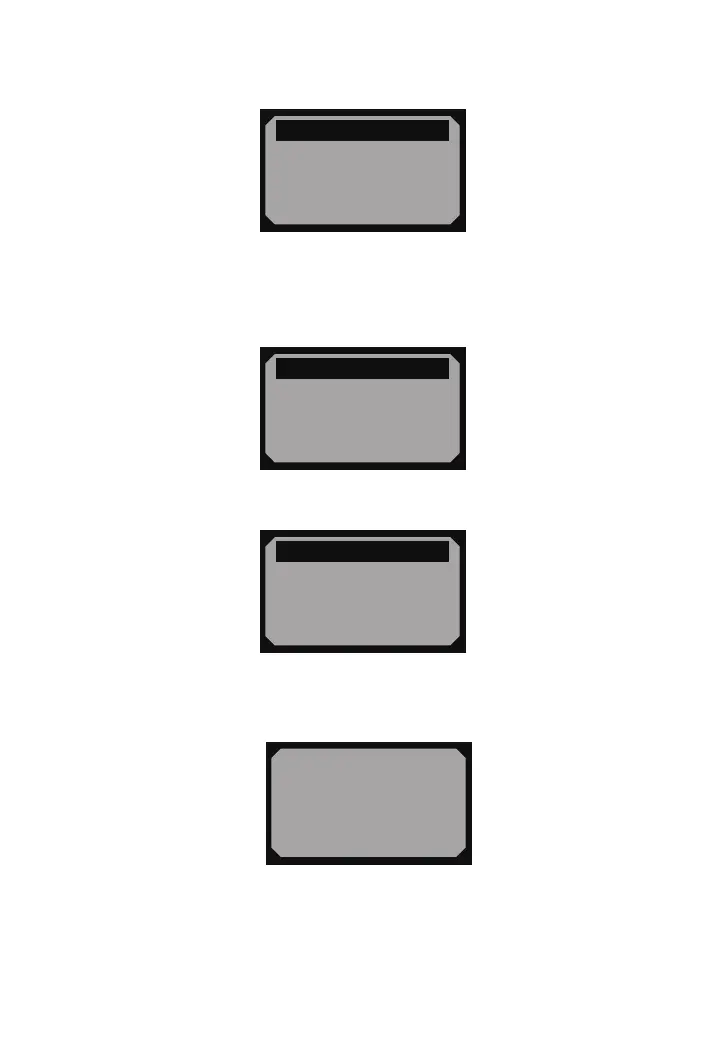
= = = = = = = = = = = = =
System Status
Codes Found 1
Monitors N/A 4
Monitors OK 3
Monitors INC 3
4.1 Reading Codes
1) Use SCROLL button to select Read Codes from Diagnostic Menu and press
ENTER/EXIT button.
= = = = = = = = = = =1/6
Diagnostic Menu
1) Read Codes
2) Erase Codes
3) View Freeze Frame
4) I/M Readiness
►
• If more than one module is detected, you will be prompted to select a module before
test.
• Use SCROLL button to select a module, and press ENTER/EXIT button.
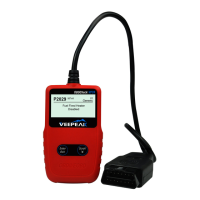
2) View DTCs and their denitions on screen.
= = = = = = = = = = =1/6
Diagnostic Menu
1) Read Codes
2) Erase Codes
3) View Freeze Frame
4) I/M Readiness
►
= = = = = = = = = = = =
1) Read Codes
2) Erase Codes
3) View Freeze Frame
4) I/M Readiness
►
P0115
Generic
$11 Pd 1/6
• The control module number, sequence of the DTCs, total number of codes detected
and type of codes (Generic or Manufacturer specic, Stored or Pending codes) will be
observed on the upper right hand corner of the display.
3) If more than one DTC is found, use SCROLL button, as necessary, until all the codes
have been shown up.


 To Next Page