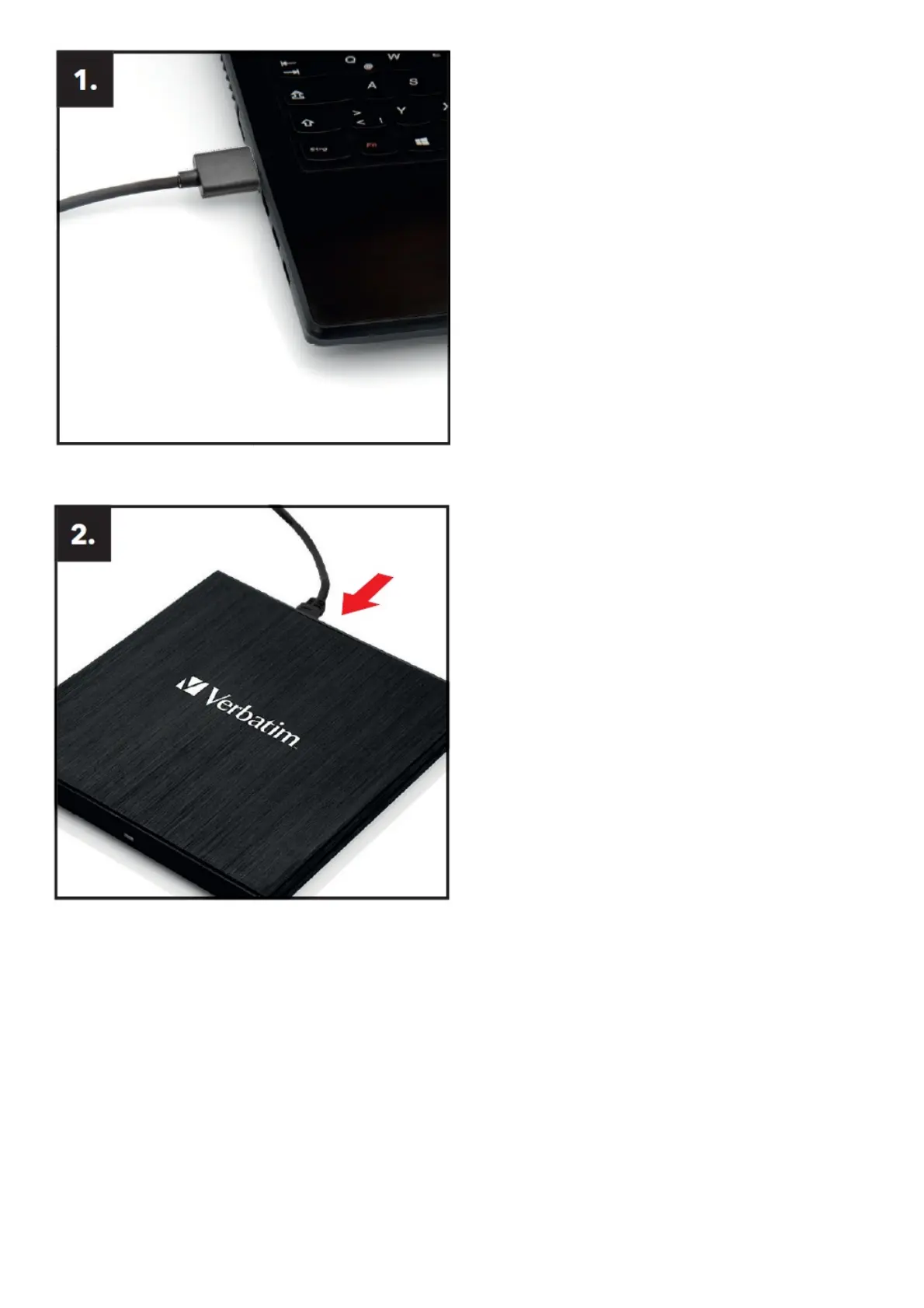
Connect the USB cable to the port of your PC.
Connect the USB interface cable to the device.
Driver Installation
Under Windows 10, 8, 7 and Mac OS X a separate driver is not required. The drivers will be installed automatically
by the operating system after plugging in the Verbatim External Slimline CD/DVD Writer / External Slimline Blu-ray
Writer into the USB port of your computer.
Allocation of the drive letter to the Verbatim drive (PC)
After successfully completing the installation of the Verbatim drive a new drive letter is assigned automatically. This
can shift the drive letter of an internal drive (for example, ‘D’ to ‘E’). If this leads to problems, it is possible to change
the drive letter assignment as follows:
1. Click on the “Start”/”Windows” button.
2. Right-click on “Computer” and select “Manage” – “Disk Management”.
3. Right-click on the drive whose drive letter is going to be changed and select “Change drive letter and path …”.



 To Next Page