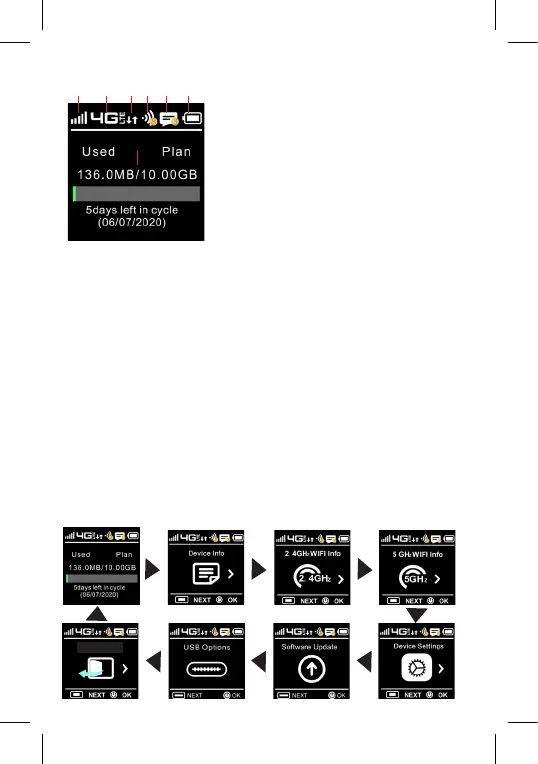
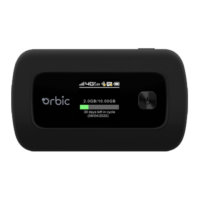
Display Layout and Icons
1 2 3 4 5 6
Description
1. Signal status icon
2. Network mode icon
3. Send/receive data activity arrows
4. Wi-Fi signal and number of access users
5. The number of unread message
maximum is 100
6. Battery capacity icon, if battery capacity
is lower than 20%, this icon is red.
7. Data statistics, used/total
SIM Card and Battery
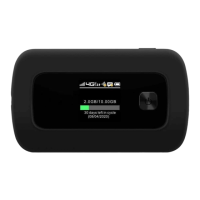
Your Orbic Speed comes preinstalled with a 4G LTE SIM card.
Notes:
• The SIM card MUST remain in your Orbic Speed when in
use. Once the SIM card has been inserted into the Orbic
Speed, do not remove!
• DO NOT remove SIM card when the device is powered on
since this may damage the card and the device.
• Do not bend or scratch your SIM card. Avoid exposing your
SIM card to static electricity, water or dirt.
Navigating Through the Orbic Speed
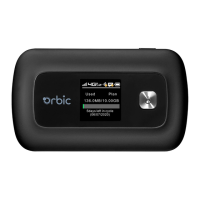
Use the MENU and POWER button to select actions displayed at the bottom of
the screen. There are 8 main menu screens in addition to the home screen.
7
Back Home


 To Next Page