Page 6 of 12 August 2015
Vantage
Quick Start
Guide
Set up your Vicon Vantage system
Vicon Lock+, Vicon Bonita Video
cameras, etc.
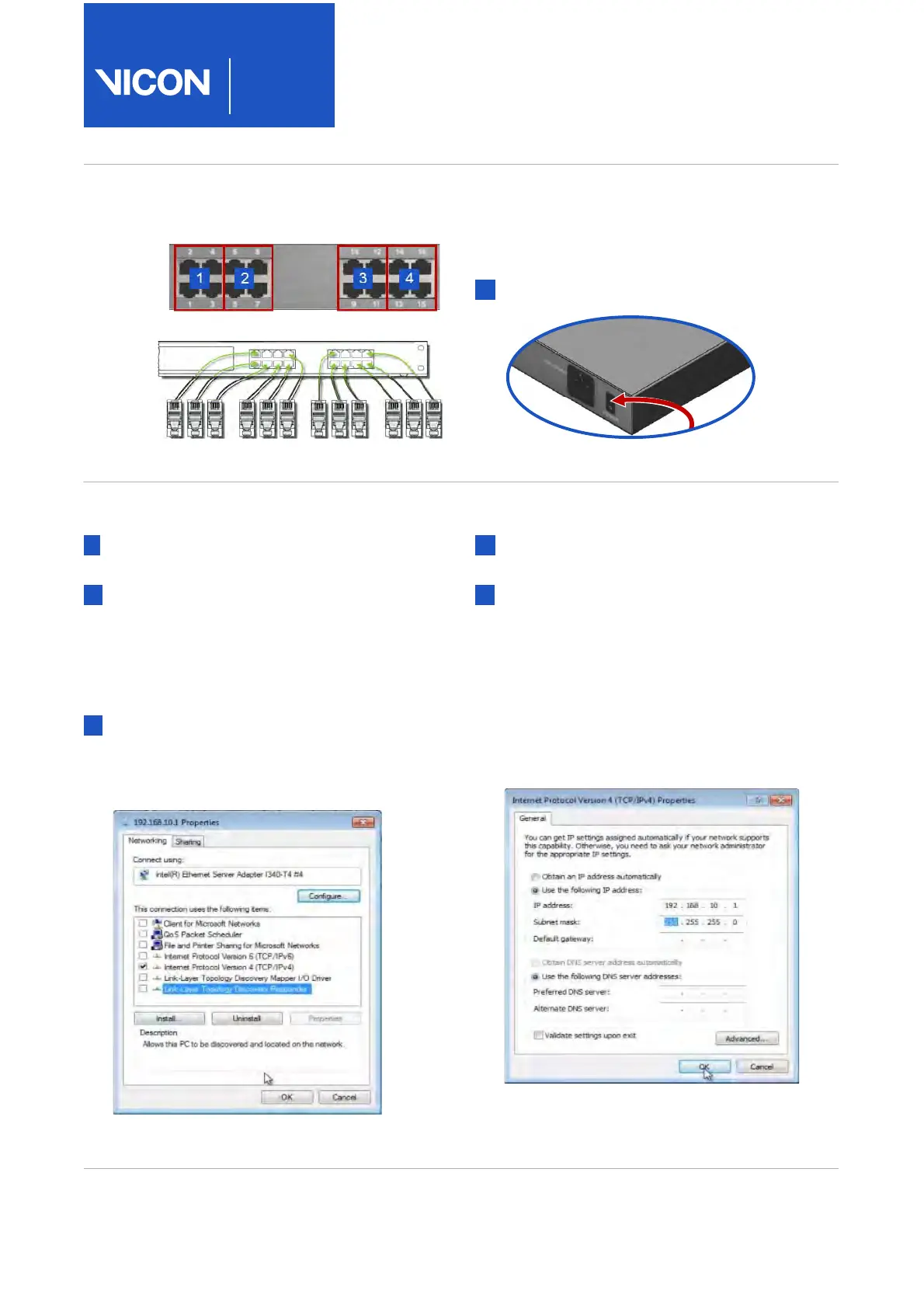
To add more cameras, you can connect
further PoE+ switches to the primary PoE+
switch via a non-powered Gigabit switch
(see the Vicon Vantage Reference).
4 Turn on the PoE+ switch.
Connect and configure the PC
1 With the supplied network cable (RJ-45),
connect the PoE+ switch to the PC.
2 On the PC open Windows Network
Connections, right-click the NIC to which
the system is to be connected and then
click Properties. (If you are connecting
more than one card, right-click the first
NIC.)
3 In the Properties dialog box, on the
Networking tab, clear all the unwanted
items, leaving only Internet Protocol
Version 4 (TCP/IPv4) selected.
4 Click on this option to highlight it and then
click Properties.
5 In the Internet Protocol Properties dialog
box, on the General tab enter the following
information:
a. IP address box, enter 192.168. 10.1.
b. Subnet mask box, en
ter
255.255.255.0.
c. Default gateway box, leave the
box
blank.


 To Next Page