MHL Setting
Connecting an MHL-enabled device
You can connect a MHL-enabled device, such as certain models of smartphones & tablets, and view the device’s
screen on the TV.
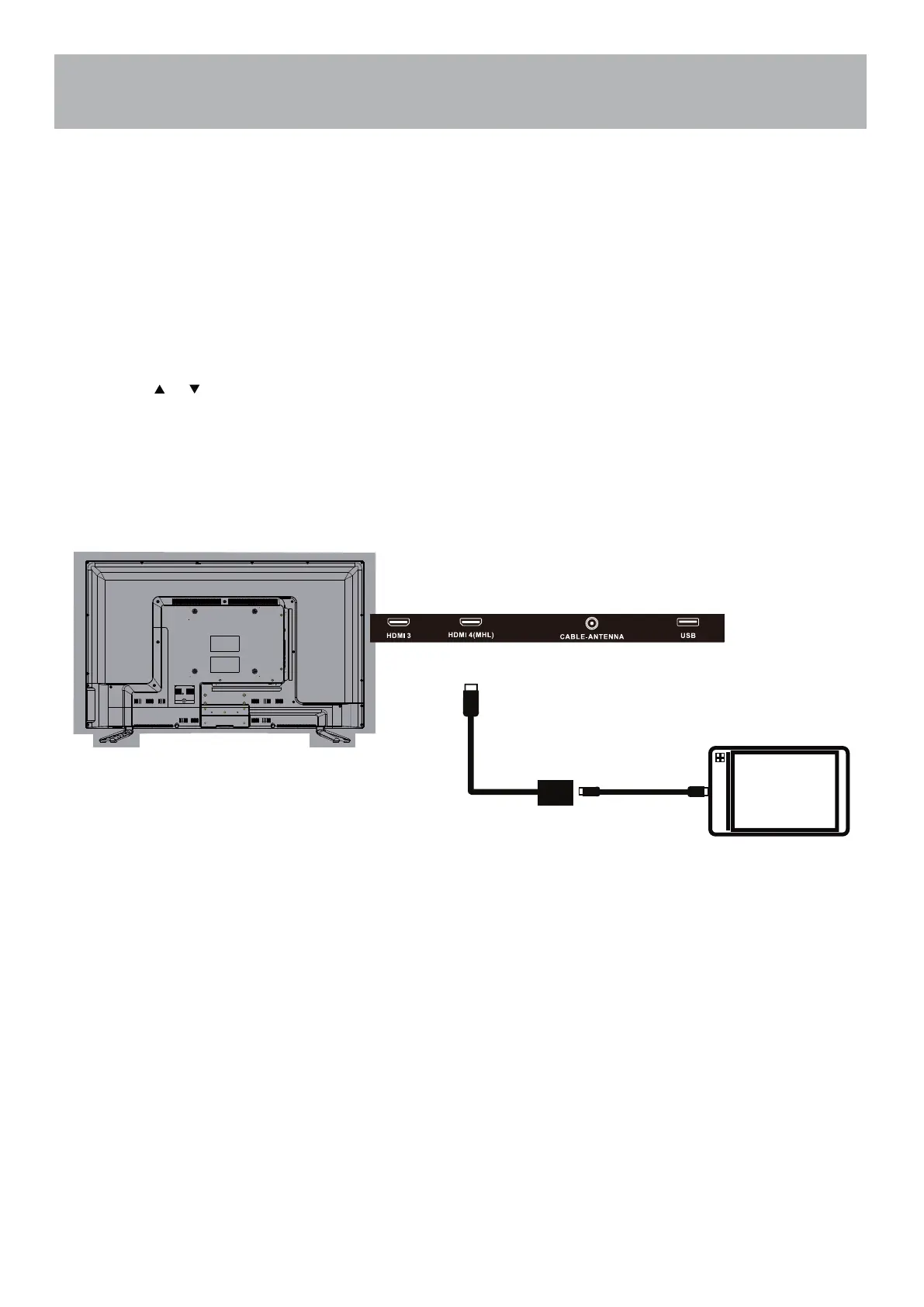
Connecting a MHL-enabled device to the HDMI4 (MHL) input requires a special MHL cable. (Not included)
To connect an MHL-enabled device:
3.
4.
Connect a MHL cable to the micro USB port on the device, then connect the other end of the cable to the
HDMI4 (MHL) jack on the TV.
1. Press INPUT to open the TV Input Source list.
2. Press or to select HDMI4, then press ENTER.
You should now see the screen image of your connected device on the TV.
MHL-Enabled DeviceHDMI Cable with
HDMI-to-MHL Adatper
40V40UHD-32



 To Next Page