TV OPERATION
-20-
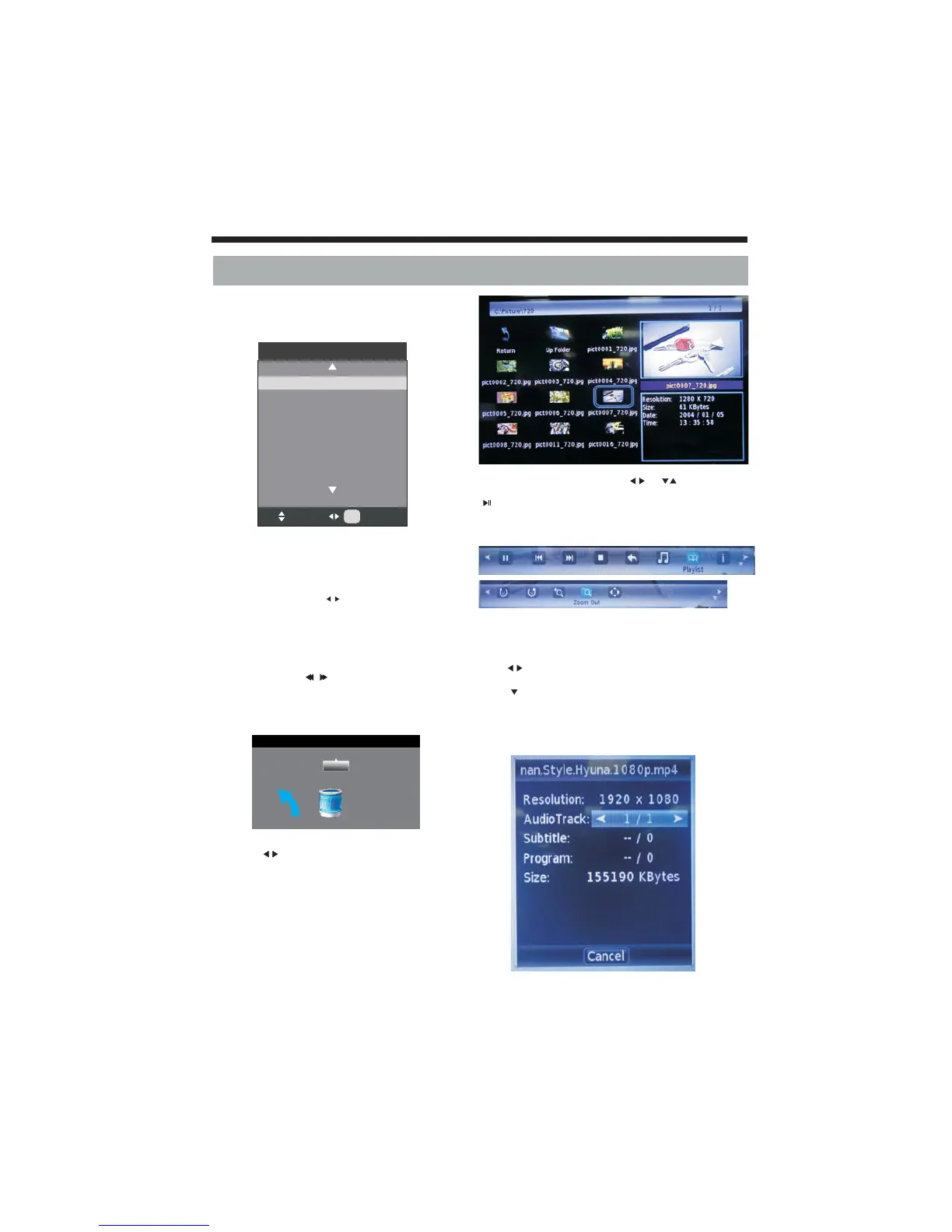
You must enter the Source menu first, then choice the
USB and press OK button, the USB menu will appear.
Please make sure that the USB device have plugged in
the slot. There are four type media item can be selected,
such as photo, music, Movie and text. Select the type
media item by pressing , press button to enter
the disk selection menu.
In the movie mode, when you use FB, FF function, The
audio may be pause in several seconds to synchronize
the audio and video signal.
In text mode, press to make page up and page down.
NOTE:
When the USB device isn't supported, it may be that the
power of the USB device isn't enough.
OK
signal
6. USB FUNCTION
Input Source
PC
HDMI1
USB
HDMI2
TV
YPBPR
AV
Select
OK
OK
Return (C:)
1/1
Press the to select the right disk and press to
display media files and folder list or choose Return to
back to the media type selection menu.
OK
Select the media fi le by pressing or , then
the preview frame will pop up. Press the button
to play the media fi le in full screen. When the
media file (photo, music, Movie or text type) is
playing, press the or Info buttonOK can display the
control bar.
Music function need to put music and picture in the
same folder.
Press to select the function icon, press OK button to
confirm the function.
Press or EXIT button to exit the control bar.
You can adjust the audio track, subtitle, or program in
the Info menu while Playing the video file.
Choose the Info icon and press OK can display the Info
MENU.
NOTE:



 To Next Page