14
ViewClix customer support
: web: https://viewclix.com/support
email: support@viewclix.com
Post a Sticky Note (CONTINUED)
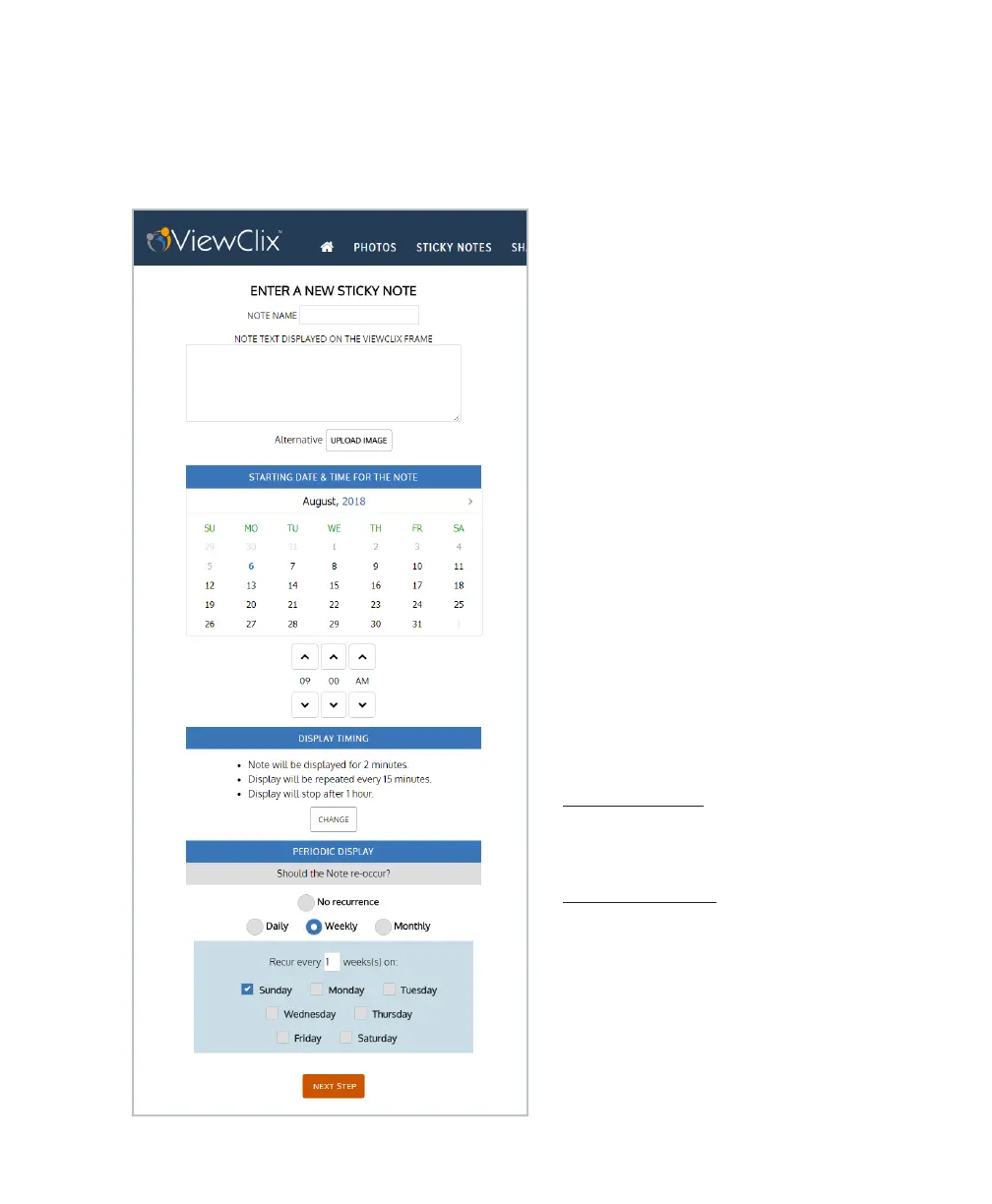
We’ve made adding a Sticky Note as straight-forward as possible. Below is a screen
shot of the display to add or edit a Sticky Note.
Each Sticky Note is given a
reference name
In the Note Text area, add the
message text for the Sticky
Note.
Click the ’Upload Image’ button
if you’d like to use a full-screen
image for the note.
Select the data and time for the
display of the Sticky Note. The
date must be in the future.
NOTE: The date and time are
relative to the Frame’s time
zone.
Display Timing lets you schedule
the note to repeat for 1 to 4
hours.
Periodic Display let’s you repeat
a note with daily, weekly or
monthly recurrence.


 To Next Page