7
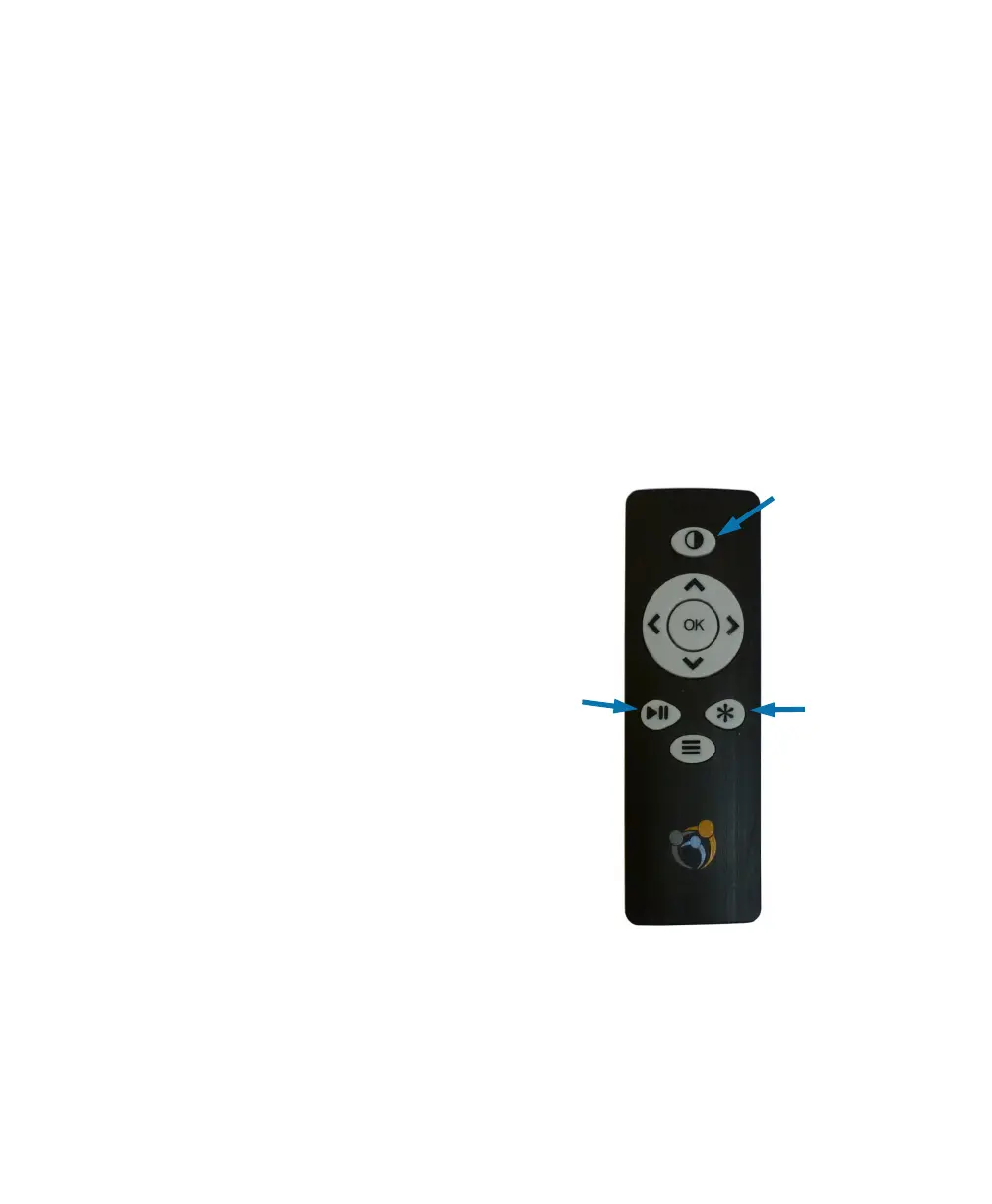
ViewClix Remote Control
The ViewClix Smart Frame is shipped
with a remote control to enter
commands.
The Remote Control will be needed to finish
the setup/installation process.
You can use the remote control to
pause the Slideshow. Use the forward
and back buttons < > to move through
the pictures.
Pause &
Play the
Slideshow.
Options
button
Sleep and
wake-up the
ViewClix
frame.
The OK button
is used to enter
selections.
That’s it — the installation is complete.
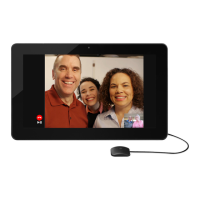
When the ViewClix Smart Frame is shipped, there are a few sample images in the
Slideshow. To share pictures and make video calls, you and family members may
use the ViewClix Mobile App or a web browser on a PC or Mac.
The next pages in this guide will help you get started with those actions.


 To Next Page