16
ViewClix customer support
: web: https://viewclix.com/support
email: support@viewclix.com
Share List Icons
User has accepted the Share List invitation and may share with the frame.
ALSO: Click this icon to enable other permissions for the user such as ena-
bling them to post Sticky Notes to the frame
Until an account is activated, the red exclamation icon is next to the name.
That person can’t share or video call with the frame yet.
Click or tap this icon to resend the account activation email.
Click or tap this icon to delete this Share List user from this frame. Once this
has been completed, the user will no longer be able to share or make video
calls to this frame.
Enable family and friends to share
(CONTINUED)
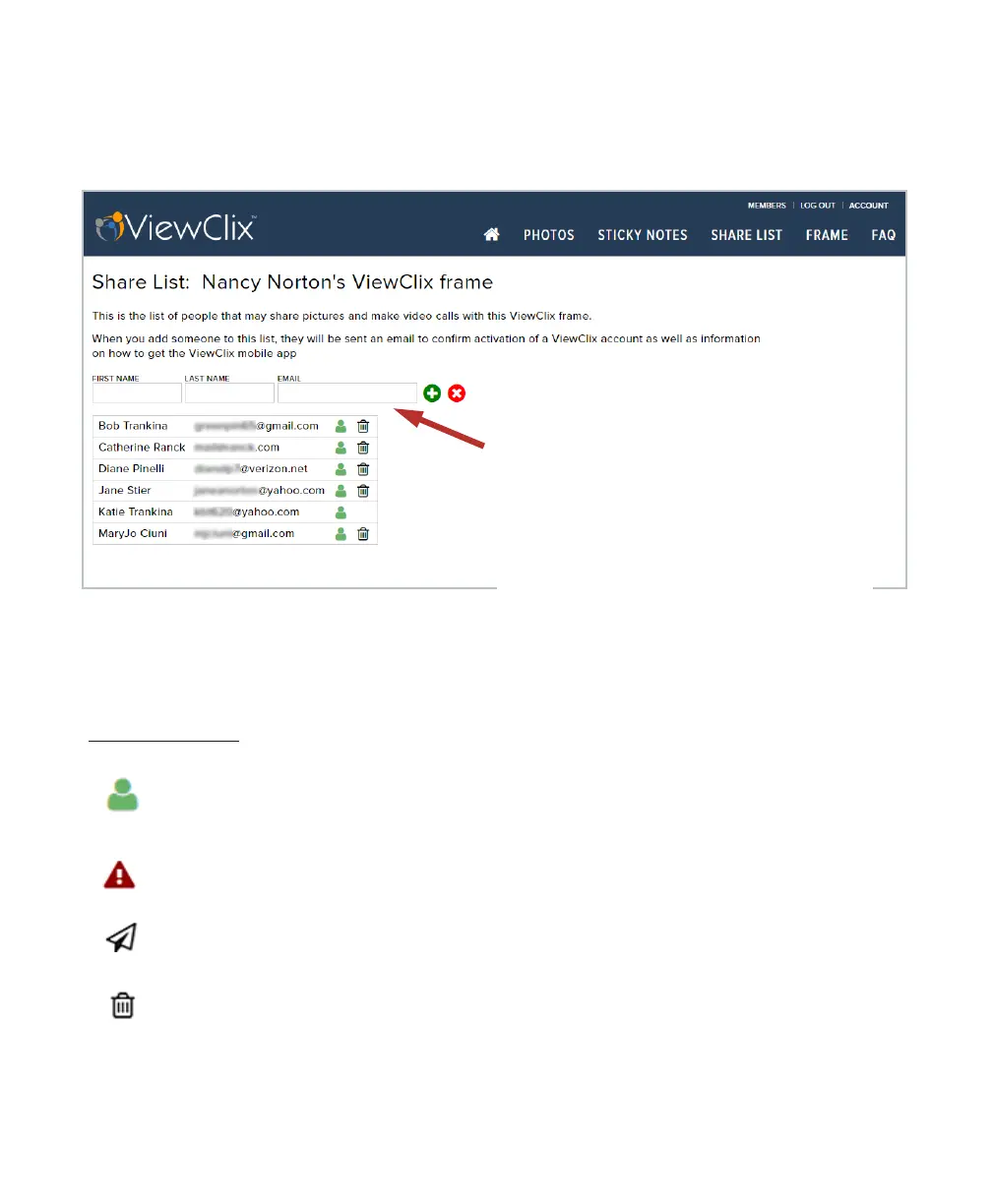
After clicking or tapping on ‘Share List’, the following web page will be displayed:
•
Add family and friends to the Share
List easily: just input their name
and email address.
•
Immediately after a person is
entered in the Share List, they will
be sent an account activation
email.
•
Once setup and activated, they can
also get the ViewClix app and start
sharing pictures and making video
calls.


 To Next Page