EasyManua.ls Logo

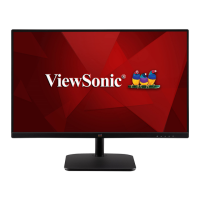
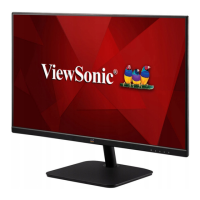
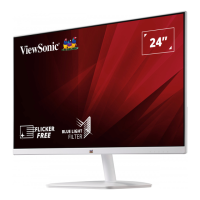
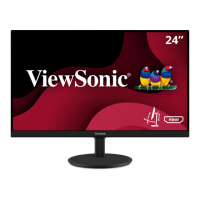
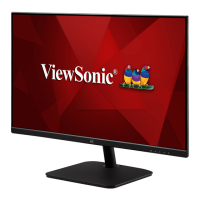
ViewSonic VA2432-h - User Manual

ViewSonic VA2432-h
44 pages
Print Icon
To Next Page IconTo Next Page
Loading...
VA2432-h
Display
User Guide
Model No. VS17789
P/N: VA2432-H
IMPORTANT: Please read this User Guide to obtain important information on installing and using your product in
a safe manner, as well as registering your product for future service. Warranty information contained in this User
Guide will describe your limited coverage from ViewSonic® Corporation, which is also found on our web site at
http://www.viewsonic.com in English, or in specific languages using the Regional selection box in the upper right
corner of our website. “Antes de operar su equipo lea cu idadosamente las instrucciones en este manual”

Questions and Answers

  • D
    douglasdonovanSep 9, 2025
    How do I center the screen correctly on my ViewSonic VA2432-h Monitor?
    • J
      John NguyenSep 9, 2025
      If the screen isn’t centered correctly on your ViewSonic monitor, adjust the horizontal and vertical controls via the OSD Menu. Also, check the Aspect Ratio. If problems persist, reset the monitor to its factory settings.
  • M
    Melissa LeeSep 8, 2025
    What to do if the OSD Menu doesn't appear on my ViewSonic VA2432-h Monitor?
    • J
      johnsonmeredithSep 8, 2025
      If the OSD Menu isn't appearing on your ViewSonic monitor or the OSD controls are inaccessible, check if the OSD Menu is locked by pressing and holding the 3 and 5 key for 10 seconds. If that doesn't work, turn off the monitor, unplug the power cord, plug it back in, and then turn the monitor back on. As a last resort, reset the monitor to its factory settings.
  • H
    Heidi HowardSep 7, 2025
    Why don't USB devices work when connected to my ViewSonic Monitor?
    • K
      Karen GraySep 7, 2025
      If USB devices aren't working when connected to your ViewSonic monitor, ensure the USB cable is connected properly. Try using a different USB port if available. Note that some USB devices might need more power, so try connecting them directly to the computer.
  • L
    Lisa CoxAug 22, 2025
    How to fix a ViewSonic Monitor when it has no power?
    • J
      Jordan ReedAug 22, 2025
      If your ViewSonic monitor isn't turning on, ensure it's switched on using the power button. Check that the power cord is correctly and securely plugged into both the monitor and the wall outlet. To verify the outlet is working, plug another device into it.
  • D
    Dr. Aimee DanielSep 4, 2025
    How do I fix a blurred screen image on my ViewSonic Monitor?
    • E
      Edward MitchellSep 5, 2025
      Adjust the resolution to the correct Aspect Ratio. If the image is still blurred, reset the monitor to its factory settings.
  • M
    melaniegonzalezSep 3, 2025
    What causes a ViewSonic VA2432-h screen image to cut in and out?
    • M
      Michael StewartSep 3, 2025
      Ensure the correct input source is selected. Inspect the video cable connector for bent or broken pins. Also, verify that the video cable connecting the monitor to the computer is properly and securely connected.
  • S
    sean79Sep 2, 2025
    How to resolve a screen image that is too light or dark on a ViewSonic VA2432-h Monitor?
    • C
      ccooperSep 2, 2025
      Adjust the brightness and contrast settings using the OSD Menu. If this doesn't resolve the issue, reset the monitor to its factory settings.
  • K
    Kellie FrankSep 1, 2025
    How to fix wrong or abnormal colors on ViewSonic VA2432-h Monitor?
    • M
      Michael HensleySep 1, 2025
      If you notice any missing colors like red, green, or blue, start by checking the video cable to ensure it's properly and securely connected. If the issue persists, try connecting the monitor to another computer to rule out display issues.
  • C
    cherreraAug 31, 2025
    Why is the screen image blurred on my ViewSonic VA2432-h Monitor?
    • R
      robert95Aug 31, 2025
      If the screen image on your ViewSonic monitor appears blurred, adjust the resolution to the correct Aspect Ratio. If that doesn't work, try resetting the monitor to its factory settings.
  • A
    amurrayAug 29, 2025
    What causes my ViewSonic Monitor screen image to cut in and out?
    • S
      Suzanne LoweAug 30, 2025
      If your ViewSonic monitor's screen image is cutting in and out, ensure the correct input source is selected. Check the video cable connector for bent or broken pins. Also, make sure the video cable connecting the monitor to the computer is properly and securely connected.

Summary

Introduction

Package Contents

Lists the items included in the monitor package.

Product Overview

Front and Rear View

Illustrates the front and rear panels of the monitor.

I;O Ports

Details the input/output connection ports on the monitor.

Initial Setup

Installing the Stand

Step-by-step guide for attaching the monitor stand.

Wall Mounting

Instructions and specifications for mounting the monitor on a wall.

Using the Security Slot

Guidance on securing the monitor using a security slot device.

Making Connections

Connecting to Power

Steps for connecting the monitor to a power source.

Connecting External Devices

Instructions for connecting video sources like HDMI and VGA.

Using the Monitor

Monitor Adjustments

Guide to adjusting the monitor's tilt and screen settings.

Power and Control Operations

Instructions for powering the device and using control panel buttons.

Quick Menu and Hot Keys

How to use Quick Menu and Hot Keys for rapid access to functions.

Configuring the Settings

General Operations

Steps for navigating and changing monitor settings via OSD.

OSD Menu Tree

Hierarchical view of all available OSD menu options and settings.

Appendix

Specifications

Technical details and parameters of the monitor.

Glossary

Glossary

Definitions of technical terms used in the manual.

Maintenance

General Precautions

Important safety and handling guidelines for maintenance.

Cleaning the Screen

Instructions for cleaning the monitor screen safely.

Cleaning the Case

Instructions for cleaning the monitor's outer casing.

Regulatory and Service Information

FCC Compliance

Details compliance with FCC rules for digital devices.

Industry Canada Statement

Statement regarding Industry Canada compliance.

Declaration of RoHS2 Compliance

Information on RoHS2 compliance with hazardous substance limits.

Indian Restriction of Hazardous Substances

Compliance statement for hazardous substances in India.

Product Disposal at End of Product Life

Guidelines for environmentally responsible product disposal.

Copyright Information

Legal notice regarding copyright and trademarks.

Customer Service

Contact information and procedures for technical support and service.

Limited Warranty

What the warranty covers

Details of what is covered under the ViewSonic® warranty.

How long the warranty is effective

Information on the duration of the warranty period.

Who the warranty protects

Identifies the eligible recipient of the warranty.

What the warranty excludes and does not cover

List of conditions and damages not covered by the warranty.

Exclusion of damages

Limitations on liability for various types of damages.

How to get service

Procedures for obtaining warranty service and support.

Effect of state law

How state laws affect warranty rights.

Sales outside the U.S.A. and Canada

Warranty information for products sold internationally.

Mexico Limited Warranty

What the warranty covers

Details of what is covered under the Mexico Limited Warranty.

How long the warranty is effective

Information on the duration of the Mexico warranty.

Who the warranty protects

Identifies the eligible recipient of the Mexico warranty.

What the warranty excludes and does not cover

List of exclusions for the Mexico Limited Warranty.

How to get service

Procedures for obtaining warranty service in Mexico.

Limitation of implied warranties

Limits on implied warranties for the Mexico warranty.

Exclusion of damages

Limitations on liability for damages under Mexico warranty.

Contact Information for Sales & Authorized Service in Mexico

Contact Information for Sales & Authorized Service in Mexico

List of authorized service centers and contact details in Mexico.

ViewSonic VA2432-h Specifications

General IconGeneral
Color depth8 bit
Screen shapeFlat
Display surfaceMatt
Display diagonal24 \
Display technologyLED
Native aspect ratio16:9
Maximum refresh rate75 Hz
Supported video modes1080p
Contrast ratio (dynamic)50000000:1
Contrast ratio (typical)1000:1
Display number of colors16.78 million colors
Digital vertical frequency48 - 75 Hz
Digital horizontal frequency24 - 86 kHz
Display brightness (typical)250 cd/m²
Supported graphics resolutions1920 x 1080 (HD 1080)
NVIDIA G-SYNC-
CertificationWEEE, BSMI, BIS
Product colorBlack
HDMI version1.4
DisplayPorts quantity0
AC input voltage100 - 240 V
AC input frequency50 - 60 Hz
Power consumption (standby)0.3 W
Power consumption (typical)22 W
Power consumption (PowerSave)15 W
Tilt angle range-3 - 20 °
Cable lock slot typeKensington
Panel mounting interface75 x 75 mm
Operating temperature (T-T)0 - 40 °C
Operating relative humidity (H-H)20 - 90 %
Package weight3700 g
Sustainability certificatesRoHS
Cables includedAC, HDMI
Harmonized System (HS) code85285210
Weight and Dimensions IconWeight and Dimensions
Depth (with stand)112 mm
Width (with stand)600 mm
Height (with stand)395 mm
Weight (with stand)2700 g
Depth (without stand)36 mm
Width (without stand)540 mm
Height (without stand)322 mm
Weight (without stand)2400 g

Related product manuals