EasyManua.ls Logo

ViewSonic VG3456A - User Manual

ViewSonic VG3456A
66 pages
Print Icon
To Next Page IconTo Next Page
Loading...
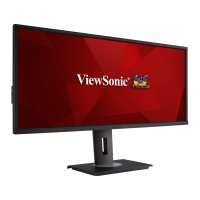
VG3456a
Display
User Guide
Model No. VS19568
P/N: VG3456A
IMPORTANT: Please read this User Guide to obtain important information on installing and using your product in
a safe manner, as well as registering your product for future service. Warranty information contained in this User
Guide will describe your limited coverage from ViewSonic® Corporation, which is also found on our web site at
http://www.viewsonic.com in English, or in specific languages using the Regional selection box of our website.

Other manuals for ViewSonic VG3456A

Questions and Answers

  • J
    Jeremy MitchellAug 19, 2025
    How to fix a ViewSonic Monitor that has no power?
    • R
      Roberta HurleyAug 19, 2025
      First, ensure the ViewSonic monitor is turned on by pressing the power button. Then, verify the power cord is properly and securely connected to both the monitor and the power outlet. Finally, test the power outlet by plugging in another electrical device to confirm it's supplying power.
  • J
    Jonathan GonzalesAug 21, 2025
    What to do if my ViewSonic VG3456A Monitor has power but no image?
    • P
      perezjeffreyAug 21, 2025
      If your ViewSonic monitor has power but no image, ensure the video cable connecting the monitor to the computer is properly and securely connected. You might also need to adjust the brightness and contrast settings. Lastly, verify that the correct input source is selected.
  • V
    Victoria BrooksAug 23, 2025
    How to stop my ViewSonic VG3456A screen image from cutting in and out?
    • R
      Randy BarronAug 25, 2025
      To resolve a screen image that cuts in and out on your ViewSonic monitor, first, make sure the correct input source is selected. Then, check for bent or broken pins in the video cable connector, as bent or broken pins in the video cable connector could cause an improper connection. Also, ensure the video cable connecting the monitor to the computer is properly and securely connected.
  • S
    Sarah MiddletonAug 26, 2025
    How to adjust brightness on ViewSonic Monitor?
    • A
      Amy LeblancAug 26, 2025
      If the screen image on your ViewSonic monitor is too light or dark, adjust the brightness and contrast settings via the OSD Menu. If this doesn't resolve the issue, reset the monitor to factory settings.
  • J
    Jacqueline WolfAug 28, 2025
    What to do if external device is connected, but no image appears on ViewSonic screen?
    • L
      Laura YangAug 28, 2025
      If an external device is connected to your ViewSonic monitor but no image appears, make sure the power is on. Adjust the brightness and contrast via the OSD Menu. Also, check the connecting cable and make sure it is properly and securely connected, as loose or broken pins in the cable connector could cause an improper connection.
  • M
    Michael PittsAug 30, 2025
    Why does my ViewSonic VG3456A Monitor have wrong colors?
    • R
      Robert HeathAug 30, 2025
      If your ViewSonic monitor displays wrong or abnormal colors, and any colors (red, green, or blue) are missing, check the video cable to make sure it is properly and securely connected, as loose or broken pins in the cable connector could cause an improper connection. You can also connect the monitor to another computer to check if the issue persists.
  • D
    Daniel DickersonSep 1, 2025
    Why is my ViewSonic VG3456A screen image blurred?
    • S
      sweeneysavannahSep 1, 2025
      If the screen image on your ViewSonic monitor is blurred, try adjusting the resolution to the correct Aspect Ratio. If the problem persists, reset the monitor to factory settings.
  • S
    Steven BurnettSep 3, 2025
    How do I center the screen on my ViewSonic Monitor?
    • A
      Andrea BrewerSep 3, 2025
      To center the screen on your ViewSonic monitor, adjust the horizontal and vertical controls via the OSD Menu. Also, check the Aspect Ratio. If the issue persists, reset the monitor to factory settings.
  • C
    Christine VasquezSep 5, 2025
    Why does my ViewSonic VG3456A Monitor screen appear yellow?
    • G
      gomezlindaSep 5, 2025
      If your ViewSonic monitor screen appears yellow, make sure the 'Blue Light Filter' is Off.
  • J
    jeffrey01Sep 7, 2025
    Why will my ViewSonic VG3456A Monitor not adjust?
    • A
      Abigail SmithSep 8, 2025
      If your ViewSonic monitor will not adjust, make sure there are no obstructions near or on the monitor, and that there is adequate spacing.

ViewSonic VG3456A Specifications

General IconGeneral
Screen Size34 inch
Resolution3440 x 1440
Panel TypeIPS
Aspect Ratio21:9
Brightness300 cd/m²
Contrast Ratio1000:1
Dynamic Contrast Ratio50M:1
ConnectivityHDMI, DisplayPort, USB-C
SpeakersYes
Height AdjustmentYes
TiltYes
SwivelYes
VESA Mount100 x 100 mm
CurvatureFlat
Response Time5ms
Viewing Angles178 degrees horizontal, 178 degrees vertical
PortsHDMI, DisplayPort, USB-C

Related product manuals