EasyManua.ls Logo

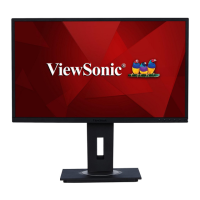
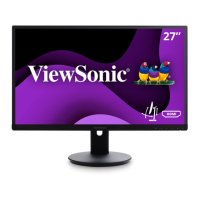
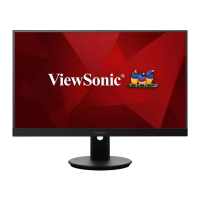
ViewSonic VG2740V - User Manual

ViewSonic VG2740V
71 pages
Print Icon
To Next Page IconTo Next Page
Loading...
VG2740V
Display
User Guide
Model No. VS18629
P/N: VG2740V
IMPORTANT: Please read this User Guide to obtain important information on installing and using your product in
a safe manner, as well as registering your product for future service. Warranty information contained in this User
Guide will describe your limited coverage from ViewSonic® Corporation, which is also found on our web site at
http://www.viewsonic.com in English, or in specific languages using the Regional selection box in the upper right
corner of our website. “Antes de operar su equipo lea cu idadosamente las instrucciones en este manual”

Questions and Answers

  • O
    othompsonAug 18, 2025
    How to fix a ViewSonic VG2740V with no power?
    • U
      uscottAug 19, 2025
      If your ViewSonic monitor isn't turning on, first ensure that the monitor is switched on. If it is not, press the power button. Then, verify that the power cord is correctly and securely plugged into the monitor and the power outlet. Finally, test the power outlet by plugging in another electrical device to confirm it's working.
  • F
    Frederick PotterAug 20, 2025
    What to do if ViewSonic VG2740V has power but no image?
    • S
      samantha62Aug 21, 2025
      If your ViewSonic monitor's power is on but there's no image, ensure the video cable is properly and securely connected to both the monitor and the computer. Inspect the video cable connector for any bent or broken pins. Also, adjust the brightness and contrast settings. Finally, verify that you have selected the correct input source on your monitor.
  • K
    kathrynbaileyAug 23, 2025
    Why is the screen image or text blurred on my ViewSonic VG2740V Monitor?
    • N
      Nicholas BrownAug 23, 2025
      If the image or text on your ViewSonic monitor appears blurred, try adjusting the resolution to the correct aspect ratio. If that doesn't work, reset the monitor to its factory settings.
  • A
    athompsonAug 26, 2025
    Why are the colors wrong on my ViewSonic VG2740V Monitor?
    • H
      howard00Aug 26, 2025
      If the colors on your ViewSonic monitor appear wrong or abnormal, check the video cable to ensure it's properly and securely connected. If any colors are missing, this is especially important. You can also connect the monitor to another computer to see if the issue persists. If you have an older graphics card, contact ViewSonic for a non-DDC adapter.
  • S
    Sara VincentAug 28, 2025
    What to do if ViewSonic Monitor screen image cuts in and out?
    • T
      Tyler AdamsAug 28, 2025
      If the screen image on your ViewSonic monitor cuts in and out, ensure that the video cable connecting the monitor to the computer is properly and securely connected. Also, verify that the correct input source is selected. Check the video cable connector for broken pins as well.
  • J
    Johnathan JohnsonAug 30, 2025
    Why doesn't the OSD Menu appear on my ViewSonic VG2740V Monitor?
    • S
      sandrajohnsonAug 30, 2025
      If the OSD Menu does not appear on your ViewSonic monitor, first check whether the OSD Menu is locked. If it is not locked, turn off the monitor, unplug the power cord, plug it back in, and then turn the monitor back on. As a last resort, reset the monitor to its factory settings.
  • T
    Tyrone ArroyoSep 1, 2025
    How to center the screen on a ViewSonic VG2740V?
    • D
      David SantosSep 1, 2025
      If the screen on your ViewSonic monitor is not centered correctly, adjust the resolution to the correct aspect ratio. You can also adjust the horizontal and vertical controls via the OSD Menu. If neither of those work, reset the monitor to factory settings.
  • J
    James ClaySep 3, 2025
    Why doesn't the Quick Menu appear on my ViewSonic VG2740V Monitor?
    • D
      Denise CarpenterSep 3, 2025
      If the Quick Menu doesn’t appear on your ViewSonic monitor, try restarting the computer. If that doesn't work, turn off the monitor, unplug the power cord, plug it back in, and then turn on the monitor. As a last resort, reset the monitor to factory settings.
  • S
    shawnfullerSep 6, 2025
    Why does my ViewSonic VG2740V Monitor screen appear yellow?
    • M
      Misty PierceSep 6, 2025
      If your ViewSonic monitor screen appears yellow, make sure the 'Blue Light Filter' is turned off.
  • C
    Carla HillSep 8, 2025
    Why are some menus not selectable in the OSD on my ViewSonic Monitor?
    • J
      John BeardSep 8, 2025
      If some menus are not selectable in the OSD on your ViewSonic monitor, try restarting the computer. Also, adjust the ViewMode or the input source. If the issue persists, reset the monitor to factory settings.

Summary

Introduction

Package Contents

Lists the items included in the product package.

Product Overview

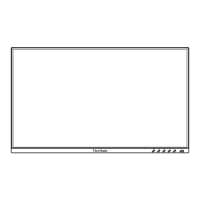
Front View

Details the components and features visible on the front of the monitor.

Rear View

Details the connection ports and features on the rear of the monitor.

Making Connections

Connecting to Power

Instructions on how to connect the monitor to a power outlet.

Connecting External Devices

HDMI Connection

Guides on connecting the monitor using an HDMI cable to a computer.

DisplayPort Connection

VGA Connection

USB Connection

Audio Connection

Turning the Device On;Off

Using the Webcam

Uncovering and Covering the Webcam

Instructions on how to expose or hide the built-in webcam.

Tilting the Webcam

Using the Control Panel Keys

Quick Menu

Explains how to use the monitor's control panel buttons for basic functions.

Hot Keys

Configuring the Settings

General Operations

Outlines how to navigate and use the On-Screen Display (OSD) menu for adjustments.

On-Screen Display (OSD) Menu Tree

Menu Options

Input Select

How to choose the active video input source for the monitor.

Audio;Mic

ViewMode Menu

Color Adjust Menu

Manual Image Adjust Menu

Setup Menu

Appendix

Specifications

Technical specifications of the monitor, including display size, resolution, and connectivity.

Glossary

Troubleshooting

Maintenance

General Precautions

Safety guidelines for cleaning and handling the monitor to prevent damage.

Cleaning the Screen

Instructions on how to safely clean the monitor's display surface.

Cleaning the Case

Instructions on how to safely clean the monitor's casing.

Product Upgradeability and Repairability

Regulatory and Service Information

Compliance Information

Information regarding FCC, Industry Canada, and CE compliance standards.

FCC Compliance Statement

Details compliance with FCC rules for digital devices.

CE Conformity for European Countries

States compliance with EU EMC and Low Voltage Directives.

Declaration of RoHS2 Compliance

Indian Restriction of Hazardous Substances

Product Disposal at End of Product Life

TCO Certified

Copyright Information

Customer Service

Limited Warranty

What the warranty covers

Details what aspects of the product are covered by the warranty.

How long the warranty is effective

Specifies the duration of the warranty period for parts and labor.

Who the warranty protects

Clarifies that the warranty is valid only for the first consumer purchaser.

What the warranty excludes and does not cover

Lists conditions and damages not covered by the warranty.

Mexico Limited Warranty

Contact Information for Sales & Authorized Service (Mexico)

ViewSonic VG2740V Specifications

General IconGeneral
Color depth8 bit
Color gamut76 %
Pixel pitch0.311 x 0.311 mm
Screen shapeFlat
Display diagonal27 \
Anti-glare screenYes
Display technologyLED
Native aspect ratio16:9
Vertical scan range50 - 75 Hz
Maximum refresh rate60 Hz
Horizontal scan range15 - 82 kHz
NTSC coverage (typical)72 %
sRGB coverage (typical)102 %
Contrast ratio (dynamic)80000000:1
Contrast ratio (typical)1000:1
Display number of colors16.7 million colors
Display brightness (typical)300 cd/m²
HDMI version1.4
USB hub version3.2 Gen 2 (3.1 Gen 2)
USB upstream port typeUSB Type-B
USB Type-A downstream ports quantity3
Number of USB Type-B upstream ports quantity1
Megapixel2 MP
RMS rated power4 W
Number of speakers2
AC input voltage100 - 240 V
AC input frequency50 - 60 Hz
Energy efficiency scaleA to G
Power consumption (max)32.5 W
Power consumption (standby)0.5 W
Power consumption (typical)26.14 W
Pivot angle0 - 90 °
Tilt angle range-5 - 40 °
Cable lock slot typeKensington
Panel mounting interface100 x 100 mm
Operating temperature (T-T)0 - 40 °C
Operating relative humidity (H-H)20 - 90 %
Package weight10200 g
Cables includedAC, Audio (3.5mm), HDMI, USB Type-A to USB Type-B
Sustainability certificatesCE, ENERGY STAR, EPEAT Silver, ErP, REACH, RoHS, WEEE
Harmonized System (HS) code85285210
Weight and Dimensions IconWeight and Dimensions
Depth (with stand)206 mm
Width (with stand)621 mm
Height (with stand)425.64 mm
Weight (with stand)7200 g
Depth (without stand)55 mm
Height (without stand)389 mm
Weight (without stand)4800 g

Related product manuals