EasyManua.ls Logo

ViewSonic VS18172 - User Manual

ViewSonic VS18172
44 pages
Print Icon
To Next Page IconTo Next Page
Loading...
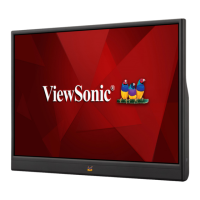
VA1655
Display
User Guide
Model No. VS18172
P/N: VA1655
IMPORTANT: Please read this User Guide to obtain important information on installing and using your product in
a safe manner, as well as registering your product for future service. Warranty information contained in this User
Guide will describe your limited coverage from ViewSonic® Corporation, which is also found on our web site at
http://www.viewsonic.com in English, or in specific languages using the Regional selection box in the upper right
corner of our website. “Antes de operar su equipo lea cu idadosamente las instrucciones en este manual”

Questions and Answers

  • R
    Robin WilliamsAug 31, 2025
    How to adjust screen image that is too light or dark on ViewSonic monitor?
    • W
      William GonzalezAug 31, 2025
      If your ViewSonic monitor screen image is too light or dark, adjust the brightness and contrast settings via the OSD Menu. If that doesn't resolve the issue, try resetting the monitor to its factory settings.
  • E
    Elizabeth WilliamsAug 30, 2025
    How to fix a blurred screen image on a ViewSonic VS18172?
    • L
      Linda BrownAug 30, 2025
      To fix a blurred screen image on your ViewSonic monitor, adjust the resolution to the correct Aspect Ratio. If the issue continues, reset the monitor to factory settings.
  • J
    James SwansonAug 29, 2025
    Why are the colors wrong or abnormal on my ViewSonic VS18172?
    • C
      crystalpadillaAug 29, 2025
      If the colors on your ViewSonic monitor appear wrong or abnormal, and any colors (red, green, or blue) are missing, check the video cable to ensure it is properly and securely connected, as loose or broken pins in the cable connector could cause an improper connection. You can also connect the monitor to another computer to test it. If you have an older graphics card, contact ViewSonic® for a non-DDC adapter.
  • K
    Kimberly SnyderAug 28, 2025
    What to do if the ViewSonic Monitor screen image cuts in and out?
    • C
      colleen71Aug 28, 2025
      If your ViewSonic monitor's screen image is cutting in and out, first, ensure the correct input source is selected. Next, check the video cable connector for any bent or broken pins. Finally, make sure the video cable connecting the monitor to the computer is properly and securely connected.
  • J
    Jason MyersAug 27, 2025
    Why is my ViewSonic Monitor screen image too light or dark?
    • E
      eileenstoutAug 27, 2025
      If the screen image on your ViewSonic monitor is too light or dark, adjust the brightness and contrast settings via the OSD Menu. Alternatively, you can reset the monitor to its factory settings.
  • K
    Kelly RamirezAug 26, 2025
    How to troubleshoot no power on ViewSonic VS18172 Monitor?
    • M
      michelle21Aug 27, 2025
      If your ViewSonic monitor is not receiving power, start by pressing the Power button to ensure the monitor is turned on. Then, check that the power cord is properly and securely connected to both the monitor and the power outlet. To verify the outlet is working, plug another electrical device into it.
  • B
    Brandon HowellAug 25, 2025
    What to do if power is on, but no image appears on ViewSonic VS18172 Monitor?
    • V
      Vicki BergAug 26, 2025
      If the power is on but you're not seeing anything on your ViewSonic monitor, ensure the video cable is securely connected to both the monitor and the computer. You might also need to adjust the brightness and contrast settings or verify that the correct input source is selected.
  • W
    Wendy MyersAug 25, 2025
    What to do if ViewSonic Monitor has no power?
    • E
      Elijah DuffyAug 25, 2025
      First, ensure that you have turned on the ViewSonic monitor by pressing the power button. Then, verify that the power cord is properly and securely connected to both the monitor and the power outlet. To confirm the outlet is working, plug another electrical device into it.

Summary

Safety Precautions

Introduction

Package Contents

Lists all items included in the product package.

Product Overview

Details the device's physical layout, views, and I/O ports.

Initial Setup

Tilt Angle Adjustment

How to adjust the monitor's viewing angle using the stand.

Using the Stand

Instructions and precautions for using the monitor's stand.

Making Connections

Connecting to Power

Explains different ways to connect the monitor for power.

Connecting External Devices

Guides on connecting other devices to the monitor.

Power Delivery

Information on charging external devices via the monitor.

Using the Monitor

Turning the Device On;Off

Step-by-step guide to powering the monitor on and off.

Quick Menu

Accessing and using the quick menu options.

Configuring the Settings

General operations for adjusting monitor settings via OSD.

Appendix

Specifications

Technical specifications of the monitor.

Troubleshooting

Common problems and their solutions.

Regulatory and Service Information

Compliance Information

General regulatory compliance statements and requirements.

Customer Service

How to get technical support and service.

Limited Warranty

Details on warranty coverage, duration, and exclusions.

ViewSonic VS18172 Specifications

General IconGeneral
BrandViewSonic
ModelVS18172
CategoryMonitor
LanguageEnglish

Related product manuals