EasyManua.ls Logo

ViewSonic VS18470 - User Manual

ViewSonic VS18470
95 pages
Print Icon
To Next Page IconTo Next Page
Loading...
User Manual of Product 1:
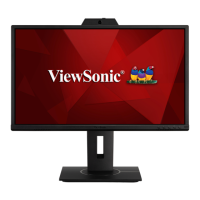
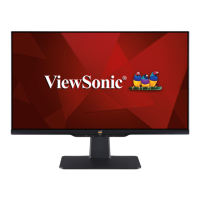
ViewSonic VA2456-MHD 24 Inch IPS 1080p Monitor with
Ultra-Thin Bezels, HDMI, DisplayPort and VGA Inputs for Home ,
Office,blue
User Manual of Product 2:
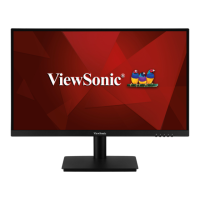
ViewSonic VA2447-MH 24 Inch Full HD 1080p Monitor with
Ultra-Thin Bezel, AMD Free Sync, 75Hz, Eye Care, and HDMI,
VGA Inputs for Home and Office, Black

Table of Contents

Question and Answer IconNeed help?

Do you have a question about the ViewSonic VS18470 and is the answer not in the manual?

Overview

This document contains user manuals for two ViewSonic monitors: the VA2456-MHD and the VA2447-MH.

ViewSonic VA2456-MHD Monitor

Function Description: The ViewSonic VA2456-MHD is a 24-inch IPS 1080p monitor designed for home and office use. It features ultra-thin bezels, providing a more immersive viewing experience. The monitor supports multiple input options including HDMI, DisplayPort, and VGA, making it versatile for connecting to various devices.

Important Technical Specifications:

  • LCD:
    • Type: IPS, TFT Active Matrix 24-inch (60.96 cm)
    • Display Size: 531.36 (H) x 298.89 (V) mm, 23.8-inch viewable
    • Color Filter: RGB vertical stripe
    • Glass Surface: Anti-Glare type, 3H hard coating
  • Input Signal:
    • Video Sync: TMDS digital (100 Ω)
    • HDMI (1.4): fH: 15~82 kHz, fV: 24~75 Hz
    • DisplayPort (1.2): fH: 15~82 kHz, fV: 24~75 Hz
    • VGA: fH: 24~82 kHz, fV: 50~75 Hz
  • Compatibility:
    • PC: up to 1920 x 1080
    • Macintosh: up to 1920 x 1080
    • Recommended: 1920 x 1080 @ 60Hz
  • Resolution (Supported):
    • 1920 x 1080 @ 50, 60, 75Hz
    • 1680 x 1050 @ 60Hz
    • 1600 x 1200 @ 60Hz
    • 1600 x 900 @ 60Hz
    • 1440 x 900 @ 60, 75Hz
    • 1366 x 768 @ 50, 60, 75Hz
    • 1280 x 1024 @ 50, 60, 75Hz
    • 1280 x 960 @ 50, 60, 75Hz
    • 1280 x 800 @ 50, 60, 75Hz
    • 1280 x 768 @ 50, 60, 75Hz
    • 1152 x 900 @ 66Hz
    • 1152 x 870 @ 75Hz
    • 1024 x 768 @ 50, 60, 70, 72, 75Hz
    • 848 x 480 @ 60Hz
    • 832 x 624 @ 75Hz
    • 800 x 600 @ 56, 60, 72, 75Hz
    • 720 x 576 @ 50Hz
    • 720 x 480 @ 60Hz
    • 720 x 400 @ 70Hz
    • 640 x 480 @ 50, 60, 66, 72, 75Hz
    • 640 x 400 @ 70Hz
    • 640 x 350 @ 70Hz
  • Power Adapter: Input Voltage AC 100-240V, 50/60Hz (auto switch)
  • Display Area: Full Scan (H x V) 531.36 x 298.89 mm (20.92" x 11.77")
  • Operating Conditions:
    • Temperature: 0°C to 40°C (32°F to 104°F)
    • Humidity: 20% to 90% (non-condensing)
    • Altitude: 16,404 feet (5 km)
  • Storage Conditions:
    • Temperature: -20°C to 60°C (-4°F to 140°F)
    • Humidity: 5% to 90% (non-condensing)
    • Altitude: 40,000 feet (12.1 km)
  • Physical Dimensions (W x H x D): 540.0 x 409.0 x 185.0 mm (21.26" x 16.10" x 7.28")
  • Wall Mount: Dimensions 100 x 100 mm
  • Weight: Physical 3.6 kg (7.9 lbs)
  • Power Saving Modes: On: 17W (Typical), Off: < 0.3W

Usage Features:

  • Initial Setup: Includes instructions for installing the stand and wall mounting. The monitor supports VESA wall mounting (100 x 100 mm).
  • Security Slot: A security slot is provided to help prevent theft by securing the device to a fixed object using a security cable.
  • Connections: Simple steps for connecting the power cord and external devices (HDMI, DisplayPort, VGA, and audio).
  • Adjusting the Viewing Angle:
    • Height Adjustment: The monitor can be adjusted vertically (0 to 130 mm).
    • Tilt Angle Adjustment: The monitor can be tilted forwards or backwards (-4° to 20°).
    • Swivel Angle Adjustment: The monitor can be swiveled 360° for desired viewing angles.
  • Turning the Device On/Off: Instructions for plugging in the power cord and using the power button. The monitor consumes some power even when off, so unplugging is recommended for long periods of disuse.
  • Control Panel Keys: The monitor features control panel keys for quick access to the Quick Menu, Hot Keys, and On-Screen Display (OSD) Menu.
    • Quick Menu: Pressing the 1(*) key activates the Quick Menu, allowing adjustments for ViewMode, Volume, Contrast/Brightness, and Input Select.
    • Hot Keys:
      • 1(*) + 2: Locks/unlocks the OSD Menu.
      • 2 + 3: Locks/unlocks the Power button.
      • 3 + 4: Displays/hides the boot up screen.
  • Configuring the Settings (OSD Menu): The OSD Menu allows for detailed adjustments across categories like Input Select, Audio Adjust, ViewMode, Color Adjust, Manual Image Adjust, and Setup Menu.
    • Input Select: Choose between HDMI 1, HDMI 2, DisplayPort, and VGA.
    • Audio Adjust: Control Volume (0-100), Mute, and Audio Input (HDMI or VGA).
    • ViewMode: Select preset modes like Standard, Game, Movie, Web, Text, MAC, and Mono.
    • Color Adjust: Adjust Contrast/Brightness (0-100), Color Temperature (sRGB, Bluish, Cool, Native, Warm), User Color (Red, Green, Blue 0-100), Color Space (Auto, RGB, YUV), Color Range (Auto, Full Range, Limited Range), and HDR (Auto, Off).
    • Manual Image Adjust: Adjust Sharpness (0-100), Blue Light Filter (0-100), Aspect Ratio (4:3, 5:4, 16:9, 16:10, 21:9), Overscan (On, Off), Black Stabilization (0/10/20/30/40/50/60/70/80/90/100), Advanced DCR (0/25/50/75/100), and Response Time (Standard, Advanced, Ultra Fast).
    • Setup Menu: Configure Language Select (English, Deutsch, Español, Italiano, Suomi, Svenska, Русский, Türkçe, Česká, 日本語, 한국어, 繁體中文, 简体中文), Adaptive Sync (On, Off), Resolution Notice (On, Off), OSD Time Out (5/15/30/60), OSD Background (On, Off), Power Indicator (On, Off), Auto Power Off (On, Off), Sleep (30/45/60/120 Minutes, Off), ECO Mode (Standard, Optimize, Conserve), Power Button (Power Off, Screen Off), Auto Detect (On, Off), DisplayPort 1.1 (On, Off), DDC/CI (On, Off), and Memory Recall.
  • Glossary: Provides definitions for terms like Advanced DCR, Audio Adjust, Auto Detect, Auto Image Adjust, Blue Light Filter, Brightness, Color Adjust, Color Space, Color Temperature, Contrast, Information, Input Select, Manual Image Adjust, Memory Recall, Overscan, Power Button, Recall, Resolution Notice, Response Time, Setup Menu, Sharpness, and ViewMode.

Maintenance Features:

  • General Precautions: Ensure the monitor is turned off and unplugged before cleaning. Avoid spraying liquid directly onto the screen. Handle with care to prevent damage.
  • Cleaning the Screen: Wipe with a clean, soft, lint-free cloth. For stubborn dirt, use a small amount of non-ammonia, non-alcohol based glass cleaner.
  • Cleaning the Case: Use a soft, dry cloth. For stubborn dirt, use a small amount of non-ammonia, non-alcohol based, mild non-abrasive detergent.
  • Disclaimer: ViewSonic does not recommend ammonia or alcohol-based cleaners. Chemical cleaners may damage the screen/case. ViewSonic is not liable for damage from unauthorized cleaners.

ViewSonic VA2447-MH Monitor

Function Description: The ViewSonic VA2447-MH is a 24-inch Full HD 1080p monitor featuring an ultra-thin bezel, AMD FreeSync technology, a 75Hz refresh rate, and Eye Care features. It supports HDMI and VGA inputs, making it suitable for home and office environments. The monitor is available in black.

Important Technical Specifications:

  • LCD:
    • Type: VA type, Color a-Si, TFT Active Matrix 1920 x 1080 LCD
    • Display Size: 521.28 (H)mm x 293.22 (V)mm pixel pitch, 23.6-inch viewable
    • Color Filter: RGB vertical stripe
    • Glass Surface: Anti-Glare type, 3H hard coating
  • Input Signal:
    • Video Sync: D-SUB: fH: 24~82 kHz, fV: 50~75 Hz
    • HDMI (1.4): fH: 24~82 kHz, fV: 50~75 Hz
  • Compatibility:
    • PC: up to 1920 x 1080
    • Macintosh: up to 1920 x 1080
    • Recommended: 1920 x 1080 @ 60Hz
  • Resolution (Supported):
    • 1920 x 1080 @ 50, 60, 75Hz
    • 1680 x 1050 @ 60Hz
    • 1600 x 1200 @ 60Hz
    • 1600 x 900 @ 60Hz
    • 1440 x 900 @ 60, 75Hz
    • 1366 x 768 @ 50, 60, 75Hz
    • 1280 x 1024 @ 50, 60, 75Hz
    • 1280 x 960 @ 50, 60, 75Hz
    • 1280 x 800 @ 50, 60, 75Hz
    • 1280 x 768 @ 50, 60, 75Hz
    • 1152 x 900 @ 66Hz
    • 1152 x 870 @ 75Hz
    • 1024 x 768 @ 50, 60, 70, 72, 75Hz
    • 848 x 480 @ 60Hz
    • 832 x 624 @ 75Hz
    • 800 x 600 @ 56, 60, 72, 75Hz
    • 720 x 576 @ 50Hz
    • 720 x 480 @ 60Hz
    • 720 x 400 @ 70Hz
    • 640 x 480 @ 50, 60, 66, 72, 75Hz
    • 640 x 400 @ 70Hz
    • 640 x 350 @ 70Hz
  • Power Adapter: Input Voltage AC 100-240V, 50/60Hz (auto switch)
  • Display Area: Full Scan (H x V) 521.28 x 293.22 mm (20.52" x 11.54")
  • Operating Conditions:
    • Temperature: 0°C to 40°C (32°F to 104°F)
    • Humidity: 20% to 90% (non-condensing)
    • Altitude: 16,404 feet (5 km)
  • Storage Conditions:
    • Temperature: -20°C to 60°C (-4°F to 140°F)
    • Humidity: 5% to 90% (non-condensing)
    • Altitude: 40,000 feet (12.1 km)
  • Physical Dimensions (W x H x D): 540.0 x 409.0 x 185.0 mm (21.26" x 16.10" x 7.28")
  • Wall Mount: Dimensions 100 x 100 mm
  • Weight: Physical 2.9 kg (6.4 lbs)
  • Power Saving Modes: On: 20W without audio (Typical), 22W with 50% audio (Typical), Off: < 0.3W

Usage Features:

  • Initial Setup: Includes instructions for installing the stand and wall mounting. The monitor supports VESA wall mounting (100 x 100 mm).
  • Security Slot: A security slot is provided to help prevent theft by securing the device to a fixed object using a security cable.
  • Connections: Simple steps for connecting the power cord and external devices (HDMI, VGA, and audio).
  • Adjusting the Viewing Angle:
    • Tilt Angle Adjustment: The monitor can be tilted forwards or backwards (-5° to 20°).
  • Turning the Device On/Off: Instructions for plugging in the power cord and using the power button. The monitor consumes some power even when off, so unplugging is recommended for long periods of disuse.
  • Control Panel Keys: The monitor features control panel keys for quick access to the Quick Menu, Hot Keys, and On-Screen Display (OSD) Menu.
    • Quick Menu: Pressing the 1(*) key activates the Quick Menu, allowing adjustments for ViewMode, Volume, Contrast/Brightness, and Input Select.
    • Hot Keys:
      • 1(*) + 2: Locks/unlocks the OSD Menu.
      • 2 + 3: Locks/unlocks the Power button.
      • 3 + 4: Displays/hides the boot up screen.
  • Configuring the Settings (OSD Menu): The OSD Menu allows for detailed adjustments across categories like Input Select, Audio Adjust, ViewMode, Color Adjust, Manual Image Adjust, and Setup Menu.
    • Input Select: Choose between D-SUB and HDMI.
    • Audio Adjust: Control Volume (0-100), Mute, Audio Input (HDMI or D-SUB).
    • ViewMode: Select preset modes like Standard, Game, Movie, Web, Text, MAC, and Mono.
    • Color Adjust: Adjust Contrast/Brightness (0-100), Color Temperature (sRGB, Bluish, Cool, Native, Warm), User Color (Red, Green, Blue 0-100), Color Space (Auto, RGB, YUV for HDMI only), Color Range (Full Range, Limited Range for HDMI only).
    • Manual Image Adjust: Auto Image Adjust (for D-SUB only), Horizontal Size (for D-SUB only), H./V. Position (for D-SUB only), Fine Tune (for D-SUB only), Sharpness (0-100), Blue Light Filter (0-100), Aspect Ratio (4:3, 5:4, 16:9, 16:10), Distortion Correction (On, Off), Overscan (On, Off for HDMI only), Black Stabilization (0/10/20/30/40/50/60/70/80/90/100), Advanced DCR (0/25/50/75/100), and Response Time (Standard, Advanced, Ultra Fast).
    • Setup Menu: Configure Language Select (English, Deutsch, Español, Italiano, Suomi, Svenska, Русский, Türkçe, Česká, 日本語, 한국어, 繁體中文, 简体中文), AMD FreeSync (On, Off for HDMI only), Resolution Notice (On, Off), OSD Time Out (5/15/30/60), OSD Background (On, Off), Power Indicator (On, Off), Auto Power Off (On, Off), Sleep (30/45/60/120 Minutes, Off), ECO Mode (Standard, Optimize, Conserve), Power Button (Power Off, Screen Off), Auto Detect (On, Off), DDC/CI (On, Off), and Memory Recall.
  • Glossary: Provides definitions for terms like Advanced DCR, Audio Adjust, Auto Detect, Auto Image Adjust, Blue Light Filter, Brightness, Color Adjust, Color Space, Color Temperature, Contrast, Information, Input Select, Manual Image Adjust, Memory Recall, Overscan, Power Button, Recall, Resolution Notice, Response Time, Setup Menu, Sharpness, and ViewMode.

Maintenance Features:

  • General Precautions: Ensure the monitor is turned off and unplugged before cleaning. Avoid spraying liquid directly onto the screen. Handle with care to prevent damage.
  • Cleaning the Screen: Wipe with a clean, soft, lint-free cloth. For stubborn dirt, use a small amount of non-ammonia, non-alcohol based glass cleaner.
  • Cleaning the Case: Use a soft, dry cloth. For stubborn dirt, use a small amount of non-ammonia, non-alcohol based, mild non-abrasive detergent.
  • Disclaimer: ViewSonic does not recommend ammonia or alcohol-based cleaners. Chemical cleaners may damage the screen/case. ViewSonic is not liable for damage from unauthorized cleaners.

ViewSonic VS18470 Specifications

General IconGeneral
BrandViewSonic
ModelVS18470
CategoryMonitor
LanguageEnglish

Related product manuals