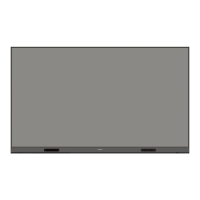
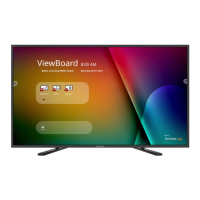
This document describes the ViewSonic IFP4320 Commercial Touch Display, a visual solution designed for interactive and collaborative environments.
Function Description
The ViewSonic IFP4320 is a commercial touch display that functions as an interactive whiteboard and a versatile display for various applications. It supports touch gestures for intuitive interaction, allowing users to select/deselect objects, move items, access settings, and erase digital ink without a keyboard or mouse. The device features an embedded digital whiteboarding app, "Whiteboard," for interactive presentations and collaborative work. It also includes "ViewBoard Cast" software, which enables receiving screens, photos, videos, annotations, and camera feeds from Windows-based, Macbook, Chrome, iOS, and Android devices. The display can be controlled remotely via RS-232 or LAN, allowing for functions like power on/off, volume adjustment, input selection, and brightness control.
Important Technical Specifications
- Model: IFP4320 (P/N: IFP4320, Model No. VS18454)
- Screen Size: 43 inches
- Input Signals: 1 x HDMI, 1 x VGA, 1 x DisplayPort, 1 x USB Type-C, 1 x DVI, 1 x Audio In, 1 x LAN (RJ45), 2 x USB Type-A (2.0)
- Output Signals: 1 x Audio Out, 1 x SPDIF, 1 x USB Type-B
- Speaker Output: 10W x 2
- RS-232: RS-232 Communication
- Power: 100V-240V AC 50/60Hz
- Operating Conditions:
- Temperature: 32° F to 104° F (0° C to 40° C)
- Humidity: 20%~80% non-condensing
- Altitude: < 2,000 m
- Storage Conditions:
- Temperature: 14° F to 140° F (-10° C to 60° C)
- Humidity: 10%~80% non-condensing
- Altitude: < 2,000 m
- Dimensions (Physical):
- W x H x D (mm): 967 x 558.1 x 55.7
- W x H x D (in): 38.072 x 21.973 x 2.193
- Weight (Physical):
- Power Consumption:
- On: 120W (Typ.)
- Off: <0.5W
- VESA Wall Mounting: 400 x 400 mm, M6 x 25 mm screws (Quantity: 4)
- Display Modes (Resolution & Refresh Rate):
- VGA Mode: Supports resolutions from 640x480 (60Hz, 72Hz, 75Hz) up to 1920x1200 (60Hz).
- HDMI/DisplayPort/Type-C Mode: Supports resolutions from 480i (60Hz) up to 4K (25, 30, 50, 60Hz).
Usage Features
The IFP4320 offers a user-friendly experience with its vLauncher customizable welcome screen, providing quick access to applications and settings.
- Initial Setup: A wizard guides users through language selection, LAN connection setup, time zone, date and time, system mode (Normal or Secured), and power saving plan. It also includes privacy and copyright protection terms.
- vLauncher: The welcome screen allows customization of the title and subtitle, and a password can be set for additional security. Applications are easily accessible and can be added or removed as shortcuts.
- Toolbar: Trigger icons on the edge of the vLauncher provide access to various tools, including:
- Navigation: Back, Home, Recent Apps, All Apps.
- Whiteboard: Launch the digital whiteboarding software.
- Recorder: Record, view, and save on-screen content.
- Drawing Tools: Pen (with multiple colors and thickness), Highlighter (with various colors), Eraser (selective or clear all), Undo/Redo, Clean, Save, Exit.
- Screen Tools: Screen Freeze (zoom in/out, fullscreen, exit), Spotlight (highlight focus zones with adjustable size and alpha blending), Stopwatch, Timer (countdown with alarm), Hide/Unhide Toolbar.
- Settings: Access general settings.
- On-Screen Display (OSD) Menu: Accessible via long-pressing the vLauncher background or pressing the INPUT button on the remote control. It includes:
- General Settings: Adjust volume, backlight, and enable/disable Eye Care.
- Input Settings: Select input sources (PC, ViewBoard, VGA, DP, HDMI) and adjust their specific settings.
- Widget: Add widgets to the vLauncher welcome screen (available for ViewBoard Player source).
- Settings - HDMI & VGA Input Source:
- Audio Settings: Adjust volume, bass, treble, balance, and mute.
- Screen Settings: Adjust aspect ratio.
- Display Settings: Adjust brightness, contrast, hue, sharpness, color temperature, and blue light filter.
- Adjust Settings (VGA Only): Auto adjustment, horizontal/vertical adjust, clock adjust, phase adjust.
- Settings - ViewBoard Player:
- Wireless & Network: Manage Wi-Fi, Ethernet, Wireless Hotspot, VPN, and Bluetooth (requires VS050B optional installation).
- Share (SAMBA): Enable file sharing via LAN, set passwords, and access ViewBoard files from a PC or mobile device.
- Display: Customize wallpaper (still, live, or custom photos) and protection settings (HDCP & Copyright, Burn-in Protection Interval, Password for Screen Lock).
- Preference: Adjust touch settings (touch sounds), language, keyboard & input method, date & time, boot mode, startup & shutdown, and toolbar settings.
- App: View installed applications, force stop, uninstall (for non-preloaded apps), clear data, clear cache, and clear defaults.
- System: Check storage status, clone settings to USB, set display ID for remote control, manage security (certificates, trusted credentials, unknown sources), system update (OTA, manual, local), and view device information (asset tagging, legal information).
- Embedded Applications:
- Whiteboard: Interactive whiteboarding app with various tools.
- ViewBoard Cast: Wireless screen sharing solution.
- Screen Recorder: Capture screen activity as video.
- vSweeper: Clear unnecessary data and unwanted files with customizable auto-clear intervals.
- Screen Lock: Set a password to lock the screen.
- Chromium: Web browser for internet access.
- Folders: File management system to browse and manage files on storage devices.
Maintenance Features
- General Precautions: Ensure the device is turned off and unplugged before maintenance. Avoid spraying liquids directly onto the screen or case. Handle with care to prevent scuffs. Avoid continuous long-period use.
- Cleaning the Screen: Use a clean, soft, lint-free cloth. For stubborn dirt, apply a small amount of non-ammonia, non-alcohol based glass cleaner to the cloth, then wipe the screen.
- Cleaning the Case: Use a soft, dry cloth. For stubborn dirt, apply a small amount of non-ammonia, non-alcohol based, mild non-abrasive detergent to the cloth, then wipe the surface.
- Disclaimer: ViewSonic does not recommend ammonia or alcohol-based cleaners as they may damage the screen or case.
- Condensation: If condensation appears between the glass and the panel, keep the display turned on until the moisture disappears.
- Eye Health: Recommendations for periodic breaks (10 minutes after 1 hour of continuous viewing) and the 20-20-20 rule (look away every 20 minutes at an object 20 feet away for 20 seconds) to reduce eye fatigue. Eye and neck exercises are also suggested.

 Need help?


 To Next Page
 General