16
Time Zone: Clicking this pull down menu will allow you to select the correct time zone for your region.
Daylight Savings Time Enabled: Check this field to enable automatic daylight savings time correction. The CTG-2A’s
internal clock will then be advanced 1 hour at 2:00 AM of the Starting Sunday and dropped back 1 hour at 2:00 AM of
the Ending Sunday.
Read: Clicking “Read” will display the current internal CTG-2A clock time and date.
Set: Clicking “Set” will upload the CTG-2A with only the time and date parameters displayed in the “Clock Time” section
of the “Clock” screen. Note: Clicking “Upload” will send clock time and all other parameters in the “Clock” screen.
PC Time: Clicking this will use the current time and date from your PC to set the time and date in the CTG-2A’s internal
memory.
NTP Sync: Clicking NTP Sync will activate a forced Network Time Sync. This process will take approximately 6 seconds.
The current time and date will then be loaded into the CTG-2A and displayed under “Clock Time”.
NTP Server Address: “NTP” is the abbreviation for “Network Time Protocol”. It allows computers to synchronize time
over the internet or a local network. The address can be an IP address or a URL, a local or a server on the internet.
This field is factory loaded with the internet server pool “0.viking.pool.ntp.org”. This setting is not stored in the dat file.
NTP port: This is the UDP port the time server uses. Only change this value if instructed by your network admin.
Read PC’s Settings: Clicking Read PC’s Settings attempts to read your PC’s time server settings. If it succeeds, those
settings will be displayed under NTP Server Address. You will still need to click upload to apply these settings to the
CTG-2A. This works best if the computer is a member of a domain. Note: This function is only available if the program
is run as Administrator.
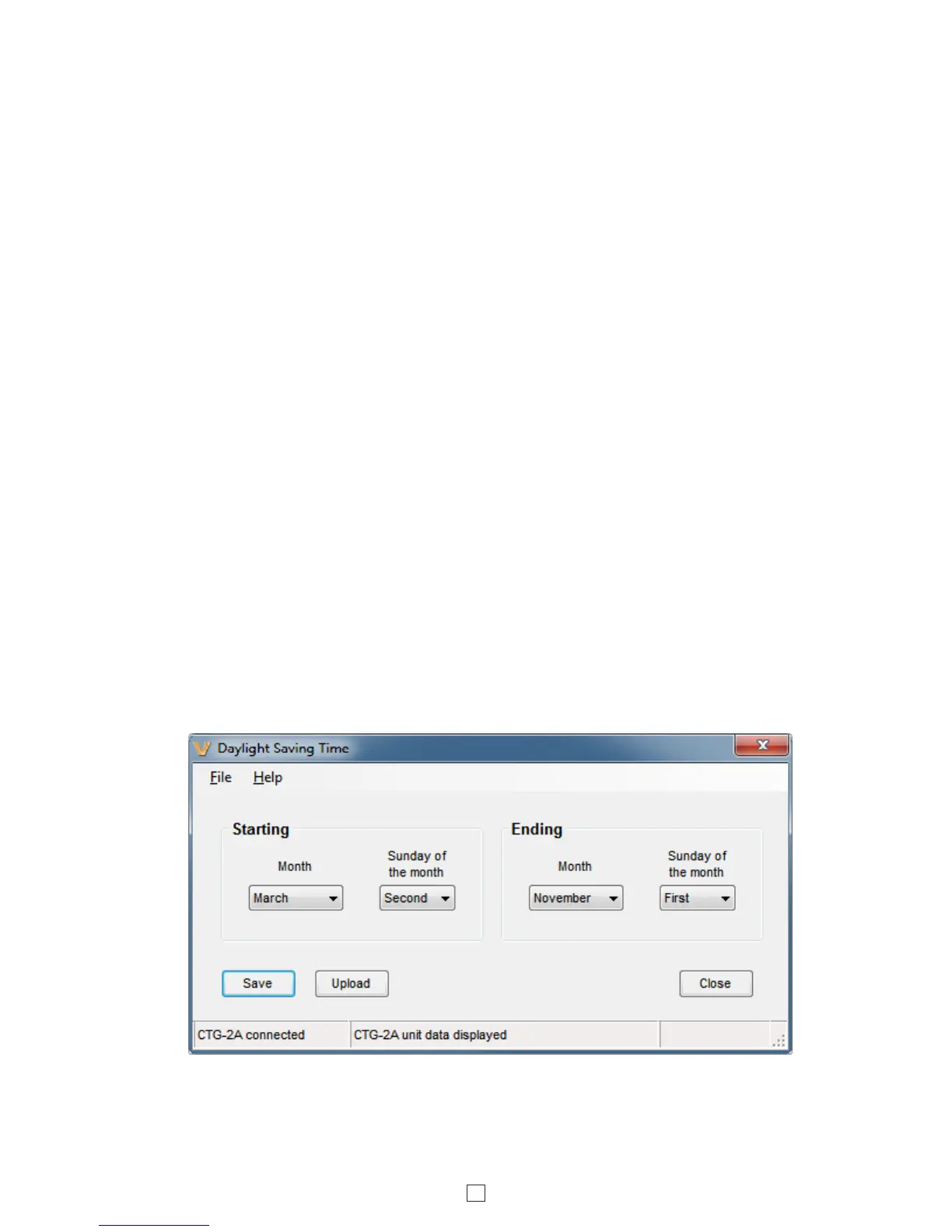
Daylight Savings Time: In the “Tools” pull down menu. This screen allows you to program the starting and ending
month and Sunday for the automatic change to Daylight Saving Time. Use the pull down menus to select the starting
and ending month and Sunday then click “Upload” to send the data to the CTG-2A. The CTG-2A’s internal clock will
then be advanced 1 hour at 2:00 AM of the Starting Sunday and dropped back 1 hour at 2:00 AM of the Ending Sunday.
(below)



 To Next Page