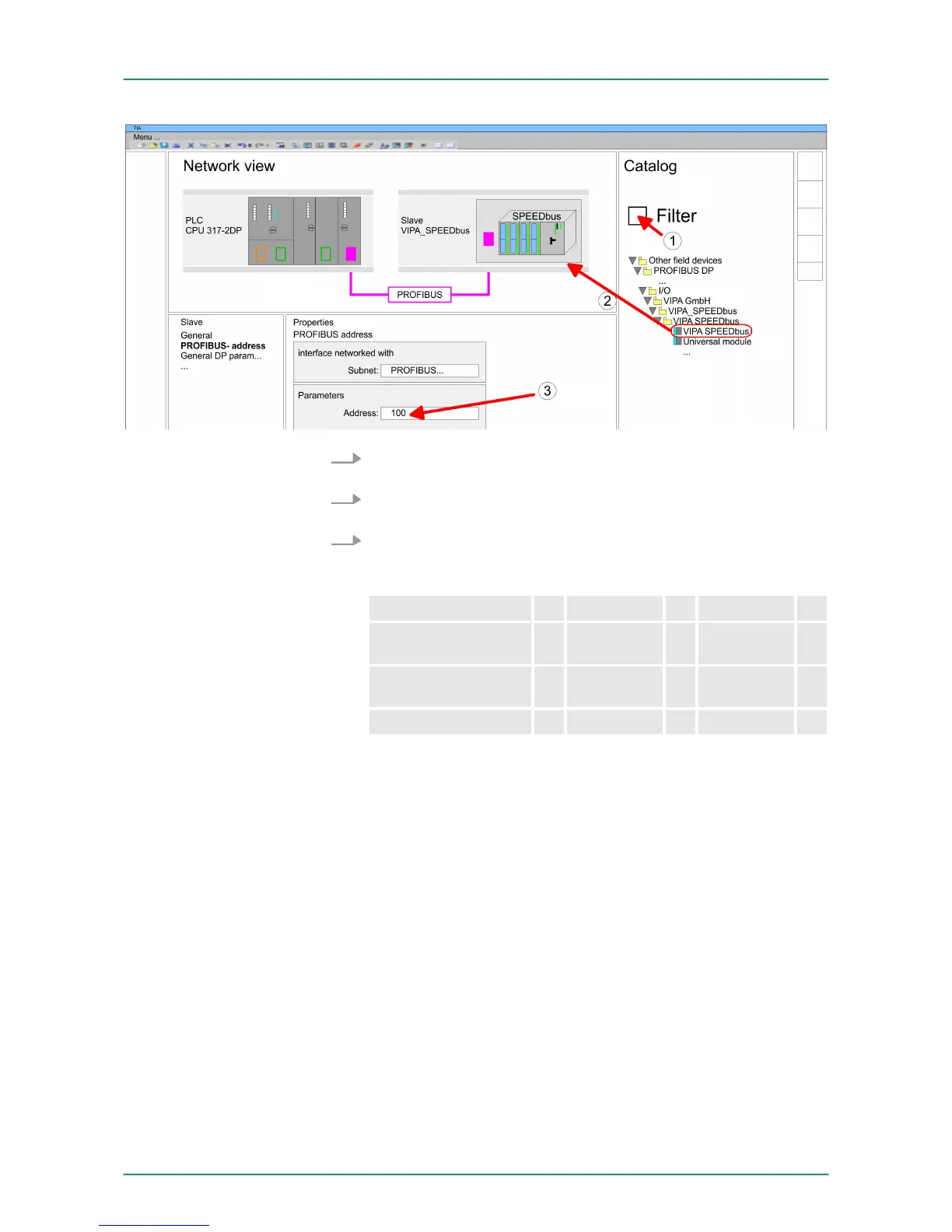
4. Click at the slave system and open the ‘Device overview’
in the
Project area.
5. Configure at slot 1 the VIPA CPU 315-2AG13 of the hardware
catalog from VIPA_SPEEDbus.
6. By double clicking the placed CPU 315-2AG13 the properties
dialog of the CPU is showed.
Device overview
Module ... Slot ... Type ...
Slave ... 0 VIPA
SPEEDbus
315-2AG13 1 315-2AG13
...
2
ð
As soon as the project is transferred together with the PLC
user program to the CPU, the parameters will be taken after
start-up.
9.6
TIA Portal - Include VIPA library
n The VIPA specific blocks may be found at www.vipa.com as
downloadable library at the "service" area with Downloads > VIPA
LIB.
n The library is available as packed zip-file Fx000020_V... .
n If you want to use VIPA specific blocks, you have to import the
library into your project.
Execute the following steps:
–
Extract FX000020_V... .zip
– Open library and transfer blocks into the project
Start your un-zip application with a double click on the file
FX000020_V... .zip and copy all the files and folders in a work direc-
tory for the Siemens TIA Portal.
Overview
Unzip
FX000020_V... .zip
VIPA System 300S CPU Configuration with TIA Portal
TIA Portal - Include VIPA library
HB140 | CPU | 315-2AG13 | GB | Rev. 14-40 145



 To Next Page