3
A – Search by Brand
you know the brand of your device and have found the corresponding code in the booklet
Look up the code that corresponds to the brand of your device in the attached code booklet
(e.g. PHILIPS Code = 0038 - see fig.3) which is always comprised of 4 digits (the first is always 0).
1
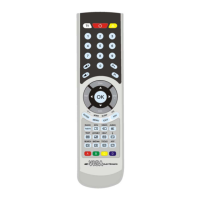
Switch on your device. Press the device key on your remote control for the type of
device you want to control (e.g. the TV1/2 buttons for televisions – VCR/DVD for
video recorders/DVD players, etc.) for approximately 10 seconds. Release when
the device keys light up: the device keys start flashing
2
Enter, in order, the 4 digit code for the BRAND of your device (e.g. for the PHILIPS
code “0038”, press the buttons in the following order: 0 - 0 - 3 - 8).
The device key chosen emits 2 short flashes and the device keys start flashing
quickly again = OK. (See Note1)
3
Point LUX at the device and press “
” followed by “ ” (keeping both pressed
down)
4
Always pointing LUX at the device, release “
” only while keeping “ ” pressed
down
5
Release “
” when the device switches off or turns on a function (for example
“play) (See note 2)
6
While the device keys start flashing try out the functions of the remote and check
that your device responds to the commands
7
a) If the device responds correctly to the commands press the device key you want
to use to control the device
The code has been learned and LUX is ready
b) If the device does NOT respond correctly: Start over from step 3
Note 1 A prolonged flash emitted by the device keys at the end of the procedure signals an error.
Check to make sure you selected the right code from the “code booklet” and then repeat the
procedure.
Note 2 The automatic search by brand could last several minutes; in order for it to be successful it is
important to keep LUX pointed at the device. If you accidentally release the “
” button (Off) before
the device is turned off, or before a function turns on (for example “play” ) you can continue the
complete the automatic search process by starting over from step 3 within 15 seconds otherwise
you must start over from the beginning
B – Complete Search
you do not know the brand of your device and have not found the code in the booklet
1
Switch on your device. Press the device key on your remote control for the type of
device you want to control (e.g. the TV1/2 buttons for televisions – VCR/DVD for
video recorders/DVD players, etc…) for approximately 10 seconds. Release when
the device keys light up: the device keys start flashing
2
Point LUX at the device and press “
” followed by “ ” (keeping both pressed
down)
3
Always pointing LUX at the device, release “
“only while keeping “ ” pressed
down
4
Release “
” when the device switches off or turns on a function (for example
“play”) (See Note)
5
While the device keys start flashing, try out the functions of the remote and check
that your device responds to the commands.
6
a) If the device responds correctly to the commands
Press the device key you want to use to control the device
The code is learned and LUX is ready
b) If the device does NOT respond correctly: start over from step 2
Note The complete automatic search could last several minutes (even 15-20 minutes); in order for it
to be successful it is important to keep LUX pointed at the device. If you accidentally release the
“
” button (Off) before the device is turned off, or before a function turns on (for example “play” )
you can continue the search process by starting over from step 2 within 15 seconds otherwise you
must start over from the beginning
Important: During the whole procedure, do not let more than 15 seconds elapse between pressing
buttons. If you have made a mistake while entering the code or you have interrupted the procedure, wait
15 seconds and start over from the beginning when the device keys have stopped flashing.
When the search comes to the end the device key have no longer signals transmission. If the
device has not turned itself off, contact customer service


 To Next Page