5
5.3 Automatic programs advance
It’s possible to make an automatic scanning of the programs for advancing them progressively
1
Keep it pressed for 5 seconds the button “P+” and then release it:
on your device it will start the automatic programs advance.
2 Press any button if you want to stop it.
3 To start again the scanning, repeat the procedure from point 1.
6. EXTRA FUNCTIONS
These functions are only available in the LUX 6 in 1 and LUX 8 in 1 models
6.1. MACRO Functions (command sequence )
It’s possible to program and to memorize a sequence of
commands and then use it by pressing only one button
Examples
- You want to switch off all the devices turned on at the same
time, TV, VCR, satellite receiver.
- You want to switch on the TV and go directly to your favourite
channel on your satellite receiver.
Up to 4 macro functions can be saved. Each macro can be
made up of up to 10 sequential commands.
1
Press a device key (e.g. “TV1”) and keep it pressed for approximately 10
seconds. Release when the device keys light up: the device keys start flashing.
2
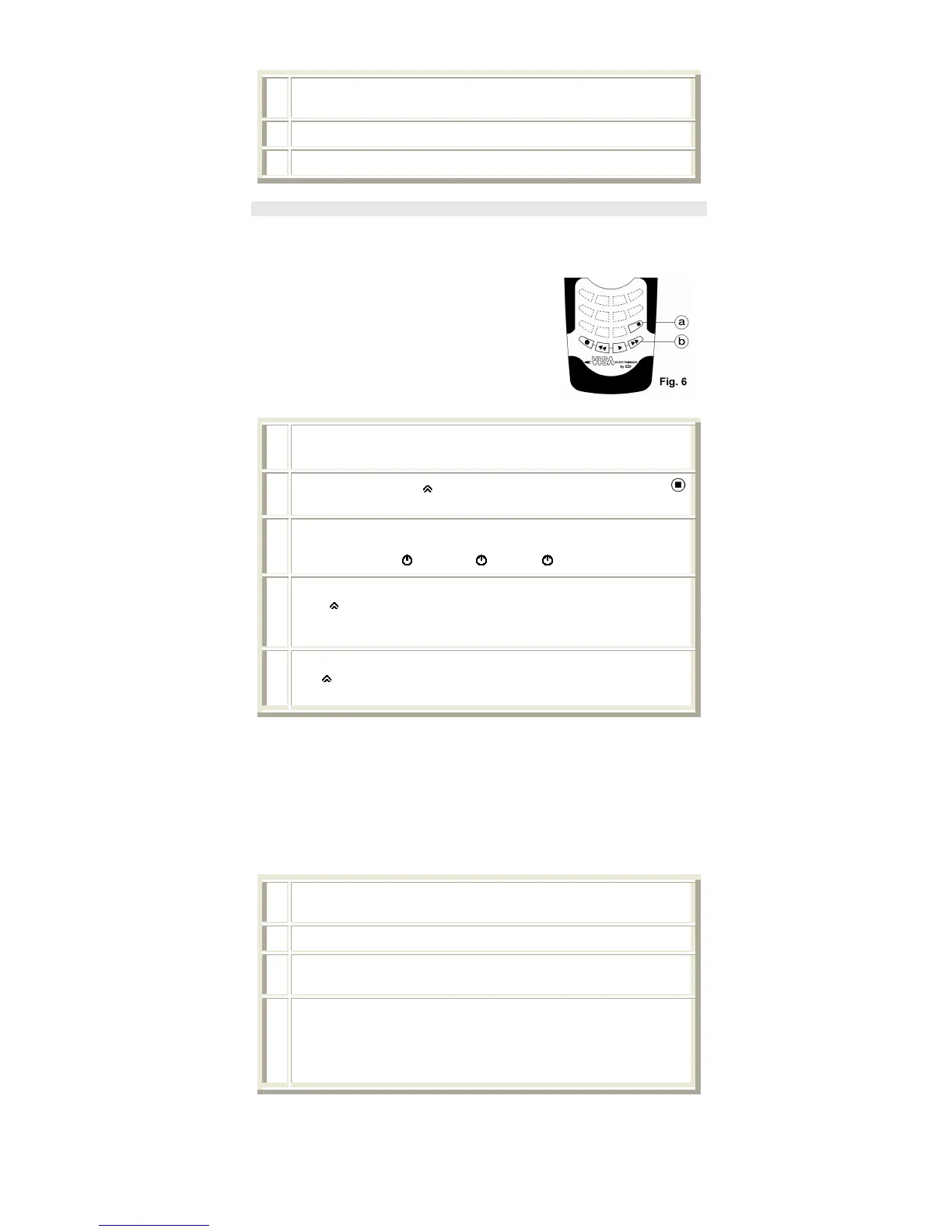
Within 15 seconds, press “
”, and, keeping it pressed, press the white button
(fig.6a). Release both keys: the device keys continue to flash.
3
Enter the sequence of commands that you would like to use.
Example: you want to turn off your TV, DVD, and satellite receiver at the same
time. Press: “TV” + “
” + “DVD” + “ ”+ STB” + “ ”
4
Lastly, to save the Macro:
press “
”and, keeping it pressed, press one of the 4 coloured buttons (fig. 6b) on
which you want to save the macro
The device key (chosen at point 1), emits 2 short flashes = OK
5
To use the the sequence of commands saved, point LUX at the device, press
the “ ”button and, keeping it pressed, press the coloured button (fig. 6b)
on which you have saved the macro and release both.
The macro carries out the procedure exactly as it has been entered. Study carefully the sequence
of commands to be entered . You can substitute a MACRO by saving a new one on the same key.
6.2. Personal Settings to adjust volumes
The LUX remote control allows you to choose the device on which you want to adjust the audio
volume (Volume+/Volume-).
For example, if you are using your Digital Decoder or watching a film on DVD or videocassette,
you may decide to change the volume from the television (or from the stereo amplifier – Home
Theatre) without first pressing the TV1/2 device key (or AUX).
1
Press the device key for the device for which you want to set volume adjustment
(e.g. “DVD”).
2 Press the Vol+ and Vol- buttons at the same time, and keep them pressed down.
3
The device key starts flashing moving towards the left from one device key to the
other.
4
Release both the Vol+ and Vol- buttons when the device key for the device on
which you want to adjust the volume. (e.g. if you release when the HI –FI key flash,
the stereo volume will be adjusted by the HI-FI saved, directly pressing the
Vol+/Vol- buttons, while the remote control continues to function with the DVD
player).
The device key for the device you are controlling will light up when you press the Vol+ or Vol-
buttons when adjusting the volume.
If your device (VCR/DVD/STB/STEREO) has an autonomous output setting for the audio signal,
we advise you to set it to maximum before setting the system described in this paragraph.


 To Next Page