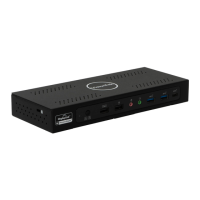
The VisionTek VT4000/VT4500/VT4510 Dual Display Docks are versatile docking stations designed to connect to any host with USB-A or USB-C connectors, offering a backward-compatible and future-proof solution for expanding display and connectivity options. These docks allow users to connect up to two additional monitors through a single USB cable, enhancing productivity and workspace flexibility.
Function Description:
The primary function of these docking stations is to provide extended display capabilities and expand USB 3.0 connectivity for laptops and desktop computers. They support dual DisplayPort (DP) or dual HDMI displays, or a combination of one DP and one HDMI display, enabling users to connect multiple external monitors. The accompanying DisplayLink software allows for comprehensive configuration of all additional USB displays, including various display modes and settings.
Important Technical Specifications:
- Compatibility: Compatible with both Type-C and Type-A laptops and desktop computers.
- Display Resolution: Supports resolutions up to 5K (5120 x 2880@60Hz) when using dual DP ports simultaneously.
- Video Outputs:
- Dual 4K HDMI
- Dual 4K DisplayPort
- 4K HDMI + 4K DisplayPort output
- Display Modes: Supports Extend and Mirror Display Mode.
- Audio: Supports 5.1 Channel Surround Sound, separate microphone input, and audio output.
- USB Connectivity:
- Built-in USB 3.0 GPU for plug-and-display functionality.
- SuperSpeed USB 3.0 with speeds up to 5Gbps, backward compatible with USB 2.0/1.1.
- Ethernet: Built-in 10/100/1000 BASE-T Gigabit Ethernet (RJ45) for enhanced network performance.
- Laptop Charging (Power Delivery - PD):
- VT4000: Does not support laptop charging.
- VT4500: Supports laptop charging up to 60W over USB Type-C connection.
- VT4510: Supports laptop charging up to 100W over USB Type-C connection.
- Operating System Requirements:
- Windows: DisplayLink USB Graphics Software for Windows supports Windows 7 (32-bit and 64-bit), Windows 8 (32-bit and 64-bit), Windows 8.1 Update 2015 (32-bit and 64-bit), and Windows 10 (32-bit and 64-bit). Older versions of DisplayLink software support Windows XP SP2 and Vista.
- macOS: DisplayLink USB Graphics Software for macOS supports macOS 10.4 - 11, including Big Sur 11, Catalina 10.15, Mojave 10.14, High Sierra 10.13, Sierra 10.12, El Capitan 10.11, Yosemite 10.10, Mavericks 10.9, Mountain Lion 10.8, and Lion 10.7, Snow Leopard 10.6. M1 Macs are supported on software version 1.3 or later. Power PC-based Macintosh computers (e.g., late-model iMacs, PowerBooks, PowerMacs) are not supported.
Usage Features:
- Easy Setup: Connects to the host computer via a single USB-C to USB-C or USB-A to USB-C cable. Power is supplied via an AC power adapter.
- Flexible Display Configuration:
- Supports up to 6 additional USB Displays on Windows and up to 4 additional USB Displays on Mac OS X.
- Allows for Extended, Mirrored, or Primary Display modes.
- Displays can be extended left, right, above, or below the main display.
- Supports display rotation and layout adjustments.
- Color depth settings are configurable.
- Primary Display Prioritization: If both an HDMI and a DisplayPort display are connected simultaneously, the DisplayPort display will be designated as the primary display.
- Audio Setup (Windows): Users can easily configure audio settings (speakers and microphone) through the DisplayLink icon in the system tray.
- Video Setup (Windows): Display mode settings, including orientation and extending the desktop, are accessible through Windows display settings.
- Display Management (macOS):
- New displays default to being extended to the right of the main display.
- Display settings (resolution, rotation, position, mirror/extend mode, primary display selection) are configured via "Displays" in "System Preferences."
- Displays can be arranged by dragging them in the arrangement window.
- The primary display can be changed by dragging the menu bar to the desired monitor.
- The menu bar display icon allows for quick actions such as detecting displays, toggling mirroring, setting resolutions, and opening Display Preferences.
Maintenance Features:
- Driver Installation: Requires the installation of DisplayLink software. Users are directed to displaylink.com/downloads to download the latest drivers compatible with their operating system (Windows or macOS).
- Software Updates: Keeping the DisplayLink software updated ensures compatibility and optimal performance.
- Troubleshooting: If the dock is not working after macOS installation, users are advised to restart their system and ensure the DisplayLink Manager application is running by searching for "Displaylink" in the Finder.
Included Contents:
- VT4000 / VT4500 / VT4510 Dual Display Docking Station
- AC Power Adapter (40W for VT4000, 100W for VT4500, 130W for VT4510)
- USB-C to USB-C Cable (1M)
- USB 3.0 A to USB-C Cable (1M)
- Quick Start Guide
Warranty:
VisionTek Products LLC provides a warranty against manufacturing defects. The standard warranty period is Two (2) Years if the product is registered within 30 days of purchase. Products not registered within this timeframe will receive a 1-year limited warranty. The warranty covers repair or replacement of defective products at VisionTek's option. This warranty does not apply to software components. Full warranty details are available at www.visiontek.com. Support can be reached at 1 (866) 883-5411.

 Need help?
 General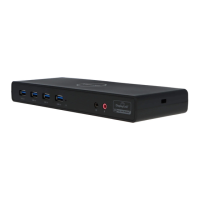

 To Next Page