14
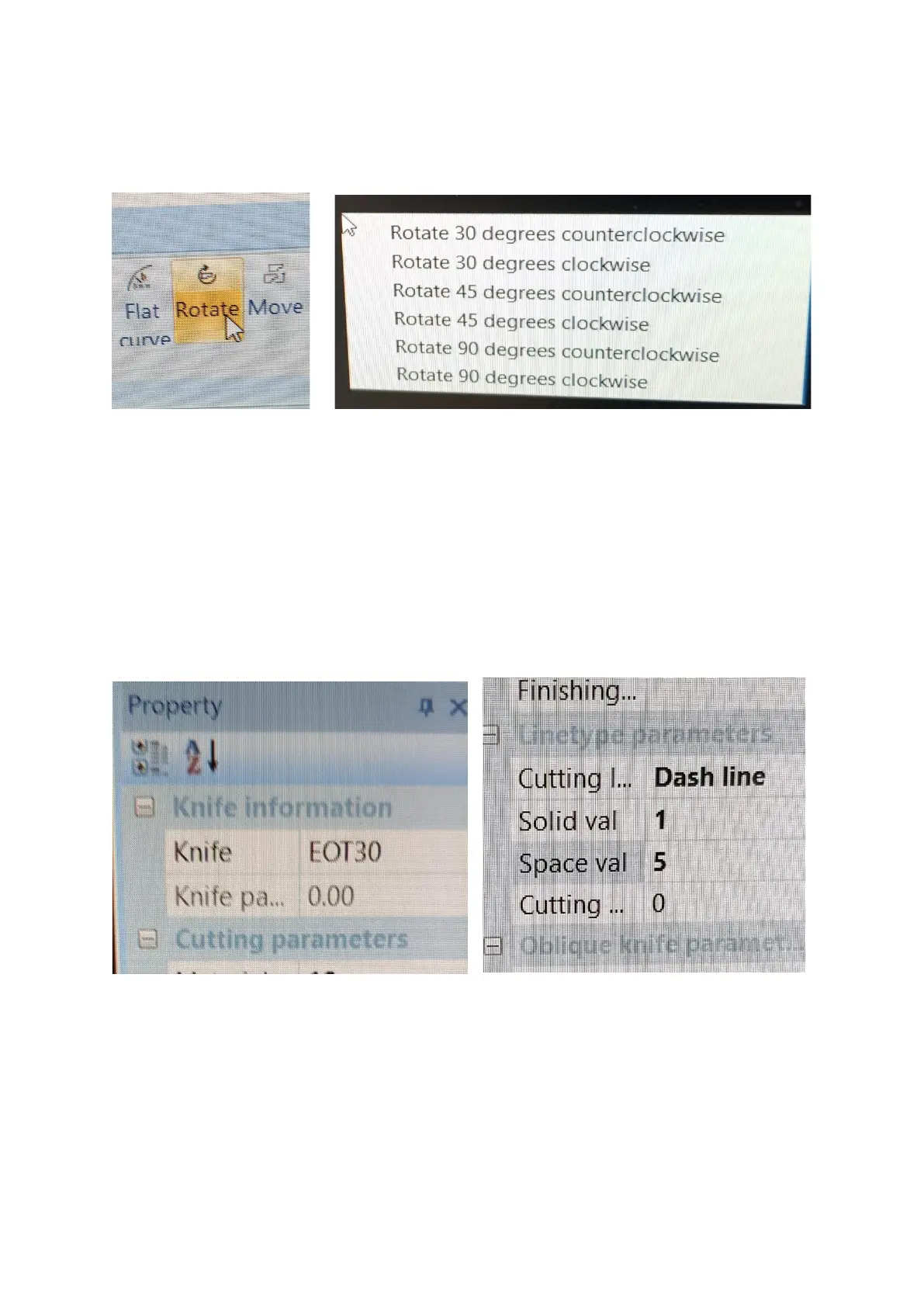
Rotate button [Figure 4.9]: When selected, highlight the artwork/lines you
wish to rotate and right click on the mouse [Figure 4.10].
To the right of the screen we have the Property window, from here we can
change the tool, stepping [half cutting or step cutting] and dash/perforated
lines. Please note the artwork you are changing must be highlighted.
Highlight the line you want to change and use the drop down menu next to:
• Changing the tool used - Knife [Figure 4.11].
• Change a solid line to a Dash/Perforated line – Cutting Line [Figure 4.12].


 To Next Page