23
Select Theme
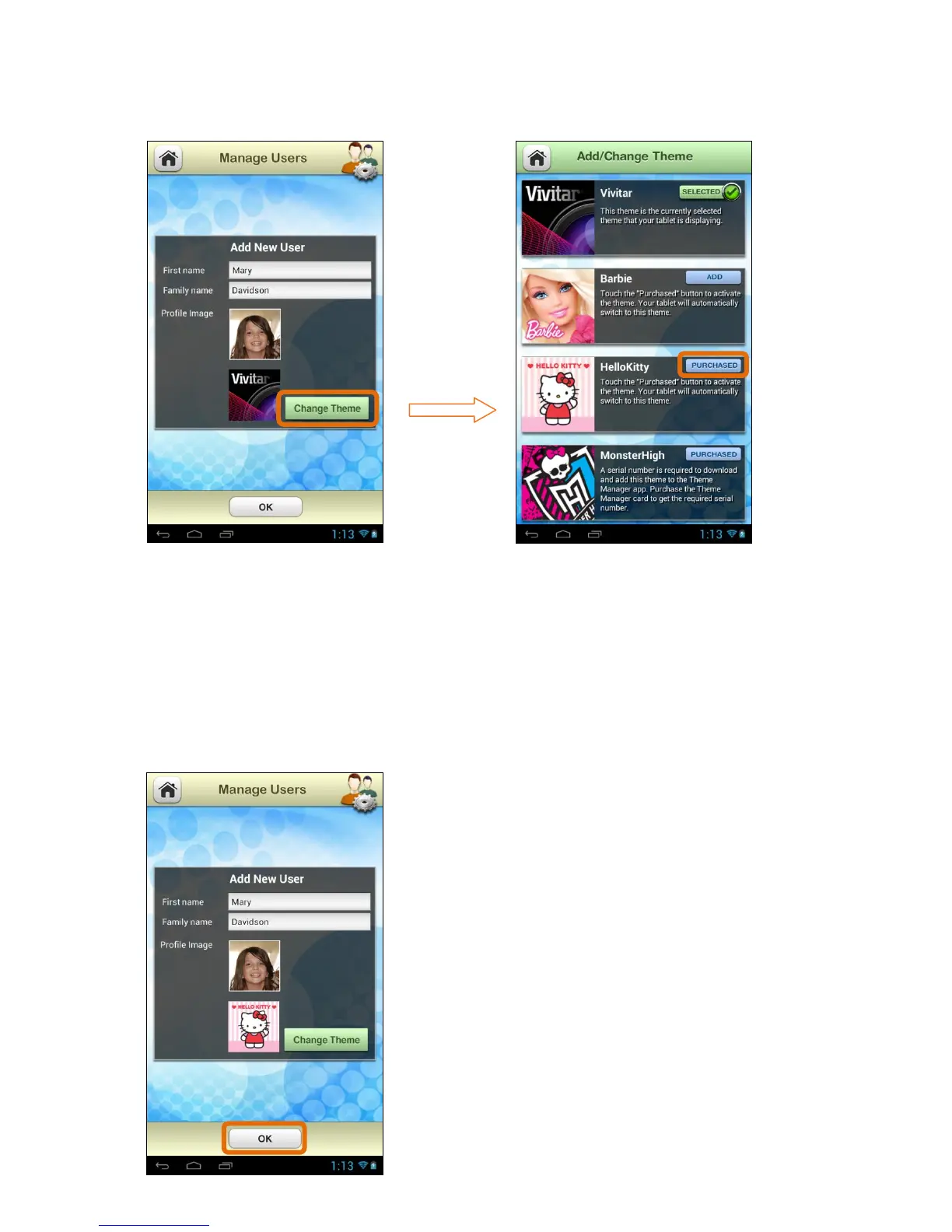
The current Theme for the User appears below the Profile Image.
Touch Change Theme to open the ‘Add/Change Theme’ options. The current
theme is displayed with the Selected button and check mark icon. If you have
already purchased a Theme, the Theme is displayed with a Purchased button.
To change to a different Theme, touch one of the Purchased Theme buttons.
Note: The User’s Theme can be changed at any time to a different Purchased
Theme. Each User can select his/her own Theme.
Once all the User information is complete, touch
OK to create the new User.
Note: If you have selected a different Theme,
your chosen Theme automatically appears on
your Tablet after you have touched OK.



 To Next Page