24
4. Additional Users / Switch Users:
Touch Add User and then follow the steps above to include up to 5 new Users.
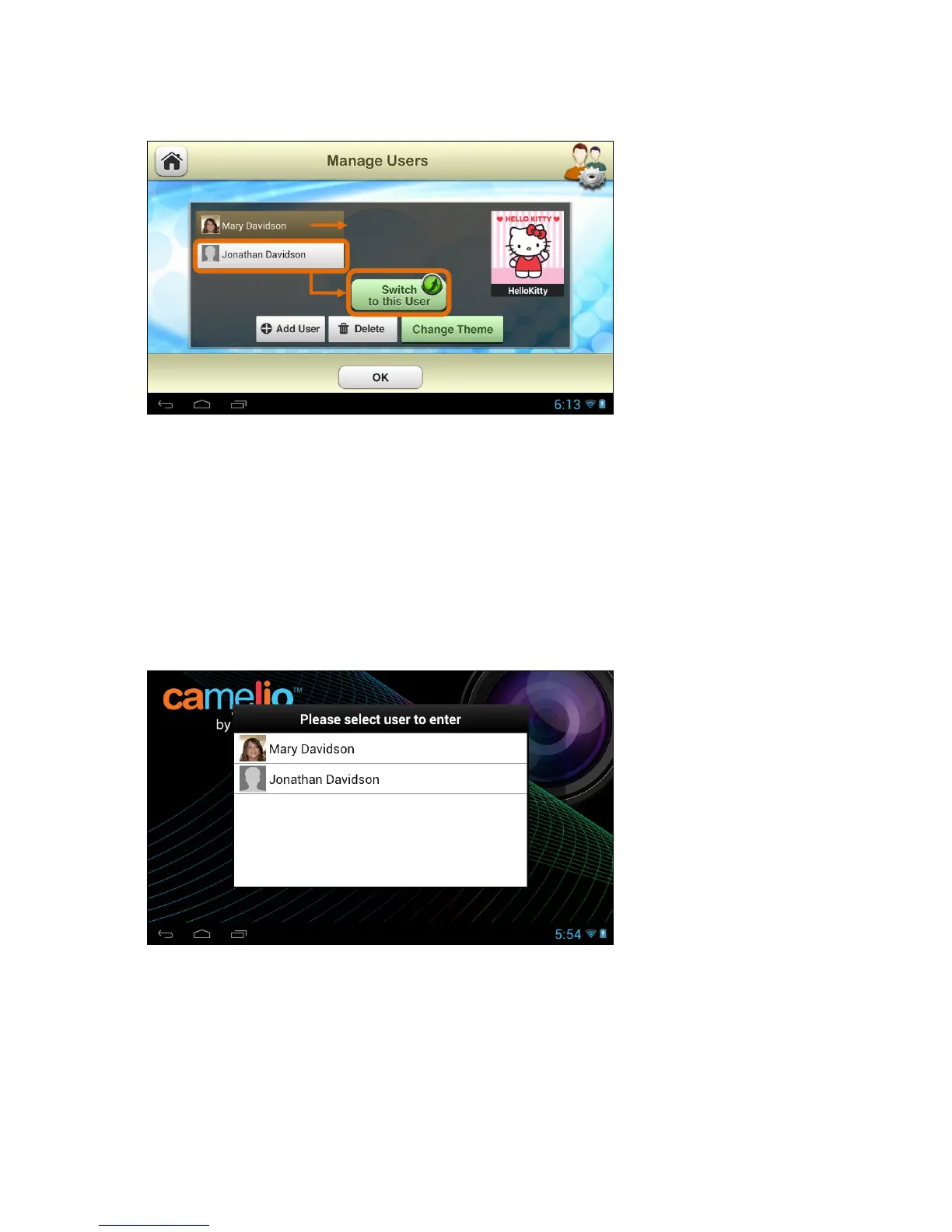
The current User appears highlighted.
To switch between Users, touch to highlight the User name from the list and
then touch Switch to this User. Your tablet automatically changes to the
selected User’s Theme and settings.
Note: To delete a User, touch a User’s name to select and highlight a User
from the list, then touch Delete.
5. Multiple Users - Power Off/Standby Mode > Selecting a User:
If you have added multiple Users to your tablet, the User will need to be
selected after the tablet has either been powered off or been in standby
mode. After powering on or reactivating the tablet, you will need to unlock it.
Once you have unlocked your tablet, the list of Users appears. Touch a User
name to activate your customized tablet (as per the selected User’s settings)
and experience the ever changing world of the Camelio™ Tablet!



 To Next Page