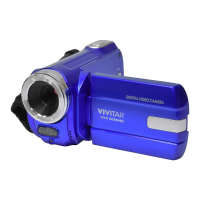
Video Capture Mode
The Video Capture Mode allows you to capture videos with your digital camcorder.
When the camcorder is first powered ON, the camcorder will be in Video Capture Mode.
TAKING A VIDEO
1) While in Video Capture Mode use the LCD display to direct the camcorder at the scene you would
like to capture.
2) You can magnify your subject up to 4 times using the digital zoom while capturing your photos and
recording your videos.
Press the Zoom In / T button to zoom in on the object.
Press the Zoom Out / W button, to zoom back out.
Alternatively, you can tap the T or W on the right side of the LCD screen to zoom in and out.
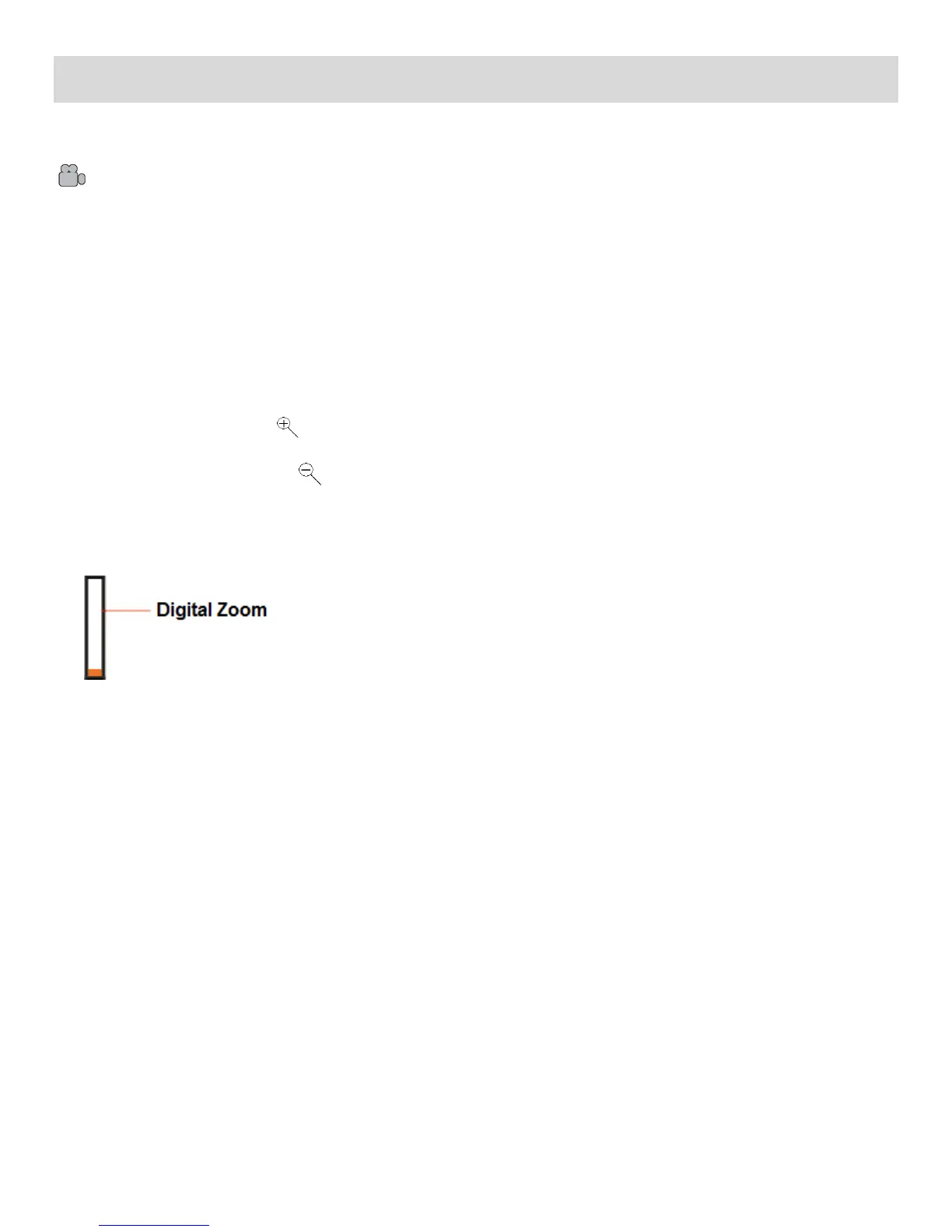
The following Digital Zoom Indicator appears on the right side of the LCD screen:
The zoom indicating bar moves up when you Zoom In (T) and moves down when you Zoom Out
(W).
3) Press the Shutter button to START the video capture.
4) A red, blinking icon appears at the top of the LCD screen indicating that the recording is in progress.
On the top right of the LCD screen, the recording time appears, indicating the amount of elapsed
time as the video is being captured. In addition, the LED light indicator blinks green while the
recording is in progress.
5) To STOP the video record, press the Shutter button again.
6) The video is automatically saved to the camcorder’s SD memory card.



 To Next Page