Video Capture Mode
The Video Capture Mode allows you to capture videos with your digital video camera.
When first powered ON, the camcorder will be in Video Capture Mode.
Taking a Video
1) While in Video Capture Mode use the LCD display to direct the camera at the scene you would like
to capture.
2) Push the UP/Zoom In or DOWN/Zoom Out button to better set the camera display if desired.
3) Press the Shutter button to START the video capture.
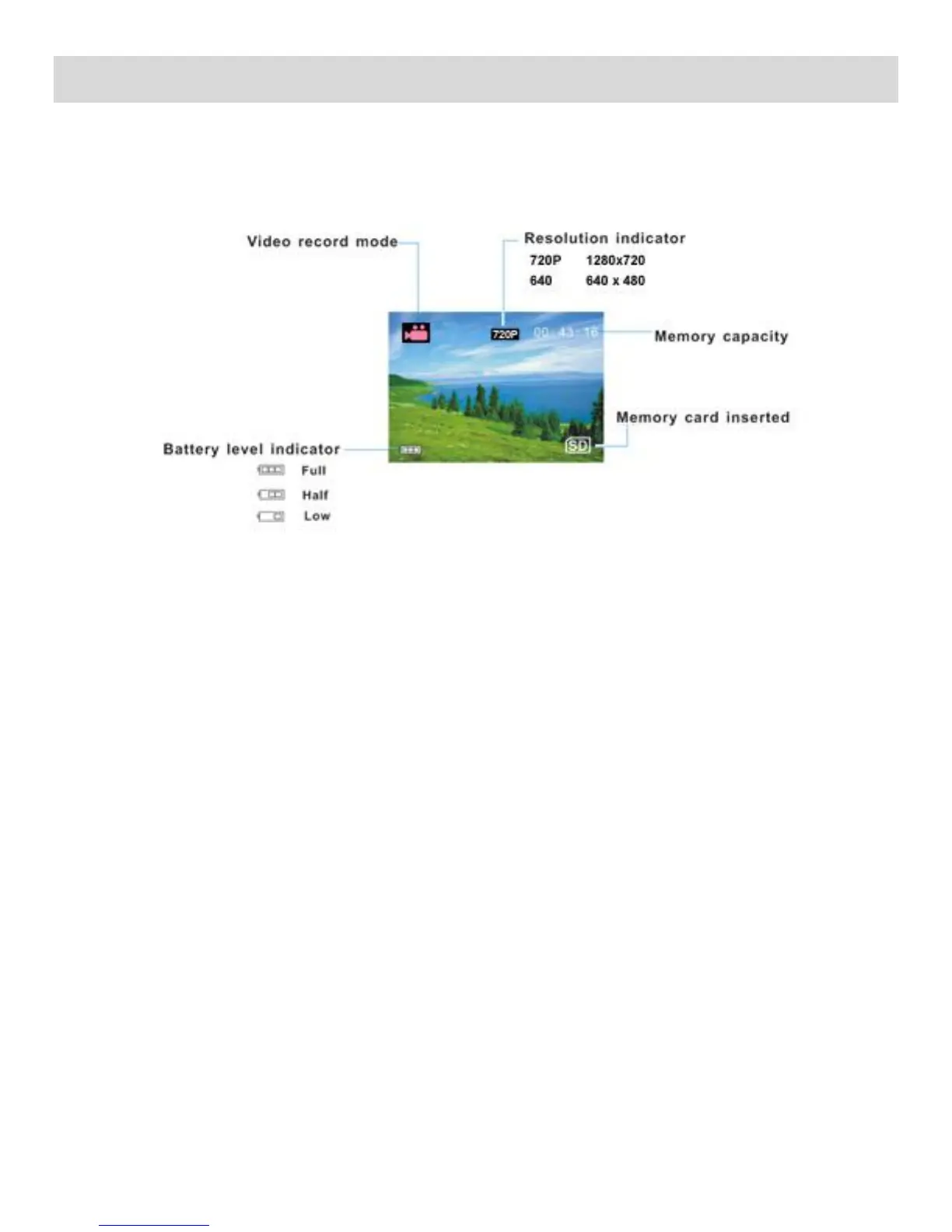
4) The elapsed time will display on the top right corner of the LCD screen.
A red Recording indicator will also appear on the LCD screen indicating that the record is in
progress.
5) To STOP the video record, press the Shutter button again.
6) The video will automatically be saved to the camera‟s SD memory card.
Note: The amount of recording time available for the resolution selected appears on the top of LCD
screen. The lower the resolution setting the more recording time is available. However, videos
recorded at lower resolution are of less quality than videos recorded at the higher resolution.
Remember, the amount of time that you can capture videos also depends on the size of the SD
memory card inserted as well as the video resolution selected.


 To Next Page