VIVOTEK
60 - User's Manual
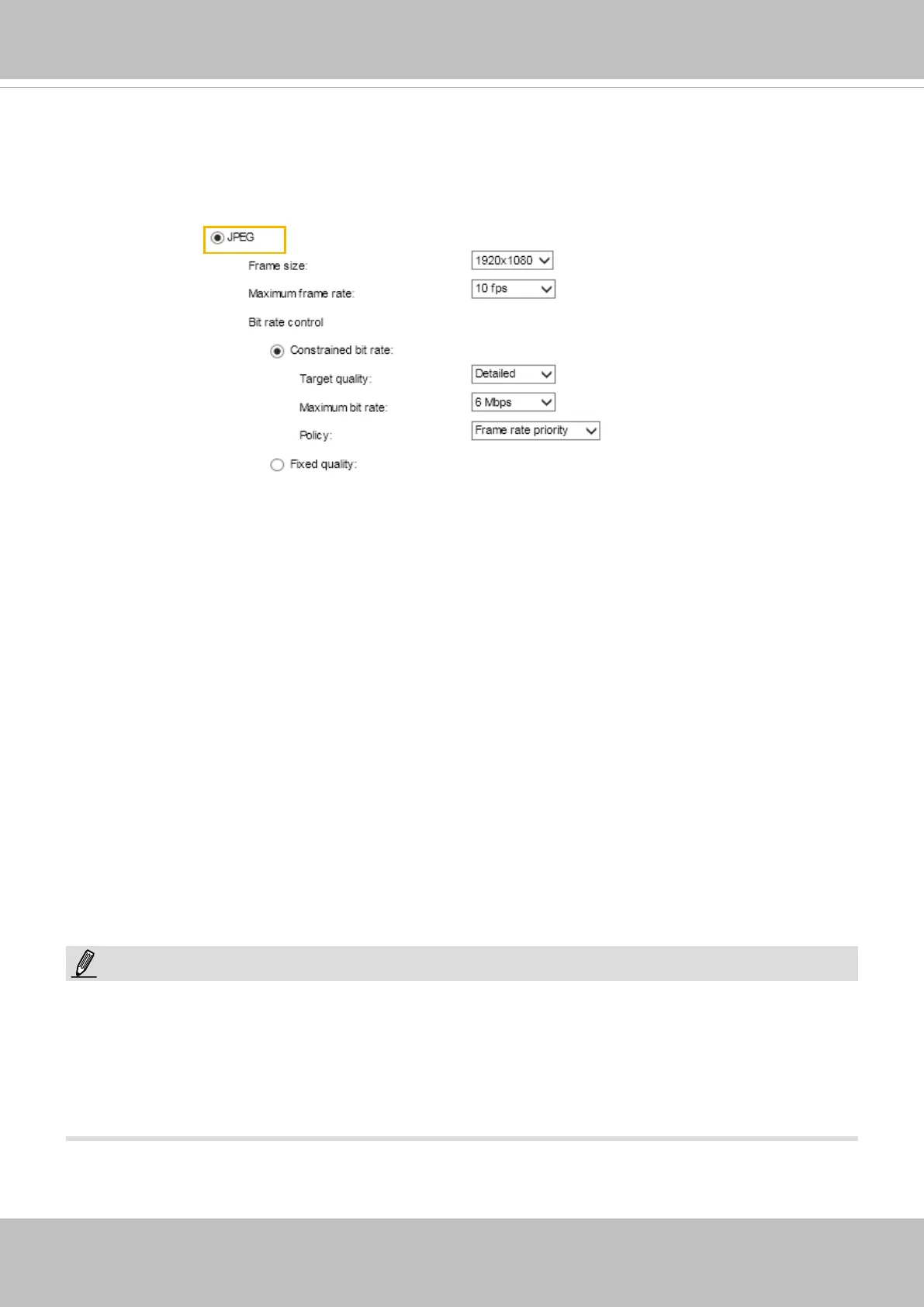
If the JPEG mode is selected, the Network Camera sends consecutive JPEG images to the client,
producing a moving effect similar to a filmstrip. Every single JPEG image transmitted guarantees the
same image quality, which in turn comes at the expense of variable bandwidth usage. Because the
media contents are a combination of JPEG images, no audio data is transmitted to the client. There are
three parameters provided in MJPEG mode to control the video performance:
■ Frame size
You can set up different video resolution for different viewing devices. For example, set a smaller
frame size and lower bit rate for remote viewing on mobile phones and a larger video size and a higher
bit rate for live viewing on web browsers. Note that a larger frame size takes up more bandwidth.
■ Maximum frame rate
This limits the maximum refresh frame rate per second. Set the frame rate higher for smoother video
quality.
If the power line frequency is set to 50Hz, the frame rates are selectable from 1fps to 25fps. If the
power line frequency is set to 60Hz, the frame rates are selectable from 1fps to 30fps. You can also
select Customize and manually enter a value. The frame rate will decrease if you select a higher
resolution.
■ Video quality
Refer to the previous page setting an average or upper bound threshold for controlling the bandwidth
consumed for transmitting motion jpegs. The conguration method is identical to that for H.264.
For Constant Bit Rate and other settings, refer to the previous page for details.
►
Converting high-quality video may significantly increase the CPU loading, and you may
encounter streaming disconnection or video loss while capturing a complicated scene. In the
event of occurance, we suggest you customize a lower video resolution or reduce the frame rate
to obtain smooth video.
NOTE:



 To Next Page