EasyManua.ls Logo

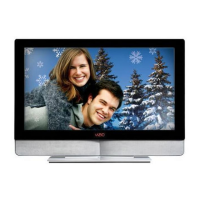
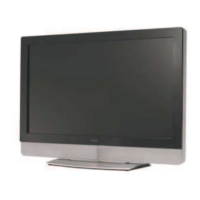
Vizio VP422 HDTV10A - User Manual

Vizio VP422 HDTV10A
71 pages
Print Icon
To Next Page IconTo Next Page
Loading...
VIZIO VP422 HDTV10A User Manual
Version 5/29/2008 1
www.VIZIO.com
Dear VIZIO Customer,
Congratulations on your new VIZIO VP422
HDTV10A High Definition Plasma Television
purchase. Thank you for your support. For
maximum benefit of your set, please read these
instructions before making any adjustments, and
retain them for future reference. We hope you will
experience many years of enjoyment from your
new VIZIO VP422 HDTV10A.
For assistance, please call (877) 698-4946 or e-
mail us at
techsupport@vizio.com
.
To purchase or inquire about accessories and
installation services for your VIZIO PLASMA
HDTV, please visit our website at
www.VIZIO.com
or call toll free at 888-VIZIOCE
(888-849-4623).
We recommend you register your VIZIO VP422
HDTV10A either at our website
www.VIZIO.com
or fill in your registration card and mail it in. For
peace of mind and to protect your investment
beyond the standard warranty, VIZIO offers on-
site extended warranty service plans. These
plans give additional coverage during the
standard warranty period. Visit our website or call
us to purchase a plan.
Write down the serial number located on the back
of your VIZIO VP422 HDTV10A.
__ __ __ __ __ __ __ __ __ __ __ __ __ __
Purchase Date _____________________
VIZIO is a registered trademark of V, Inc. dba V, INC.
HDMI logo and “High Definition Multimedia Interface”
are registered trademarks of HDMI Licensing LLC.
Manufactured under license from Dolby Laboratories
Dolby and the double-D symbol are trademarks of Dolby Laboratories

Table of Contents

Question and Answer IconNeed help?

Do you have a question about the Vizio VP422 HDTV10A and is the answer not in the manual?

Summary

Important Safety Instructions

Television Antenna Connection Protection

External Television Antenna Grounding

Details on grounding TV antenna systems for protection against surges and static.

Lightning Protection

Recommendations for protecting the TV during lightning storms or when unattended.

Opening the Package

Package Contents

Lists all items included in the product packaging.

Installation Preparation

Attaching the Safety Strap

Instructions on how to attach the safety strap to prevent TV tipping.

Preparing Your Plasma HDTV for Wall Mounting

To remove the stand base

Step-by-step guide to detach the TV stand base for wall mounting.

Chapter 1 Basic Controls and Connections

1.1 Front Panel

Describes the power light and remote control sensor on the TV's front.

1.2 Right Side Panel Controls

Details the power, menu, channel, volume, and input buttons on the TV's side.

1.3 Rear Panel Connections

1.5 VIZIO Remote Control

1.5.1 Insertion of Batteries in the Remote Control

How to properly insert AA batteries into the remote control.

1.5.3 VIZIO Remote Control Precautions

Important guidelines for handling and maintaining the remote control.

Chapter 2 Connecting Equipment

2.1 Which Video Connection Should I Use?

Guide to selecting the best video connection type for various devices.

2.2 Connecting Coaxial (RF)

2.2.1 Using Your Antenna or Digital Cable for DTV;TV

Connects antenna or digital cable directly to the TV for DTV reception.

2.2.2 Using the Antenna or Cable through your VCR

Connects antenna or cable via a VCR to the TV for standard TV reception.

2.3 Connecting Your HDTV Set-Top Box

2.3.1 Using HDMI

Connects an HDTV Set-Top Box using the HDMI digital interface for optimal quality.

2.3.2 Using Component Video

Connects a Set-Top Box using component video for better analog quality.

2.4 Connecting Your Basic Set-Top Box

2.4.1 Using Composite Video

Connects a basic Set-Top Box using the composite (AV) video connection.

2.5 Connecting Your DVD Player

2.5.1 Using HDMI

Connects a DVD player via HDMI for the best digital audio/video quality.

2.5.3 Using Component Video

Connects a DVD player using component video for improved analog signal.

2.6 Connecting Your VCR or Video Camera

2.8 Connecting a PC Computer

2.8.1 Preset PC Resolutions

Lists optimal PC resolutions and timing modes for best picture quality.

Chapter 3 Setting Up to Watch Television

3.1 Basic PLASMA HDTV Start Up

Guides through initial power connection, cable setup, and initial configuration.

3.2 Watching a TV Program

3.3 Adjusting Basic HDTV Settings

Volume

Adjusts the audio output level of the TV.

TV Channels

How to navigate and change TV channels using the remote or side panel.

3.4 Program Information

3.5 Information on HDTV Status

Chapter 4 Advanced Adjustment of HDTV

4.1 Using the On Screen Display (OSD)

Explains how to navigate and use the TV's On Screen Display menus.

4.2 DTV; TV Input Picture Adjustment

4.2.1 Picture Mode

Allows selection of preset picture modes like Custom, Standard, Movie, or Game.

4.2.2 Brightness

Adjusts the black levels of the picture for DTV/TV input.

4.2.3 Contrast

Adjusts the white levels of the picture for DTV/TV input.

4.2.4 Color

Adjusts the amount of color in the picture for DTV/TV input.

4.2.5 Tint

Adjusts the hue of the picture for DTV/TV input.

4.2.6 Sharpness

Adjusts the sharpness of the picture for DTV/TV input.

4.2.7 Color Temperature

Adjusts the color temperature (Cool, Normal, Warm, Custom) for DTV/TV input.

4.2.8 Advanced Video

Fine-tunes picture quality with settings like DNR, CTI, and Adaptive Luma.

4.3 DTV; TV Input Audio Adjustment

4.3.1 Volume

Adjusts the TV's audio volume level.

4.3.2 Bass

Adjusts the low-frequency sound for bass boost or attenuation.

4.3.3 Treble

Adjusts the high-frequency sound for treble boost or attenuation.

4.3.4 Balance

Adjusts the audio balance between left and right speakers.

4.3.5 Surround

Enables or disables the simulated surround sound feature.

4.3.6 Digital Audio Out

Selects the digital audio output format (Dolby Digital, PCM, OFF).

4.3.7 Speakers

Turns the internal TV speakers on or off.

4.3.8 Lip Sync

Adjusts audio timing to match lip movements on screen.

4.4 DTV; TV Tuner Setup

4.4.1 Tuner Mode

Selects between Antenna (Air) or Cable input for channel tuning.

4.4.2 Auto Search

Automatically scans for available analog and digital TV channels.

4.4.3 Skip Channel

Allows users to skip unwanted channels during channel scanning.

4.4.4 MTS

4.4.5 Time Zone

4.4.6 Daylight Saving

4.5 DTV; TV Input Setup

4.5.1 Language

Sets the display language for menus and on-screen information.

4.5.5 Closed Caption (CC)

Enables and configures Closed Caption display for TV programs.

4.5.4 Input Naming

4.5.7 Digital Closed Caption Style (Digital CC Style)

4.5.8 Reset All Settings

4.5.9 Image Cleaner

4.6 DTV; TV Input Parental Control

4.6.1 Channel Block

Restricts viewing of specific channels or programs using a password.

4.6.2 TV Rating

Allows blocking of TV programs based on their rating categories.

4.6.3 Movie Rating

Allows blocking of movies based on their rating categories.

4.6.6 Change the Password

Allows modification of the parental control access password.

4.7 HDMI Input Picture Adjustment

4.8 HDMI Input Audio Adjustment

4.9 HDMI Input Setup

4.10 Video Input Picture Adjustment

4.11 Video Input Audio Adjustment

4.12 Video Input Setup

4.12.1 Auto Phase (for Component Input)

Automatically adjusts signal phase for optimal picture tuning.

4.13 Video Input Parental Control

4.14 PC Input Picture Adjustment

4.14.1 Auto Adjust

Automatically adjusts PC signal timing for optimal display.

4.14.2 Brightness

Adjusts the black levels of the picture for PC input.

4.14.3 Contrast

Adjusts the white levels of the picture for PC input.

4.14.4 Color Temperature

Adjusts the color temperature for PC input.

4.14.5 H-SIZE

Adjusts the horizontal size of the picture for PC input.

4.14.6 H. Position

Adjusts the horizontal position of the picture for PC input.

4.14.7 V. Position

Adjusts the vertical position of the picture for PC input.

4.14.8 Fine Tune

Fine-tunes the picture signal for PC input.

4.15 PC Input Audio Adjustment

4.16 PC Input Setup

4.17 Understanding Viewing Features

4.17.1 Viewing Modes

Explains display modes like Normal, Wide, and Panoramic for different aspect ratios.

Chapter 5 Maintenance and Troubleshooting

5.1 Maintenance

Instructions for safely cleaning the TV housing, remote control, and screen.

5.2 Troubleshooting Guide

Provides solutions for common TV problems and performance issues.

5.3 Telephone & Technical Support

5.5 FCC Class B Radio Interference Statement

Chapter 6 Miscellaneous Information

6.1 Specifications

Provides detailed technical specifications for the VIZIO VP422 HDTV10A.

6.2 Glossary - Standard Definitions

Defines common technical terms related to television and video.
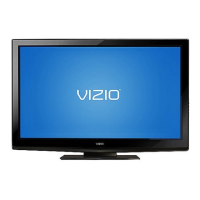
Vizio VP422 HDTV10A Specifications

General IconGeneral
BrandVizio
ModelVP422 HDTV10A
CategoryLCD TV
LanguageEnglish

Related product manuals