EasyManua.ls Logo

Vizio VX32L HDTV10A - User Manual

Vizio VX32L HDTV10A
56 pages
Print Icon
To Next Page IconTo Next Page
Loading...
VIZIO VX32L HDTV10A User Manual
Version 9/19/2007 1
www.VIZIO.com
Dear VIZIO Customer,
Congratulations on your new VIZIO VX32L High
Definition LCD Television purchase. Thank you
for your support. For maximum benefit of your set,
please read these instructions before making any
adjustments, and retain them for future reference.
We hope you will experience many years of
enjoyment from your new VIZIO VX32L High
Definition Television.
For assistance, please call (949) 428-2525 or e-
mail us at
techsupport@vinc.com.
To purchase or inquire about accessories and
installation services for your VIZIO LCD HDTV,
please visit our website at
www.VIZIO.com or
call toll free at 888-VIZIOCE (888-849-4623).
We recommend you register your VIZIO VX32L
HDTV10A either at our website
www.VIZIO.com
or fill in your registration card and mail it in. For
peace of mind and to protect your investment
beyond the standard warranty, VIZIO offers on-
site extended warranty service plans. These
plans give additional coverage during the
standard warranty period. Visit our website or call
us to purchase a plan.
Write down the serial number located on the back
of your VX32L.
__ __ __ __ __ __ __ __ __ __ __ __ __ __
Purchase Date _____________________
VIZIO is a registered trademark of V, Inc.
HDMI logo and “High Definition Multimedia Interface” are registered trademarks of HDMI Licensing LLC.

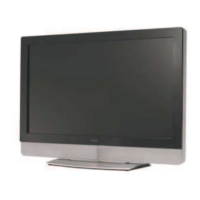
Table of Contents

Questions and Answers

  • M
    Michael KnappAug 20, 2025
    What to do if I cannot see a picture on my Vizio VX32L HDTV10A?
    • S
      sblackAug 20, 2025
      If your Vizio LCD TV displays no picture, ensure the power cord is plugged into a grounded outlet and the power button is on. Verify that the selected input source is connected to a working device. If connected to a computer via RGB or HDMI, press any key to wake the computer.
  • J
    Jeffrey RoblesAug 22, 2025
    Why is my Vizio VX32L HDTV10A on but there is no screen image?
    • L
      Logan GrantAug 22, 2025
      If your Vizio LCD TV power is on but there is no screen image, ensure the video cable is secured to the correct video output port on both the VCR and the TV. Make sure any cable attached to the TV is secured to the correct output on your Set-Top Box, DVD player, etc. Adjust the brightness and contrast settings, and check the Source settings.
  • T
    tleeAug 25, 2025
    What are tips for High-Definition Users of Vizio LCD TV?
    • D
      David LandryAug 25, 2025
      The LCD HDTV is an ideal platform for viewing High Definition Content. Best Image Quality will be achieved by the HDMI Input, then YPbPr, then RGB. However, due to variances in broadcast practices, it is possible some image distortions can occur.
  • C
    Craig MilesAug 26, 2025
    How to fix no sound on Vizio VX32L HDTV10A?
    • N
      nicholasburnettAug 26, 2025
      If there's no sound from your Vizio LCD TV, first ensure the volume isn't too low and the TV isn't muted. Then, check that your audio input source cables are securely and correctly connected.
  • K
    Kelly BradfordAug 28, 2025
    Why is my Vizio LCD TV remote control not working?
    • E
      ewallaceAug 28, 2025
      If your Vizio LCD TV remote control isn't working, ensure the batteries are correctly inserted and not weak. Replace them if necessary.
  • M
    Matthew BlanchardAug 29, 2025
    How to troubleshoot a Vizio VX32L HDTV10A LCD TV that has no power?
    • S
      sharon24Aug 30, 2025
      If your Vizio LCD TV has no power, ensure the power button (White VIZIO Logo) is ON and the AC power cord is securely connected to the AC socket. Test the outlet with another device to confirm it's supplying power.
  • G
    grantstoneSep 1, 2025
    What to do if my Vizio VX32L HDTV10A LCD TV has no sound?
    • J
      johnnguyenSep 1, 2025
      If your Vizio LCD TV displays no sound, check your audio connection. Ensure the mute symbol is off by pressing MUTE on the remote. Review your audio settings to ensure the TV audio isn't set to SAP, min, or speakers off. Increase the volume using the Volume + key on your remote, and ensure headphones aren't connected.
  • J
    Jessica RichardsonSep 3, 2025
    Why does my Vizio VX32L HDTV10A show a distorted picture and unusual sound?
    • M
      moraemilySep 3, 2025
      If your Vizio LCD TV shows a distorted picture or unusual sound, it might be due to interference from electrical appliances, cars, motorcycles, or fluorescent lights. If it's not wall-mounted, try moving your TV to a different location to see if this resolves the issue.
  • C
    Crystal MillerSep 4, 2025
    Why do I see noise on my Vizio LCD TV screen?
    • J
      Jessica MaddoxSep 5, 2025
      If you see "noise" or "trash" on your Vizio LCD HDTV screen, it's because when your TV's digital capabilities exceed a digital broadcast signal, the signal is up-converted to match your TV’s display capabilities, and this up-converting can cause noise or trash.
  • R
    Robert DaltonSep 7, 2025
    Why does my Vizio VX32L HDTV10A LCD TV have wrong colors?
    • J
      Jeffrey RiosSep 7, 2025
      If the colors on your Vizio LCD TV appear wrong or abnormal, and any colors (red, green, or blue) are missing, check the video cable to ensure it is securely connected.

Summary

Regulatory Safety Compliance

Installation Preparation

Basic Controls and Connections

Rear Panel Connections

VIZIO Remote Control Overview

Remote Control Battery Installation

Connecting Equipment

Choosing the Right Video Connection

Guide to selecting the best video connection type based on quality and description.

Connecting HDTV Set-Top Box

Using HDMI for HDTV Set-Top Box

Guide to connecting an HDTV set-top box using an HDMI cable for optimal digital video.

Using Component Video for HDTV Set-Top Box

Instructions for connecting an HDTV set-top box using component video cables for better quality.

Connecting Your DVD Player

Using HDMI for DVD Player Connection

Guide to connecting a DVD player using an HDMI cable for the best digital audio/video quality.

Connecting a PC Computer

Setting Up to Watch Television

Basic LCD HDTV Start Up

Guide to connecting power, cables, and turning on the HDTV for initial use.

Watching a TV Program

Selecting Your Programming Source

How to select the correct input source (Antenna, HDMI, Component) for viewing.

Advanced HDTV Adjustment

Using the On-Screen Display (OSD)

Overview of the OSD menu structure and how to navigate for picture, audio, and setup adjustments.

DTV;TV Input Picture Adjustment

Brightness Adjustment

Brightness Adjustment

Adjusting brightness for black levels to see detail in dark parts of the picture.

Contrast Adjustment

Contrast Adjustment

Adjusting contrast for white levels to see detail in bright parts of the picture.

Advanced Video Settings

DTV;TV Input Audio Adjustment

Volume, Bass, and Treble Adjustment

Controlling sound levels, bass boost, and treble for DTV/TV audio.

DTV; TV Tuner Setup

Tuner Mode and Auto Search

Setting the tuner mode (Cable/Air) and performing an automatic channel search.

DTV; TV Input Setup

Resetting TV to Factory Defaults

Resetting TV to Factory Defaults

Instructions for resetting all TV settings to their original factory defaults.

DTV; TV Input Parental Control

Setting Up Channel Blocking

Enabling parental control to restrict viewing of specific channels or programs.

TV and Movie Rating Blocking

TV and Movie Rating Blocking

Customizing blocking for TV content ratings (Y, PG, MA) and movie ratings (G, PG, R).

Changing Parental Control Password

Changing Parental Control Password

Procedure for changing the 4-digit parental control password for security.

HDMI Input Picture Adjustment

HDMI Input Audio Adjustment

Video Input Picture Adjustment

Video Input Audio Adjustment

Video Input Parental Control

Parental Control for Video Inputs

Applying parental control settings to Component and AV video inputs.

PC Input Picture Adjustment

PC Input Backlight and Brightness Adjustment

PC Input Backlight Adjustment

Adjusting backlight for PC input to control picture brilliance.

PC Input Brightness Adjustment

Adjusting brightness for PC input to control dark levels and detail.

PC Input Contrast and Color Temperature

PC Input Contrast Adjustment

Adjusting contrast for PC input to control white levels and picture detail.

PC Input Color Temperature

Setting color temperature for PC input to adjust picture appearance.

PC Input Audio Adjustment

Understanding Viewing Features

Maintenance and Troubleshooting

TV Maintenance Procedures

Guidelines for cleaning the TV housing, remote control, and screen safely.

Troubleshooting Common TV Issues

Troubleshooting Common TV Issues

Solutions for common problems like no power, no sound, black screen, abnormal colors, and remote issues.

Troubleshooting Specific Problems

Troubleshooting Specific Problems

Addresses issues like no sound with picture, pixel defects, volume/size changes, and HD content tips.

Telephone & Technical Support

Contacting Technical Support

Contact information and hours for VIZIO technical support for assistance.

Miscellaneous Information

Product Specifications

Detailed technical specifications of the VIZIO VX32L HDTV10A, including panel, resolution, inputs, and power.

Vizio VX32L HDTV10A Specifications

General IconGeneral
Screen Size32 inches
Display TechnologyLCD
Resolution1366 x 768
Aspect Ratio16:9
Contrast Ratio3000:1
Brightness500 cd/m²
Response Time8 ms
HDMI Ports2
Component Video Inputs1
Composite Video Inputs1
Audio Output2 x 10W
Speakers2 x 10W
Power Consumption120 W
Viewing Angle178° (Horizontal and Vertical)
InputsHDMI, Component, Composite

Related product manuals