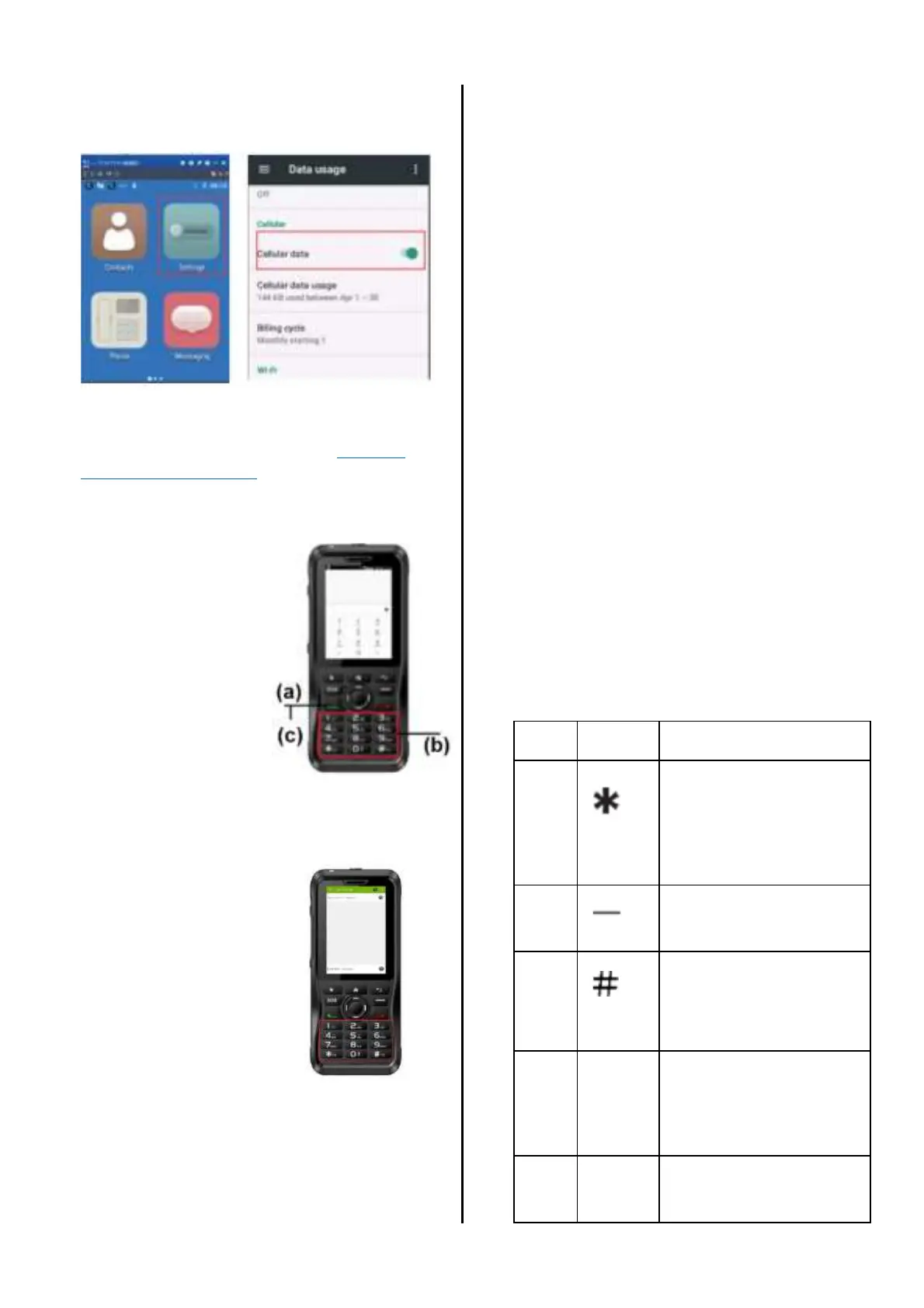
Activate the “Cellular data” button, choose
the Cellular Network you require.
If you have trouble activating your phone
with AT&T, please contact us at:
https://p-
one.voicepingapp.com
Make a Phone Call
(a) Press Green
Dial Button
(b) Enter phone
number that
you like to call
(c) Press Green
Dial Button
again to start
the call
T9 Keyboard
Your phone comes with
a physical keyboard
which will provide a
tactile experience
during texting.
There are 3 modes for
texting. You can choose
which mode based on
your preference.
Dictionary (En) Mode
In this mode, the user can press one time
on the button that contains the desired
word. The suggested words will appear on
the screen. You can select the words by
using the Up / Down button. The
suggested words will be improved based
on your previous usage.
Example: To type “Hello”: Press keypad
4-3-5-5-6 (Suggested words will appear
on the screen). Press Up/Down to select
other suggestions and Center Key to
Select.
Alphabet (Ab) Mode
In this mode, the user can press the
button that contains the desired letter
many times until the letter on the screen
changes to the desired letter. The user
can refer to the letter sequence on the
keypad.
Example: To type “Hello”: Press keypad
4-4-3-3-5-5-5-wait a while-5-5-5-6-6-6.
Number (12) Mode
In this mode, you can simply press the
button that is containing the desired
number to type.
Example: To type “1234”: Press keypad
1234.
Texting Keypad Description
Long press to switch
Mode (En/Ab/12);
Short press to change
capital mode
Delete previous
character
Short press to space;
Long press to enter
new paragraph
Short press to open
symbol menu; Long
press during number
mode to type “+”
Short press to insert
symbol using shortcut


 To Next Page