The CENTAURI-200 is an Enterprise/Industrial IoT Gateway designed to connect end devices to the cloud, supporting various connectivity options including Ethernet, Wi-Fi, and LTE. It acts as a central device for managing and monitoring IoT devices within a system.
Function Description
The CENTAURI-200 Gateway facilitates communication between end devices and the cloud. It supports both North-Bound and South-Bound connectivity. For North-Bound connectivity, it uses MQTT over Wi-Fi/LTE/ETH to connect to the cloud. For South-Bound connectivity, it leverages BLE (Bluetooth Low Energy) to interact with end devices such as sensors and smart lights. The gateway allows users to add and manage end devices through a mobile application, enabling control and monitoring of the system.
Important Technical Specifications
The gateway operates with a hardware board version 1.0.0 and runs on an Operating System based on Yocto flavored Linux OS. The software version is 1.0.0. The mobile application for controlling the gateway is available on both Android (Google Play Store) and iOS (Apple App Store) platforms, with an iPhone/iOS version 10.x and higher, and an Android version Lollipop 5.0 and higher.
The CENTAURI-200 features several LED indicators to provide status information:
- POWER LED:
- ON: Power is available.
- OFF: No power supply is connected.
- LED1 (Access Point Mode):
- OFF: Access Point mode is off.
- SOLID RED: Access Point mode is on.
- Blinking RED (1 second off, 1 second on): End Device Commissioning in progress.
- LED2 (Internet Connectivity):
- Green: Internet connectivity available.
- Red: Internet connectivity NOT available.
The gateway includes two switches, SW1 and SW2, for various control functions:
- SW1 (OTA Recovery): Pressing the switch thrice (interval between two consecutive presses should not exceed 1 second) initiates OTA Recovery in case of failure in the application OTA.
- SW1 (RF Device Discovery): Pressing the switch for more than 10 seconds starts RF Device Discovery to pair end devices.
- SW2 (AP Mode Enable/Disable): Pressing the switch thrice (interval between two consecutive presses should not exceed 1 second) enables AP mode of the Gateway.
- SW2 (Factory Reset): A long press (required switch press duration more than 5 seconds) performs a factory reset, clearing Wi-Fi credentials, removing paired end devices, rules, and scenes.
The device is compliant with Part 15 of the FCC Rules and RSS-247 of Industry Canada. It is designed to operate without causing harmful interference and to accept any interference received.
Usage Features
The CENTAURI-200 is designed for ease of use, with a straightforward setup process managed through a mobile application called "IoTify".
Installation and Setup:
- Mobile Application Installation: Users download the IoTify application from the Google Play Store (for Android) or Apple App Store (for iOS).
- User Registration: Upon launching the app, users register by providing an email and creating a password. A verification code is sent to the registered email to complete the process.
- Gateway Initial Setup (Wi-Fi):
- Plug in the power cable and Ethernet cable (if applicable) to the gateway.
- Power up the gateway.
- The gateway will broadcast its SSID as "Centauri_XXXX" (where XXXX is the last 4 digits of the Gateway MAC address).
- Observe the LED indicators: LED2 should be solid RED (no internet connectivity) or LED1 should be solid RED (Wi-Fi access point mode).
- Connect to the gateway's access point (Centauri_XXXX) using the mobile application.
- The app will prompt for the Wi-Fi password for the desired network.
- After providing the correct input, the gateway will be commissioned and available on the application dashboard.
- Gateway Initial Setup (Ethernet):
- Plug in the power cable and Ethernet cable.
- Power up the gateway.
- Observe the LED indicators: LED2 should be green, indicating internet connectivity.
- The gateway will automatically connect to the cloud.
- The user can see the LED2 as solid Green on the mobile application as well.
- Gateway Commissioning:
- Users register the gateway using the mobile application.
- Add the gateway by tapping "+" on the top right corner of the app.
- Select the Wi-Fi setting, and connect to the SSID "Centauri_XXXX".
- Enter the Wi-Fi Password as "centauri_XXXX".
- If commissioning for the first time, a factory reset is not needed.
- If the user wants to factory reset, press SW2 for a long duration (more than 5 seconds).
- Once connected to the access point, the user enters the Wi-Fi password for the desired internet connectivity.
- The app will prompt to enter the passphrase for the configured SSID.
- After providing the correct input, the gateway will be commissioned and available on the application dashboard.
Gateway Management:
- Gateway List: Long-pressing on a gateway on the dashboard opens the gateway property window, allowing users to rename the gateway.
- Change Gateway Network Interface (Wi-Fi to Ethernet):
- Press SW2 more than 5 seconds to factory reset the gateway (LED2 turns Red).
- Plug in the Ethernet cable to the gateway board (LED2 turns Green).
- Observe the LED indication (LED2 as RED indicates no IP address, LED2 as Solid Green indicates gateway connected to the cloud).
- The LED2 must become Solid Green for controlling and managing gateway and end devices.
- Change Gateway Network Interface (Ethernet to Wi-Fi):
- Power ON the gateway and wait until it comes online.
- Press SW2 more than 5 seconds to factory reset the gateway (LED2 turns Red).
- Unplug the Ethernet cable from the gateway.
- Observe the LED indication on the Gateway.
- Provide Wi-Fi credential to the Gateway using the commissioning process mentioned above.
- On successful connection with Wi-Fi network and cloud, LED2 should be Solid Green.
Maintenance Features
The CENTAURI-200 provides several features for maintenance and troubleshooting:
- Factory Reset: This feature allows users to revert the gateway to its default settings. A long press of SW2 (more than 5 seconds) performs a factory reset, clearing Wi-Fi credentials, removing paired end devices, rules, and scenes. This is useful for troubleshooting or reconfiguring the gateway. After a factory reset, LED2 will turn green if the gateway has internet connectivity, otherwise, it will be red.
- Remove Gateway: Users can remove a registered gateway from their account via the mobile application. This involves selecting the gateway from the list, choosing "Remove Gateway", and confirming the action. This is useful when replacing a gateway or transferring ownership.
- OTA Recovery: In case of a failure during an Over-The-Air (OTA) update, pressing SW1 thrice (with short intervals) initiates an OTA Recovery process.
- LED Indicators for Diagnostics: The LED indicators (POWER, LED1, LED2) provide quick visual cues about the gateway's status, helping users diagnose connectivity issues or identify if the device is in access point mode or commissioning mode. For example, a red LED2 indicates no internet connectivity, while a green LED2 signifies a successful connection.
The CENTAURI-200 is designed to be a robust and user-friendly IoT gateway, offering comprehensive features for both deployment and ongoing management of connected devices.

 Need help?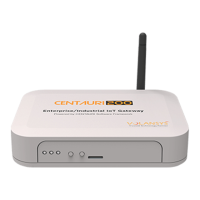

 To Next Page
 General